
FooGallery PRO Expert includes a Media Category (or “Folder”) sidebar. This will display whenever you add media to a gallery or page, and allows you to more easily select the images you wish to display.
When you add new images to a gallery or post, you will see the available categories on the left of the page. Clicking on a category / folder will show all of the images that have been assigned to that category. To see all images in the Media Library, click on ‘All’ at the top of the list.
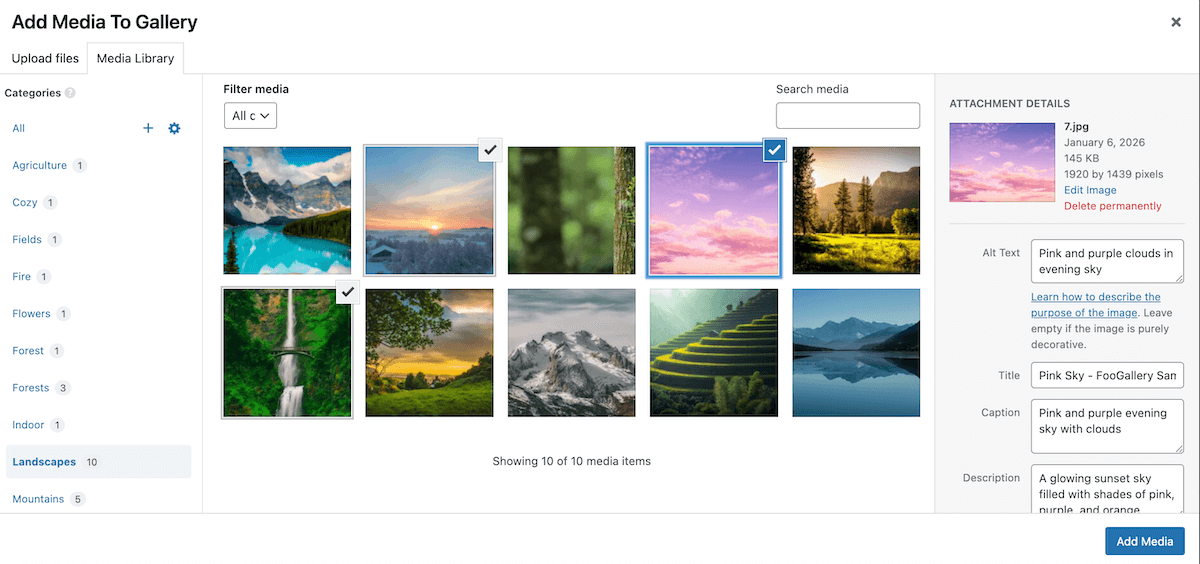
You can select multiple images from that category to add to your gallery. If you want to add images from another category as well, add the media from one category, then select a different category and choose the images you wish to add from there.
Assigning Attachments to Folders
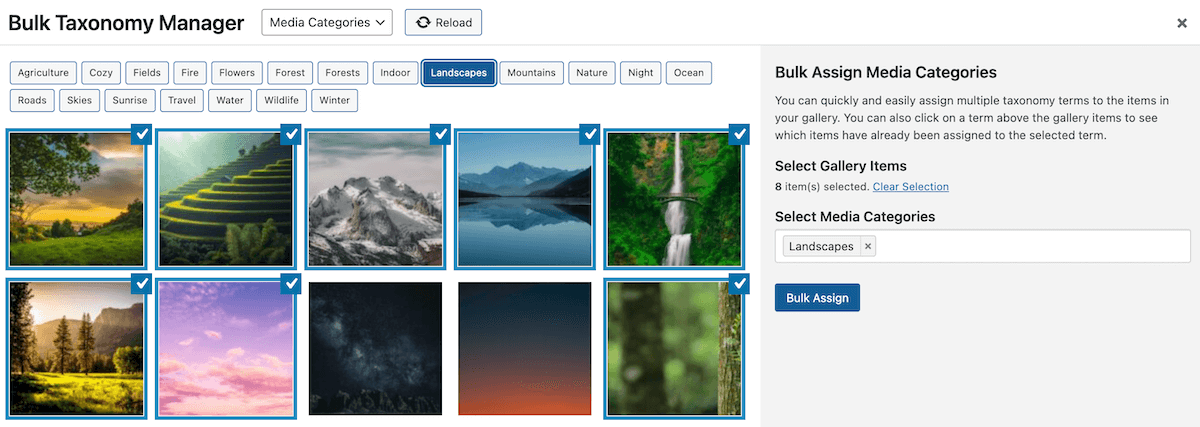
Once you upload images to your Media Library, there a number of ways to add attachments to a category. In FooGallery PRO Expert, you can use the Bulk Taxonomy feature to do this. You can assign multiple categories to an image.
You can also assign a category from the gallery edit page, when you open the attachment modal for an individual attachment.
Smart Folder Management
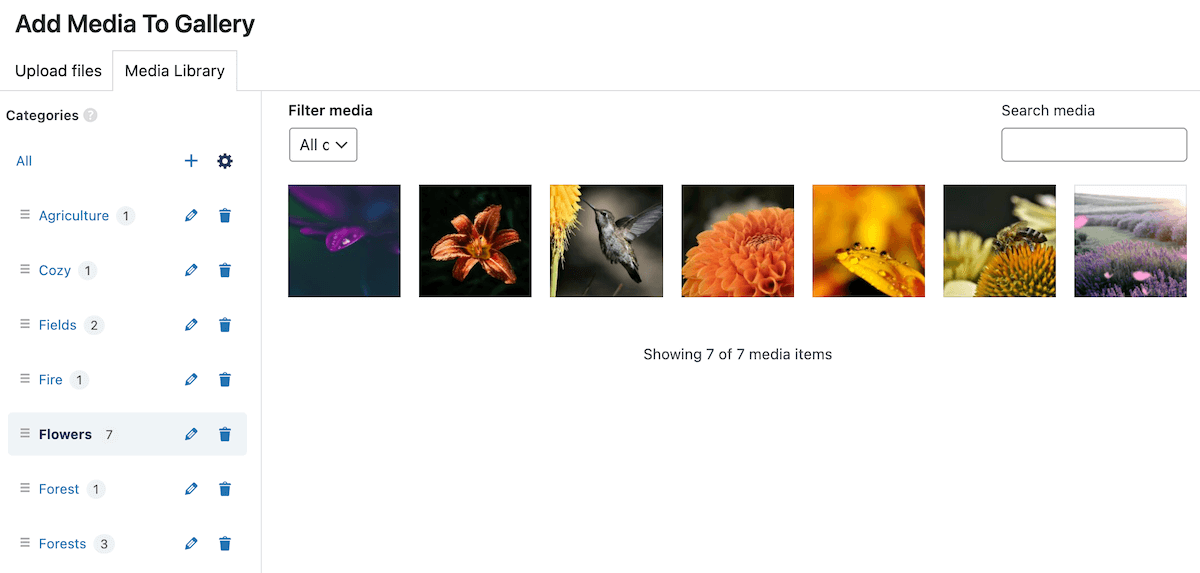
You can also edit the categories from the sidebar. To do this, click on the Settings Icon next to ‘All’. This will open the edit options, allowing you to rename categories, or delete them (deleting categories will not delete the images assigned to them). You can also drag and drop folders to reorder them.
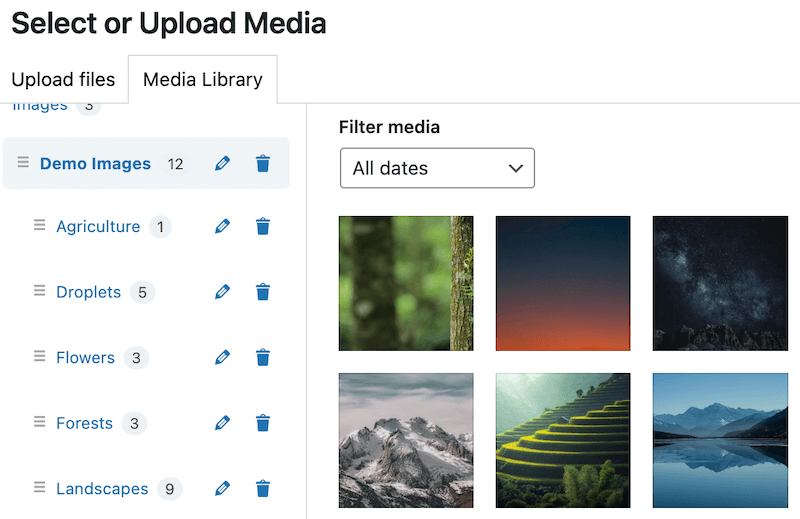
It is also possible to create nested or sub-categories. You can do this by dragging one category into another. The main category will display all of the images in the subcategories, or you can refine your selection by clicking on the individual sub-categories.
How To Disable
If you already have a plugin that adds folders to your media library, or you do not need this functionality, then you can disable this feature by going to FooGallery -> Settings -> Advanced, and making sure “Disable Media Category Modal Sidebar” is checked and save settings.


