
If you have a gallery or album on your site that you do not want to be viewed by the general public, FooGallery does come with a password protection feature that’ll handle this. This feature allows you to protect your galleries and albums from being viewed by unauthorized visitors. You can apply this feature to your individual galleries and albums.
It is very simple to enable. Here’s a step-by-step guide on what you need to do once you are on the Edit section of either the gallery or album you want to enable this feature on:
- Locate the “Publish” section, which is on the upper right. You’ll then see the “Visibility” option.
- Click on the “Edit” link just next to it and then select “Password Protected”
- Enter your preferred password and then click on the “OK” button
- Finally, click on the Update/Publish button to save your changes.
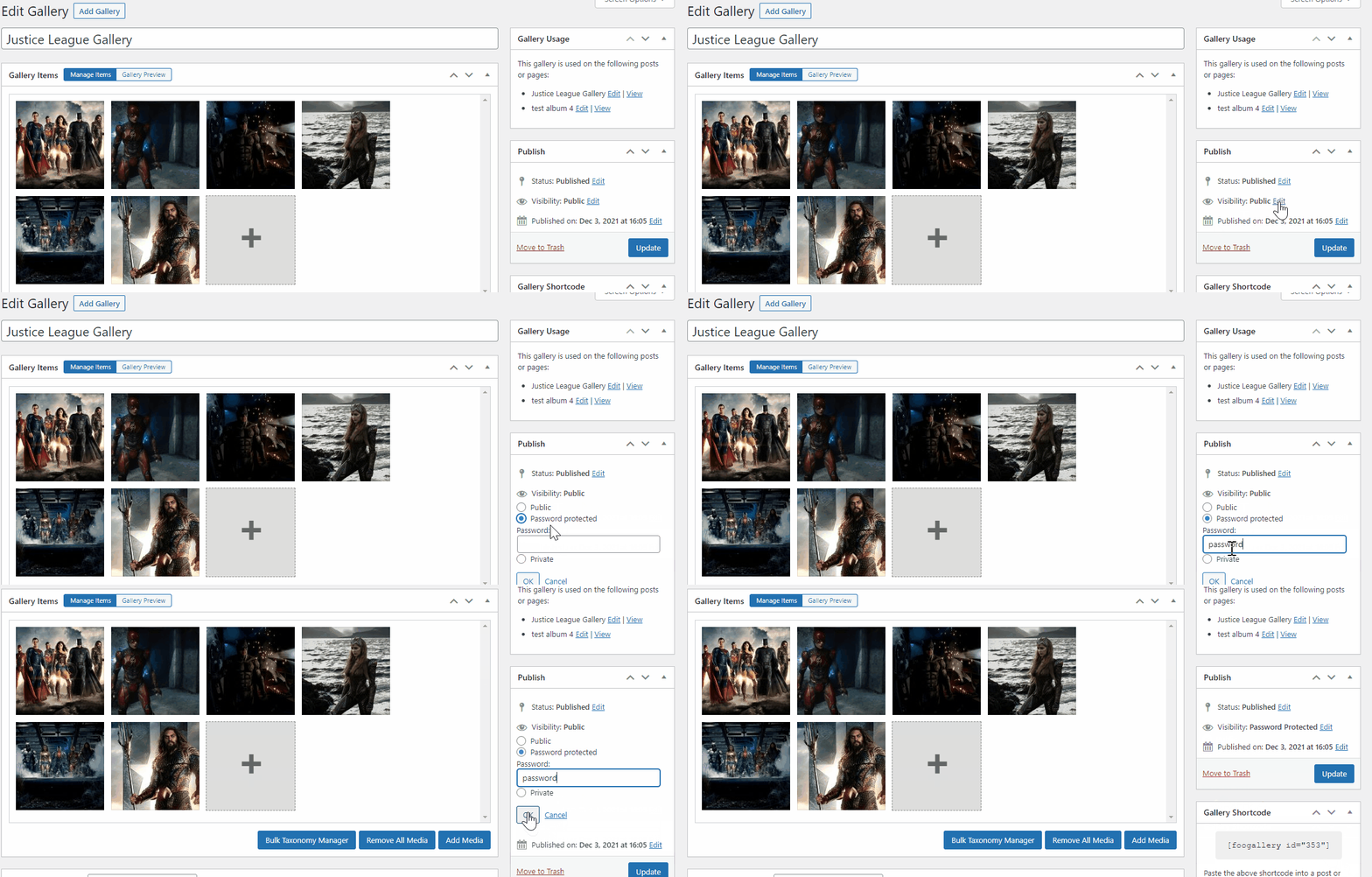
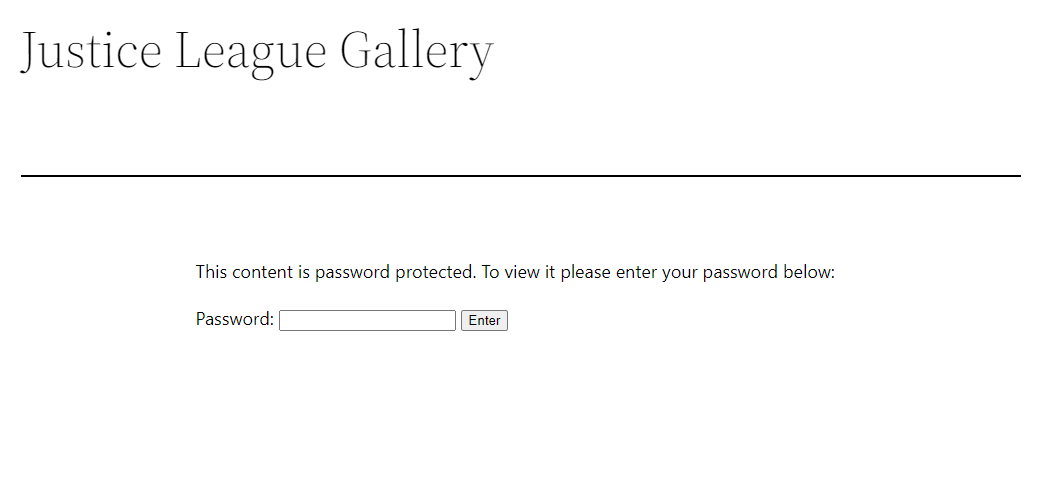
That’s it! Once that’s done, visitors will need to enter the password to view the gallery
Lastly, FooGallery also does come with image protection features that you can consider using instead of this. These features are the watermarking feature and the right-click image protection feature.


