

What is FooGallery?
FooGallery is a WordPress gallery plugin for creating and managing photo galleries from your dashboard. This guide walks you through adding images, choosing a layout, setting up a lightbox and publishing your first gallery.
You can follow the basic image-gallery workflow with FooGallery Free. Free and every FooGallery PRO plan include a built-in lightbox for FooGallery galleries. Video import, video galleries, filtering and advanced pagination require PRO Expert or PRO Commerce.
Key
Key takeaway
Choose the plan for the features you need
Start with Free for image galleries, the built-in lightbox and Dots pagination. PRO Starter adds presentation options. Choose PRO Expert or PRO Commerce for video import, video galleries, filtering and advanced pagination. Compare FooGallery plans before upgrading.
Getting Started
Start by installing and activating FooGallery. If you haven’t already done so, find out how to install it.
Once installed, it’s time to create a new FooGallery. To start, navigate to FooGallery–>Add Gallery from your dashboard. Start by giving your gallery a title.

Adding Gallery Items
Click Add Media to open the media selector. Choose existing images from the Media Library or upload new files. The Import Videos option shown in the screenshot requires FooGallery PRO Expert or PRO Commerce; it is not included in Free or PRO Starter.

To Upload Files, click on the far left tab and then select your files. Once you’ve uploaded your files, choose the images you would like to include from your Media Library and click the Add Media button on the lower right. This will insert your selected images into your new FooGallery.

FooGallery Settings
Below the Gallery edit screen, you’ll see the Gallery Settings area.
As you adjust your settings, you can see how the gallery will appear on the frontend by clicking on Gallery Preview in the Gallery Items area.

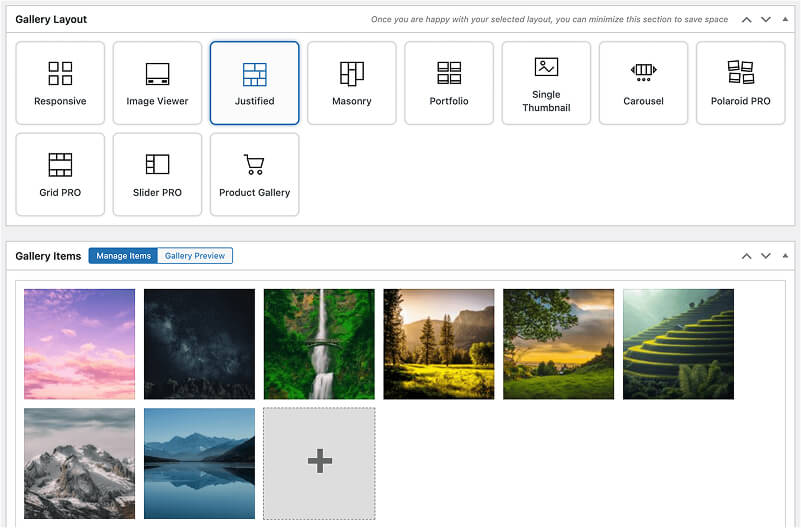
The settings will vary depending on the Gallery Template you select, but below we’ve covered the basic settings for the Responsive Image Gallery. For more info on our other gallery templates and settings, check out our documentation.
Gallery Template
Choose the gallery template that will control how your images appear on your site. Preview the layout before adjusting its settings.
There are several built-in templates available with FooGallery Free. PRO templates, however, are only available for FooGallery PRO users.

General Settings
The default settings will be applied, or you can adjust each of the settings for your gallery.
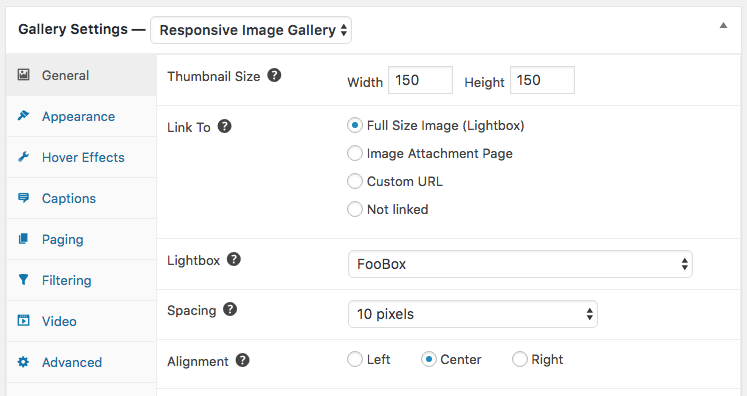
To begin with, you can change the size of the thumbnails in your gallery. The default size is set to the built-in WordPress image sizes as you have them in Dashboard–>Settings–>Media and/or any custom sizes defined by your theme or other plugins.
In the Link To section, choose whether thumbnails link to the full-size image, an Image Attachment Page or a Custom URL. To open a larger image in a lightbox, select the full-size image option, then choose your lightbox in the Lightbox field.
FooGallery Free and all FooGallery PRO plans include the built-in FooGallery Lightbox for FooGallery galleries. Select it in the Lightbox field; you do not need to upgrade or install another plugin to use it with your image gallery. If you prefer a supported standalone lightbox such as FooBox, activate that plugin and select it instead.
Thumbnail Spacing allows you to choose the spacing you would like between the thumbnail images in your gallery.
In Alignment, choose how you would like your gallery aligned horizontally within your post or page.
Appearance
You can alter the appearance of your gallery thumbnails in this tab.
You can adjust the border of your thumbnails by changing the Theme, Border Size, Corners, and Drop and Inner Shadows.
The Loading Icon displays while images are loading, and the Loaded Effect controls how thumbnails appear once they have loaded. FooGallery Free and PRO both include ten loaded effects: Fade In, Slide Up, Slide Down, Slide Left, Slide Right, Scale Up, Swing Down, Drop, Fly and Flip.

Hover Effects
In the hover effects you can alter the effects that display when you hover over the thumbnail in the gallery.
The hover effect can include color and scaling effects. You can also change the caption to be visible on hover, or always visible. The transition effect is how the hover effect is displayed and you are able to select the icon that displays. You’re also able to invert the hover effects by selecting Inverted Colors.
FooGallery PRO also comes with a selection of presets, along with the other settings.

Captions
The Captions settings adjust which captions display on your thumbnails.
You can leave it set to default or choose to include the title, caption, alt tag or description as the title or description for the image. These pull from the media file, and can be adjusted by editing the individual image or file.

Paging
To split a gallery into pages, open the Paging tab and choose a paging type instead of None. FooGallery Free and all PRO plans include simple Dots pagination on supported layouts. Select Dots, then set your Page Size and choose where the dots appear and which theme they use. See the paging settings guide for layout-specific details.
Advanced pagination requires FooGallery PRO Expert or PRO Commerce. These plans add numbered Pagination, Infinite Scroll and a Load More button. PRO Starter does not include these advanced paging types.

FooGallery PRO Expert and PRO Commerce Features
Filtering
FooGallery PRO Expert and PRO Commerce include gallery filtering using media tags and categories. Filtering is not included in Free or PRO Starter. Use it when visitors need to narrow a gallery to a subject, collection or category.
In PRO Expert or PRO Commerce, choose Simple Filtering for basic options such as Theme, Source and Position. Advanced Filtering adds controls such as filter-button size and opacity. Both filtering modes require one of these two plans; Simple Filtering is not a Free or PRO Starter feature.
Video
FooGallery PRO Expert and PRO Commerce include video import and WordPress video galleries. With either plan, you can build a video-only gallery or combine supported videos and images in one gallery. Video galleries are not included in Free or PRO Starter.
With PRO Expert or PRO Commerce, use the Video tab to choose a thumbnail icon and make it Sticky if you want it visible before hover. You can also adjust supported video lightbox and playback settings. Autoplay can depend on the video provider and the visitor’s browser, so test playback on your published page.
Gallery Featured Image
You can set a Featured Image per gallery. This image will show in your gallery listings and can also be used in your own custom gallery templates.
The image you use as your Featured Image does not have to exist in the gallery itself (but it could).

Gallery Usage
This box will show you a list of pages or posts where the current gallery is being used. It’s a great time saver when you’re managing your previously created galleries.
If your gallery has not yet been inserted into a page, you can quickly create a new gallery page to use for your gallery.

Adding FooGallery to Posts and Pages
If you’re using the Gutenberg editor, it is simple to add a gallery to your posts or pages. Here’s a quick look at how to do this:
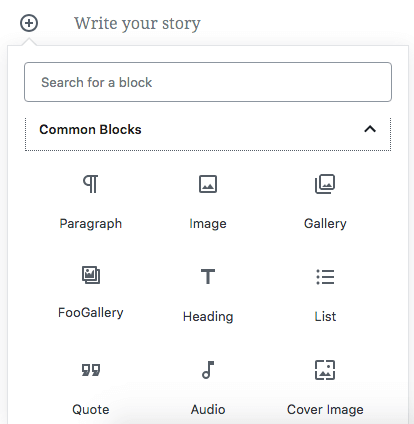
Step 1: Click the + button in the WordPress block editor, search for FooGallery and insert the FooGallery block.
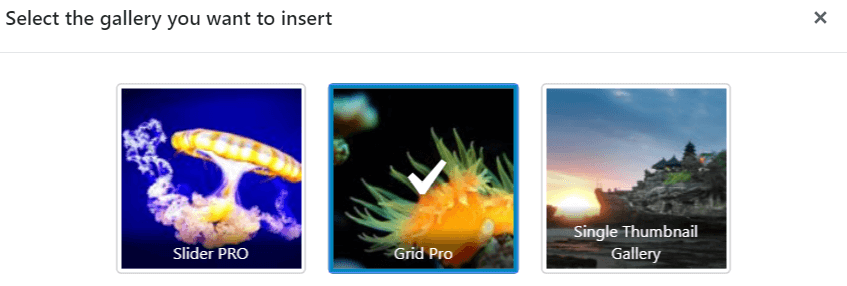
Step 2: You’ll now see a FooGallery block with a button allowing you to Select Gallery. Click on this and a panel will open, showing you all of your current galleries. Click on the gallery you want to use.
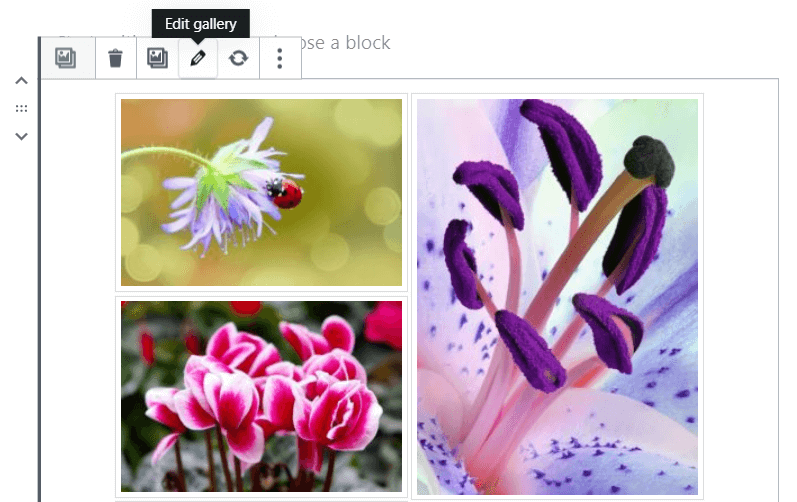
Step 3: You’ll be given a preview of your gallery, in your page or post. From here you can click on the edit button, which will open your gallery in a new tab, allowing you to make the necessary changes. Once you’re done, simply update the gallery and refresh the FooGallery block.
Gallery Shortcode
A shortcode is automatically generated for each gallery. This can be pasted into any page or post to display your gallery, which is useful if you’re using the classic WordPress editor.
Click the shortcode in this box to automatically copy it to your clipboard for easy pasting elsewhere.

Viewing and Editing FooGallery
You can view and edit any of the FooGalleries you’ve created. Navigate to FooGallery–>Galleries from your dashboard and you will see all the galleries you’ve previously created.
Just like Pages and Posts, you can edit any FooGallery by clicking the edit button (which appears on hover) under the gallery name.

You can also go into Edit mode on any gallery from within a Page or Post by clicking the Edit icon for the gallery.
FooGallery Support
Support for FooGallery is provided via the WordPress.org forums or the FooPlugins Support page.
If you experience bugs or have specific feature requests, please open a ticket with Support.
FooGallery WordPress gallery plugin
The Best WordPress Gallery Plugin
FooGallery is an easy-to-use WordPress gallery plugin with stunning gallery layouts and a focus on speed and SEO.