
An image grid is a layout that displays images in rows and columns, allowing WordPress users to organize and showcase visual content in a clean, structured format.
An image grid is a popular layout used to display images in rows and columns, making it easy for visitors to browse photos, portfolios, and visual content on a WordPress website. Image grids are commonly used for photography sites, product galleries, blogs, and portfolios because they keep content organized and visually engaging.
While WordPress includes basic gallery options, they offer limited control over layout, styling, and performance. Using a dedicated image grid plugin for WordPress gives you more flexibility — including responsive layouts, customizable spacing, lightboxes, and faster loading images.
Image grids can work for a variety of online businesses and websites, including photographers, ecommerce store owners, artists, bloggers, and more. Adobe found that 59% of global consumers crave beautiful design when viewing content online, and image grids can significantly enhance a website’s aesthetic and visual appeal, making it more engaging.
In this guide, you’ll learn what image grids are, why they work so well, and how to create one in WordPress using the right tools.
How to Create Image Grids in WordPress
There are two ways to create image grids in WordPress; either with the native WordPress functionality or with advanced customizable grids with plugins. The native gallery block is a suitable free option for small websites or blogs requiring very basic image grids without advanced features. But, to create a more professional-looking gallery in WordPress, you will require a plugin.
Native Gallery Block for Simple Grids
The native gallery block in WordPress as an easy-to-use, built-in feature for creating simple image grids. This will give you a basic image gallery, with uniform image sizes.
Step-by-step guide: Below we’ve given you a quick tutorial on how to create an image grid using the native gallery block:
- Navigate to the WordPress editor and create a new post or page, or choose an existing page to edit.
- Select where on the page you want your gallery to feature, click on the Add Block button, and select the Gallery block.
- Upload images directly or select from the media library.
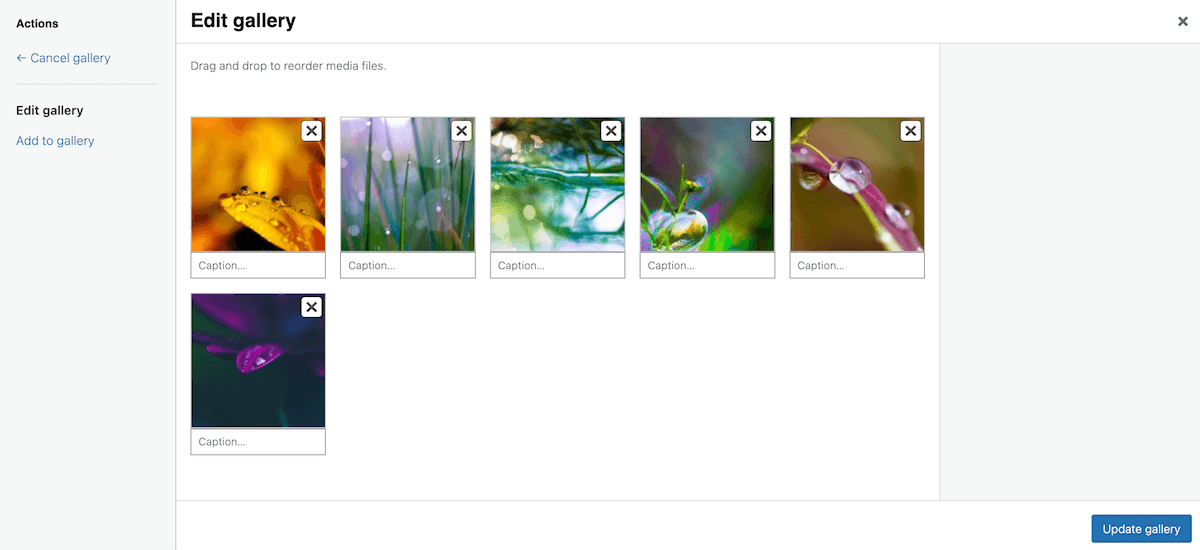
- Arrange the images in the desired order by dragging and dropping.
- Customize the gallery settings, such as number of columns, image size, and link settings.
- Preview and publish the post or page. Here’s an example of how that might look:

While this could be a simple, quick solution to adding a gallery block to your page, it does present several problems.
The native gallery block’s lack of customization options can frustrate WordPress users. It lacks advanced features which force compromises in layout and design or require time-consuming workarounds, potentially impacting user engagement and website effectiveness.
Steve Usher, FooPlugins developer
Essentially, while WordPress includes basic gallery layouts, they’re often limited in flexibility and customization. Using a dedicated image grid plugin allows you to control layouts, spacing, lightboxes, and performance without custom code.
Creating Advanced Galleries With FooGallery
If you are looking for an answer to the question, ‘What is the best plugin for an image grid?’, then FooGallery is the ideal solution.
FooGallery lets you create image grids easily. It is an advanced WordPress gallery plugin that comes packed with features, functionality and customizations. It gives you many more options for styling your image grid, especially when compared to the native gallery block.
I tried 3 other gallery creators before finding FooGallery. It generates the best looking galleries with lots of customizable features compared to the others.
Behyar
Some of FooGallery’s top features include the following:
- There are multiple pre-built templates, including Grid PRO, which is one of three exclusive templates to FooGallery PRO (starting with the Starter PRO plan, though you’ll also get them on the more advanced plans).
- The lightbox can be customized to suit your theme or your gallery and includes custom colors and support for mixed media, including images and videos.

- FooGallery is fully responsive. It adjusts automatically to fit the device, whether a computer, mobile phone, or tablet.
- FooGallery is built to ensure optimal performance, and includes lazy loading so images only load when scrolled to.
FooGallery makes it easy to create responsive image grids with customizable layouts, lightboxes, and optimized image loading — ideal for portfolios and galleries.
The Best WordPress Gallery Plugin
FooGallery is an easy-to-use WordPress gallery plugin, with stunning gallery layouts and a focus on speed and SEO.
Step-by-Step Guide to Creating Image Grids with FooGallery
As we’ve seen, using a plugin is the preferred method for adding images grids in WordPress. Below, you’ll find a step-by-step guide to creating and customizing image grids with FooGallery:
- To create a new gallery in FooGallery, click on Add Gallery. You’ll then be prompted to add your media, which you can do by uploading new images or using those already in the WordPress media library. With FooGallery PRO Expert and up, you’ll also be able to embed videos in galleries, or use a data source such as server folders or media tags to create a gallery.
- To select the best image grid layout, click on the Gallery Settings drop down and select Grid PRO. (As mentioned, you will need at least the FooGallery PRO Starter plan to use this layout.)
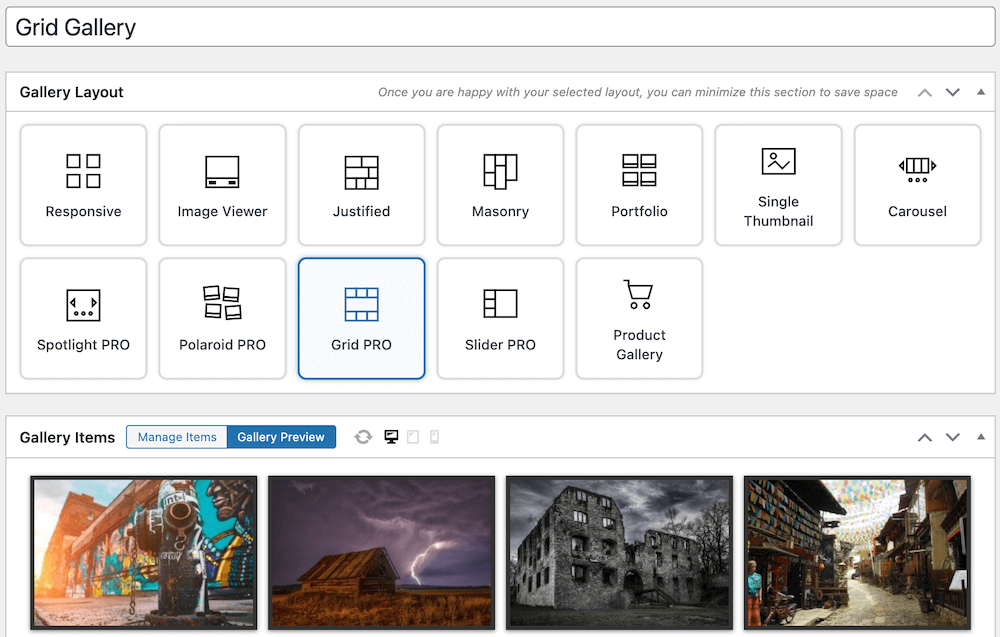
- You can then customize image gallery settings, such as thumbnail size, number of columns, layout, transition settings, and hover effects. Note that with the Grid PRO template, you don’t use a lightbox as images open in a panel. However, you can adjust the settings for this panel by clicking on the Panel tab.

- For more extended galleries, you can add Pagination or use Filtering to help your users find the images they’re looking for. This can also help with performance, page speed and image gallery SEO, especially when building larger galleries.
- Depending on the FooGallery plan you’re using, you will also have access to more advanced customization options such as custom CSS, custom captions, bulk tagging, and so on. You can also add EXIF data to display in your gallery.
- Insert the gallery into a post or page using the provided shortcode or the FooGallery block.
Below is an example of a customized gallery using FooGallery’s Grid PRO layout:








Further customization and support: If you are looking for more ideas or options for your galleries, take a look at our comprehensive documentation and tutorials to get started, or reach out to our customer support team.
The Best WordPress Gallery Plugin
FooGallery is an easy-to-use WordPress gallery plugin, with stunning gallery layouts and a focus on speed and SEO.
WooCommerce Integration
For products, “the grid structure ensures consistency in the placement of product images, titles, and prices, making it easy for users to browse and compare items”. This makes an image grid gallery a good fit for any ecommerce-related site.
With FooGallery PRO Commerce, you have the ability to integrate your gallery with WooCommerce to create dynamic product galleries using an image grid layout. The benefits of doing this for ecommerce sites include:
- Enhanced product presentation with customizable image grids.
- Seamless integration with WooCommerce for easy management of product galleries.
- A Master Product feature, geared towards selling digital prints, that allows you to set up a single product from which all other items can inherit settings.
- Extra features like ribbons and buttons to highlight promotions and streamline management.
- Gallery image protection with watermarked full-size images.

As you can see, image grid plugins are ideal for photographers, WooCommerce stores, agencies, and bloggers who want more control over how images are displayed.
Start Enhancing Your WordPress Site With FooGallery Today
An image grid is an effective way to organize and display images on a WordPress site, helping visitors quickly scan and engage with visual content. Whether you’re building a photography portfolio, showcasing products, or enhancing blog posts, image grids improve both layout and usability.
Although WordPress offers basic gallery functionality, a dedicated image grid plugin provides greater control over design, responsiveness, and performance. Advanced features like flexible grid layouts, lightboxes, and optimized image loading can significantly improve how your images look and perform across devices.
Using FooGallery is an obvious choice, given its ease of use, stunning gallery layouts, advanced customization options, and performance enhancements like lazy loading. To use the Grid PRO layout, you would need at least the PRO Starter plan, but the cost is worth the level of control and customization you receive.
If you want a more professional and customizable image grid, choosing the right WordPress plugin is the simplest way to get started.
WordPress Image Grids FAQs
What is an image grid in WordPress?
Do I need a plugin to create an image grid in WordPress?
What should I look for in a WordPress image grid plugin?
Create a flexible image grid in WordPress
Get full control over layouts, spacing, and lightboxes with a purpose-built image grid plugin.
