
You can determine where each of your notification bars appear on your site by using the Visibility settings.
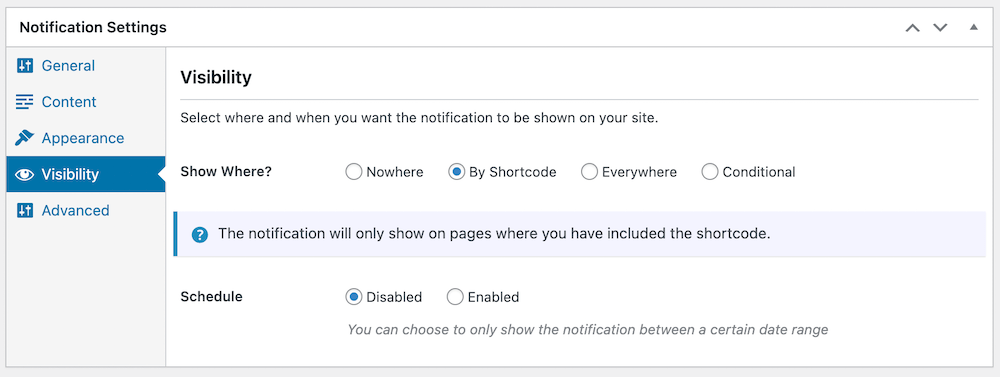
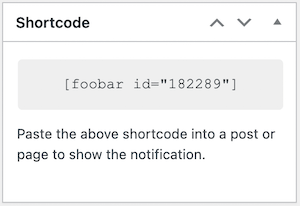
By default, your notification bars are set to Shortcode. This means that they will not appear on the frontend of your site until you have pasted the shortcode onto a page or post on your site. You can find the shortcode for each bar on the right hand of your FooBar settings, under your Publish options. Simply copy this code and use the Shortcode block to insert it onto your page.
Alternatively, you can set the bar to Never show, in which case it will not show anywhere, even if you have pasted the shortcode onto your pages. Or you can set it to Always, which will show the bar on all pages, posts and other post types across your site.
Note that if you have selected to show your bar Inline (see our document on Layout) then you will only see the Shortcode option in your visibility settings.
In the top screenshot, you will also see settings for Conditional visibility and Scheduling. These features are available in FooBar PRO.


