
With the FooGallery Migrate plugin, you can transfer your galleries from several popular gallery plugins to FooGallery. This is a straightforward process, and FooGallery works to keep galleries looking as similar as possible to your original galleries.
FooGallery Migrate is a free plugin, and works with the free version of FooGallery, or any of the 3 Pro plans. FooGallery Migrate works for any galleries created using the following plugins:
- Envira
- NextGen (or Imagely)
- Modula
- Robo Gallery
- 10Web
Below, we go through the steps you’ll need to follow to migrate to FooGallery.
Step 1: Install Plugins
Before you can migrate your galleries, you need to first ensure that you have FooGallery installed. You will also need to install and activate FooGallery Migrate.
Alternatively, once FooGallery is activated on your site, navigate to the Features tab in the menu. Scroll down to FooGallery Migrate and click on Download. This will automatically download and activate the plugin.
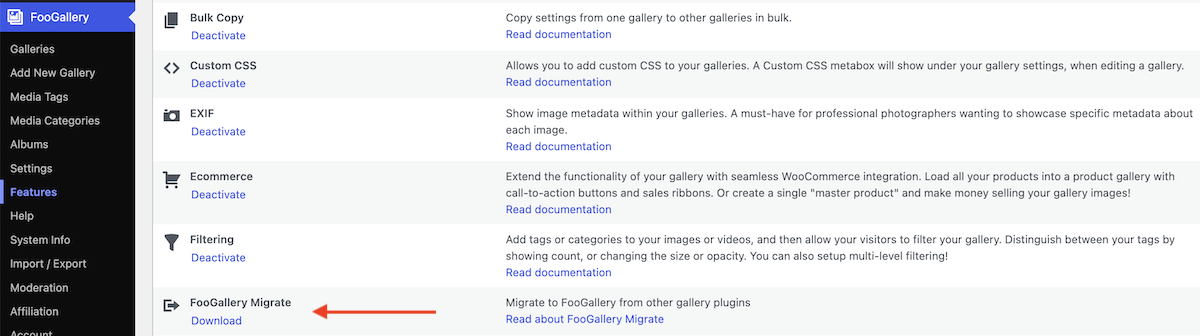
You should now see a Migrate tab in your FooGallery menu. Click on this.
Step 2: Identify Galleries to Migrate
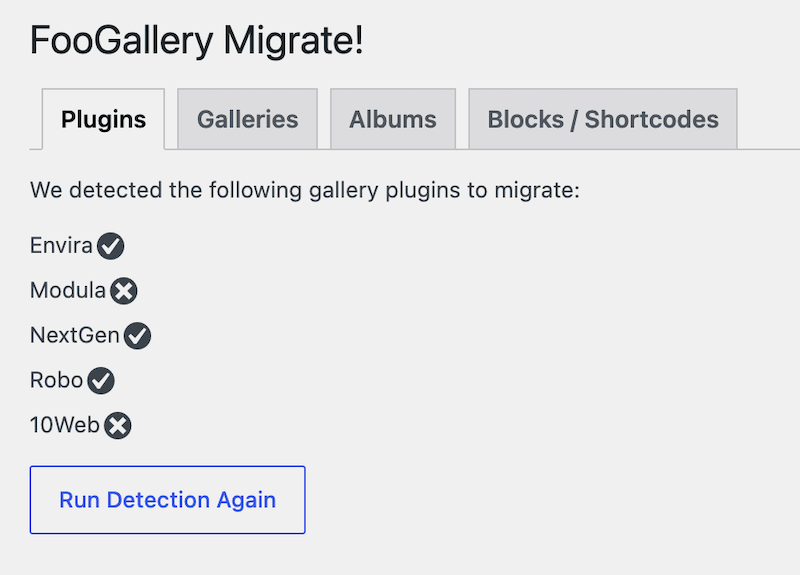
The next step is to identify the plugins from which you can migrate galleries. The plugin will run a detection for this and indicate which plugins are in use.
If you now navigate to the Galleries tab, you will see which other galleries have been created using these plugins. This will give you information such as the plugin used, the gallery name and migration info, including the number of images in each gallery. Here you can also rename the galleries, so that once they appear in FooGallery they will use the new name.
Select the galleries you wish to migrate and click on Start Gallery Migration.
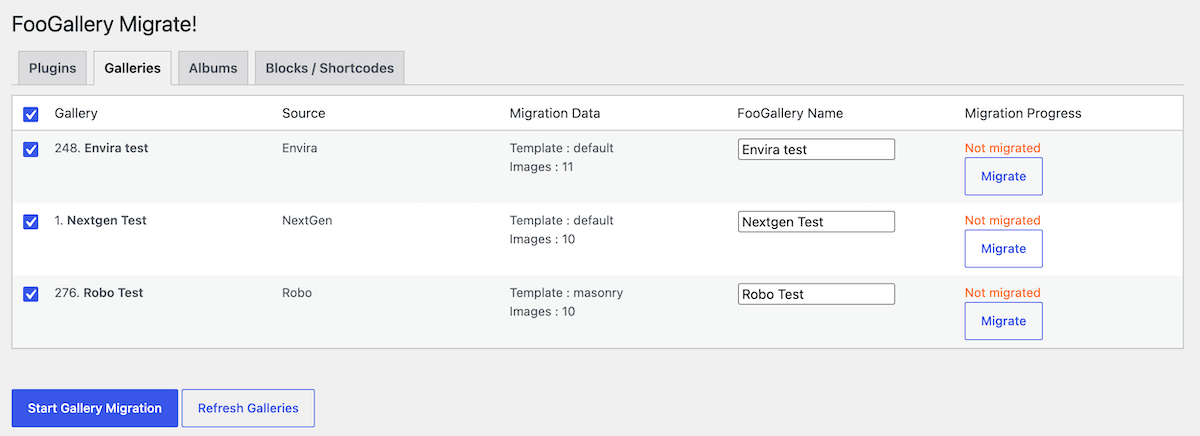
Your galleries will now be recreated in FooGallery.
You can repeat this process for any albums created with other gallery plugins.
Step 3: Migrate Blocks / Shortcodes
With FooGallery Migrate you can also move shortcodes and gallery blocks over to FooGallery. This essentially replaces the existing gallery block or shortcode with the FooGallery equivalent.
For this, go to the Blocks / Shortcodes tab under FooGallery Migrate. The Status will show as ‘Migrated’, which lets you know that the gallery has been migrated. However, this does not mean that the block / shortcode has migrated yet.
Select the items that you wish to replace. You can do one at a time, or select as many as you would like. Click on Replace Selected on the bottom right.
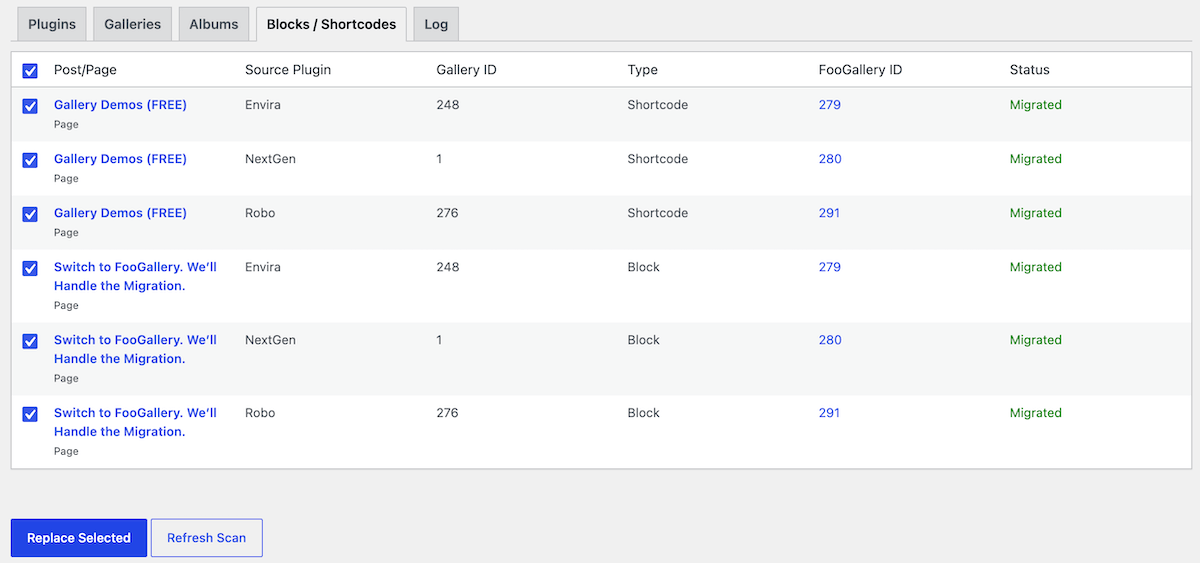
This will now update the gallery blocks and shortcodes you have selected, replacing them with the FooGallery version. Once completed, you will see a Success message. Any remaining shortcodes or gallery blocks will also be shown.
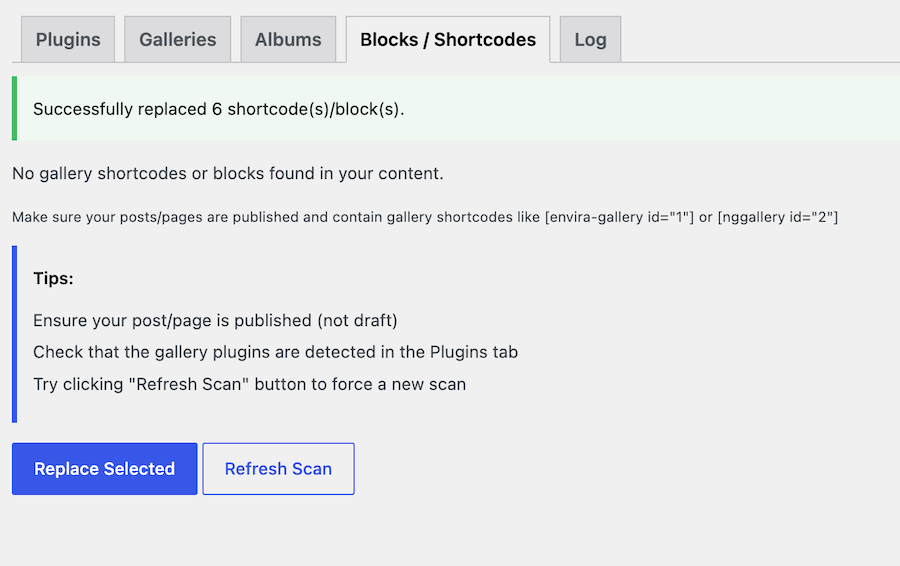
You can now check that the galleries have been replaced correctly.
Migration Log & Notices
There are several checks in place to ensure your migration goes smoothly. These include:
- A Log tab that displays information about migrated galleries.
- A debug with migrated info (only shown when FooGallery Debug mode is on).
- A “Check for migration errors” button which checks all attachments after a migration.
- A “Check” button for each migrated gallery to check for errors.
- Additional error info for attachments on the gallery tab under the migration progress.