
FooConvert includes a Flyout Popup. With this, you will either be able to use one of the predesigned flyout templates, or create your own from scratch.
To begin, go to FooConvert in your WordPress dashboard and select Add New Popup. Under the popup type, select Flyout.
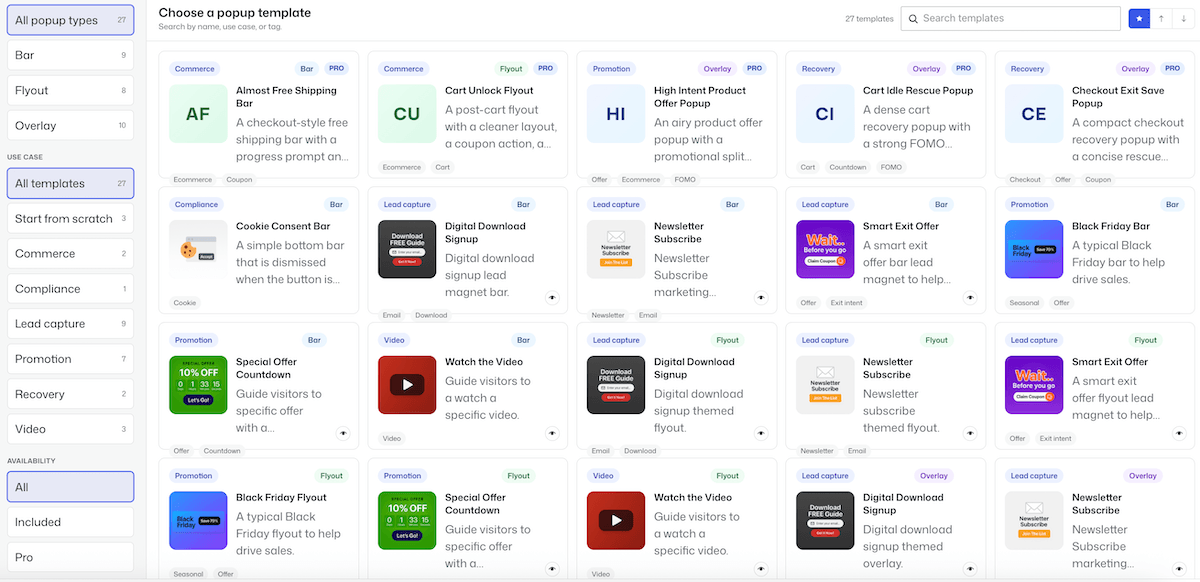
The selector will show you the available flyout templates, which you can narrow down by choosing the type of flyout you want to create. If you select any of the predesigned options, the popup editor will open with the flyout displayed, to which you can make any changes.
Adding a New Flyout
Alternatively, you can choose to design a flyout from scratch, which will open the editor with a blank flyout popup.
Here you can add content and style your flyout popup. To add content, you can click on the ‘+’ icon and select the type of content you wish to use – this could be text, and image, or a button, for example. You can also change the background color, add a border and change the radius of the corners. Plus you can select the icon for the Close button.
Here’s a screenshot of a flyout we created:
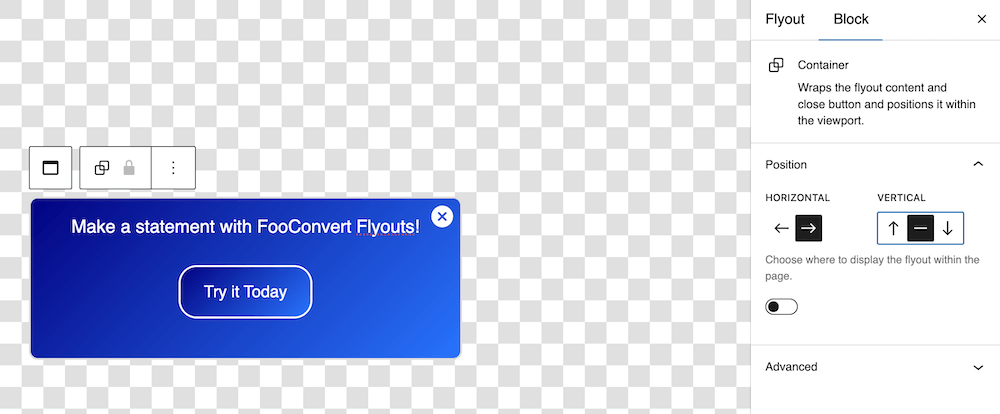
The next step is to set up the visibility of your bar. By clicking on Bar on the right of the page, click on Display Rules, where you will be able to set where the flyout is displayed and who is able to see it. In the Block settings for the flyout, you will also see a number of Trigger options – use these to set when the bar is displayed to users.
Once you have set your rules and triggers, you can publish your flyout.


