
If WordPress shows “Update failed: Download failed. Found” while updating FooGallery PRO, open Plugins → Installed Plugins and check your FooGallery version. In versions 3.3.20 up to 3.3.37, an updater bug was introduced when trying to download the latest ZIP. FooGallery 3.3.38 fixes this. Choose from the options below to update to the latest version.
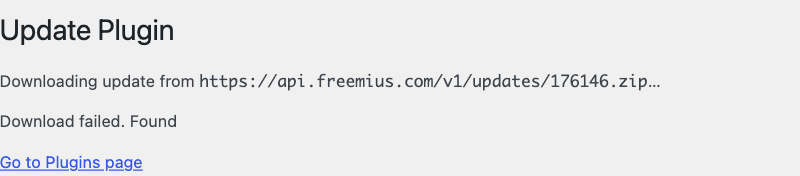
What the download error looks like

Option 1. If “Update now” is visible, deactivate → update → reactivate
Try this first when WordPress already offers the update for FooGallery PRO. Choose a quiet time because galleries may stop displaying while FooGallery is inactive.
- On Plugins → Installed Plugins, confirm the FooGallery PRO row offers 3.3.38 (or a newer fixed release).
- Click Deactivate in the FooGallery PRO row. Keep the plugin installed and the license connected. If you see a feedback popup, choose “Skip & Deactivate”.
- On the same Plugins screen, look at the now-inactive FooGallery PRO row. If Update now is still there, click it immediately and wait for completion. If the link disappears or the update fails, click Activate immediately on the installed copy to restore your galleries. Follow the fallback below.
- Confirm that the installed version is 3.3.38 or newer, then click Activate. Check your license under FooGallery → Account is now showing 3.3.38 or higher.
If the update offer disappears: Once FooGallery is active again, open Dashboard → Updates → Check again. If the update offer returns, use the recovery helper (WordPress 6.9+ and PHP 7.2+). If it stays missing, or you use WordPress 6.8, follow the manual PRO ZIP instructions. If your account does not offer the fixed ZIP, contact FooPlugins support and leave FooGallery active.
Option 2. Download the PRO ZIP and replace the installed copy
Choose this route if you prefer to install the update yourself, or if the dashboard retry fails. You will need permission to install plugins and the ZIP for your existing edition.
- Sign in to your FooPlugins account with the email used to purchase FooGallery. Open your FooGallery PRO download and confirm that the available version is 3.3.38 or a newer fixed release. If your account only offers 3.3.37, contact FooPlugins support for access to the correct ZIP.
- With the existing plugin still activated, open Plugins → Add New Plugin → Upload Plugin, choose the ZIP, and click Install Now.
- Check the plugin name, edition and version, then choose Replace current with uploaded.
- Return to Plugins → Installed Plugins and check that FooGallery PRO is active at the new version. If WordPress offers Activate, select it. Open FooGallery → Account to check the license, then view an existing gallery on the front end.
Option 3. Retry the update with FooGallery Update Recovery
Use this option if don’t want to deactivate FooGallery briefly and your site runs WordPress 6.9 or newer and PHP 7.2 or newer.
- Download foogallery-update-recovery.zip from the official FooPlugins GitHub release.
- In Plugins → Add New Plugin → Upload Plugin, choose the recovery ZIP, click Install Now, then Activate Plugin. Leave FooGallery installed and active. The helper needs no settings or license key.
- Open Plugins → Installed Plugins. Under FooGallery (Premium) or FooGallery PRO, select Update now. Wait for WordPress to finish.
- Return to the Plugins screen.
- When FooGallery 3.3.38 or newer is active, deactivate and then delete FooGallery Update Recovery. Leave FooGallery itself active.
Option 4. For hosts and agencies using WP-CLI
If the active, licensed PRO installation already shows the fixed update in WordPress, the site administrator can run the following command from the WordPress installation directory. It skips the old FooGallery code for this one updater process. The plugin stays active for visitors, apart from the normal WordPress update maintenance window.
wp plugin update foogallery-premium --skip-plugins=foogallery-premiumThen run:
wp plugin get foogallery-premium --fields=name,status,versionCode language: JavaScript (javascript)Confirm active and 3.3.38 or newer. We verified this on an isolated installation. If the command says there is no update or leaves 3.3.37 installed, then return to the manual ZIP or recovery helper steps above.
If you cannot upload plugins in WordPress
On multisite, ask the network administrator to perform the update in Network Admin → Plugins. On a managed site, give your host or site administrator the authorized ZIP and ask them to replace the existing plugin files in place.
An administrator with WP-CLI can install a local ZIP with wp plugin install /secure/path/foogallery-premium.3.3.38.zip --force from the correct WordPress installation and check the active version with wp plugin get foogallery-premium --fields=name,status,version. Keep your database, gallery uploads and plugin settings in place.
If your host manages plugins through SFTP or a file manager, have them extract the authorized ZIP outside the public plugin directory, back up the existing plugin folder, and replace that folder with the complete new copy under the same name. For PRO the usual folder is wp-content/plugins/foogallery-premium/. The file foogallery.php should sit directly inside it. Check the installed version and a gallery before removing the backup.
If FooBox PRO also has update problems
An affected FooGallery can block the shared download service used by FooBox, even when FooGallery Free is installed. Update FooGallery to 3.3.38 or newer first, then retry FooBox under Plugins → Installed Plugins. If the fixed FooGallery release is not yet available to your site, you can retry the FooBox update with the compatible helper active, or manually upload your authorized FooBox PRO ZIP. Remove the helper once the fixed FooGallery is active.
For a FooBox-only update, a site administrator can also briefly deactivate the affected FooGallery, update FooBox while its own license is active, and reactivate FooGallery immediately. Schedule a maintenance window because galleries may stop displaying while FooGallery is inactive. This workaround leaves FooGallery at its original version.
If the update still fails
Note the exact error and whether it appeared while downloading, uploading or replacing files. For “Found,” confirm the helper is active or try the manual ZIP route. For a missing update, check your license, beta eligibility and the version available in your account. A message about upload size, certificate verification or file permissions is a different problem. Your host can check that specific error.
Then contact FooPlugins support and include all the details, and what you have already tried.


