
FooGallery’s Advanced Gallery Loading and Compatibility settings provide targeted fallbacks for themes, page builders, and optimization tools that change when gallery scripts or thumbnails appear.
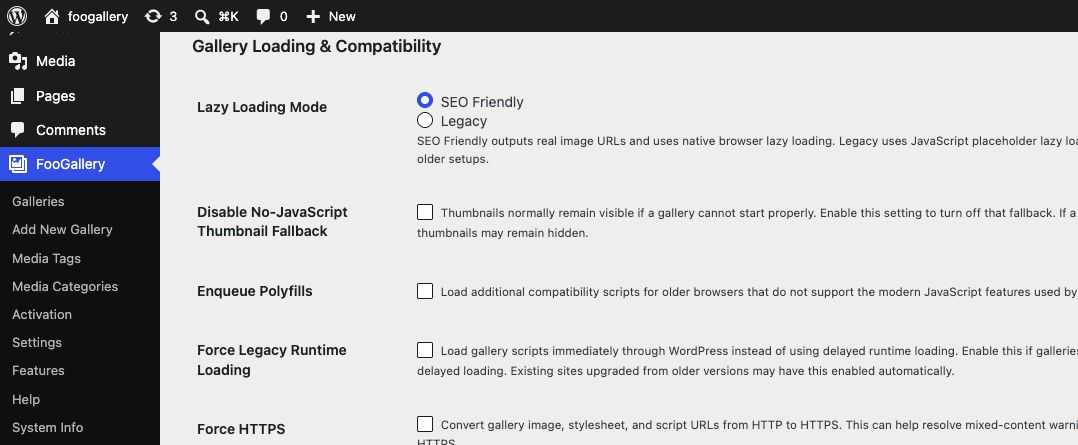
When to use these settings
Use this guide when a gallery is blank, appears only after scrolling or clicking, shows hidden thumbnails, or looks different in a page-builder preview and on the public page.
Check caching and optimization first
- Save the gallery and the page where it is embedded.
- Clear the page cache, CDN cache, page-builder cache, and CSS or JavaScript minification cache.
- Temporarily exclude FooGallery scripts from delay, defer, combine, or minify rules.
- Test the public page in a private browser window.
- Re-enable optimization settings one at a time after the gallery is working.
Change one FooGallery compatibility option at a time. This makes it much easier to identify the setting that resolves the conflict.
Force Legacy Runtime Loading
Enable Force Legacy Runtime Loading only when a theme, builder, or optimization tool prevents the standard FooGallery runtime from initializing. It is a compatibility fallback, not a performance setting, so leave it disabled when the standard runtime works correctly.
Disable No-JavaScript Thumbnail Fallback
FooGallery normally keeps thumbnails visible while JavaScript is unavailable or late. This fallback gives visitors something to see if gallery scripts fail to initialize.
Disable No-JavaScript Thumbnail Fallback can help with a narrow theme or optimization conflict, but it also means visitors may see no thumbnails if JavaScript fails. Test the public page carefully before leaving this option enabled.
Delayed, deferred, or minified scripts
If the gallery appears only after interaction, remains blank, or differs inside a builder preview, first exclude FooGallery assets from the optimization rule. Once the gallery is stable, restore the other optimizations one at a time and retest.
How to verify the fix
- Reload the public page without using a logged-in browser cache.
- Check the gallery before scrolling or clicking.
- Open the lightbox and test paging, filtering, or other interactive controls.
- Check desktop and mobile widths.
- If you use a page builder, compare its preview with the public page.
If the problem continues, work through Gallery Stops Showing and FooGallery Not Working After Update.


