
The Gallery group field can combine separate triggers into one navigable FooBox collection. The triggers do not have to be inside a core Gallery block and may mix Image blocks with image-target Button blocks.
1. Choose a group name
Use a short, descriptive value such as nature-collection. The value is an identifier, not a visible title.
2. Apply it to every trigger
For each Image or Button:
- Select the block.
- Open Block → Content → FooBox.
- Enable FooBox.
- Set Gallery group to exactly the same value.
- Make sure the trigger has a valid media target.
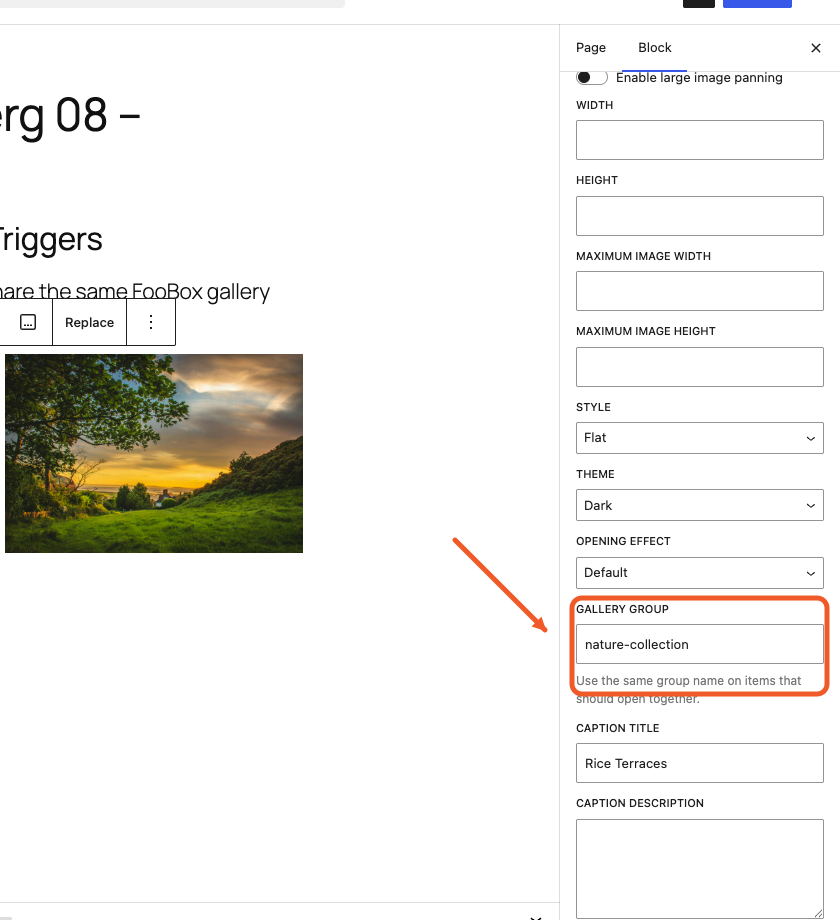
The same rule applies to Gallery blocks. Set the value on the outer Gallery and FooBox mirrors it to the child images.
3. Mix trigger types if needed
This example uses two visible Image blocks and one Button that opens a third image. All three use nature-collection.
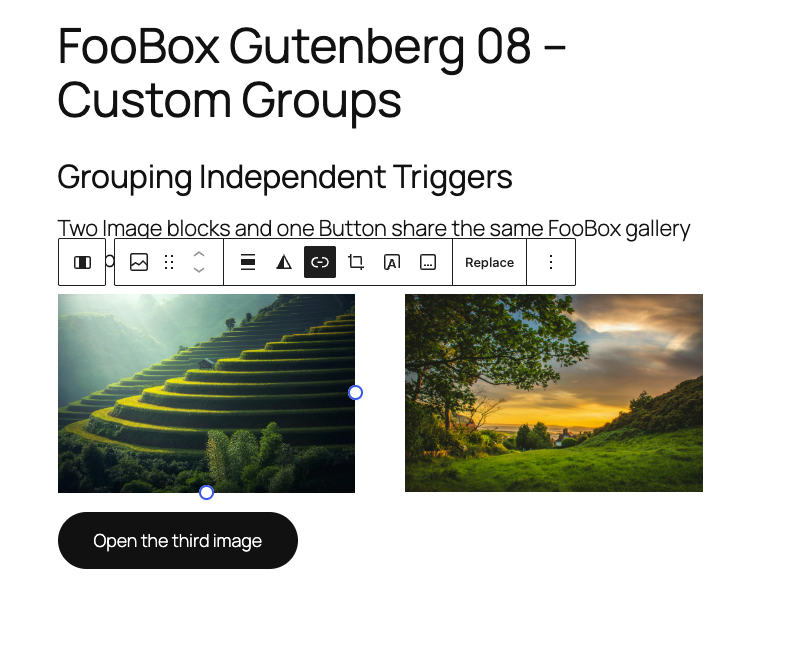
Image Buttons work in FooBox Free. A mixed collection may also include Pro content handlers, but every item must be renderable by the installed edition.
4. Test the navigation
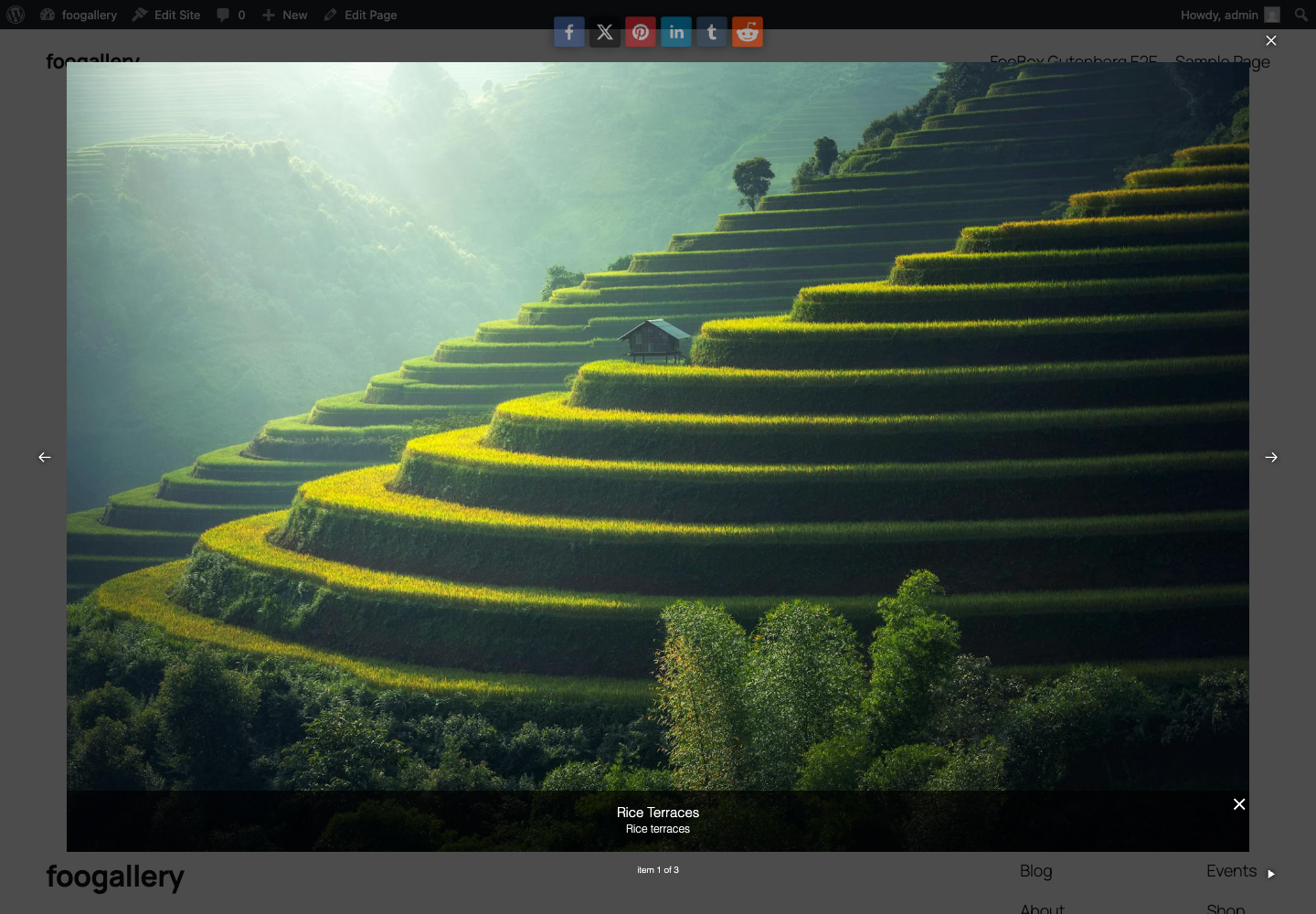
Preview the page and open any item. FooBox should show previous/next controls and a position such as “item 1 of 3.” Navigate through every trigger to confirm that its caption and content are correct.
Grouping behavior
- Modern block-editor grouping is saved as
data-foobox-group. data-foobox-grouptakes precedence over legacyrelgrouping.- Identical, non-empty values join items into one collection.
- A different value creates a separate collection on the same page.
- A blank value leaves an item independent unless Gallery conversion generates a group.
- Group names are scoped to the rendered page; use clear names to avoid accidental collisions.
Troubleshooting
- Only one item appears: compare the Gallery group values for capitalization, spaces, and punctuation.
- Unrelated items are included: give the intended collection a more specific group name.
- A Button leaves the page: enable FooBox and verify that its image target is valid.
- A core Gallery is not grouped: configure the outer Gallery block and save so the value is mirrored to all child images.


