
WordPress Image and Gallery blocks have their own “Expand on click” lightbox option. FooBox can take over that intent so editors can use the core control while visitors see FooBox.
This compatibility feature works in FooBox Free and Pro. It is opt-in and disabled by default.
1. Enable the compatibility setting
Go to FooBox → Settings → General → Compatibility and enable WordPress Lightbox.
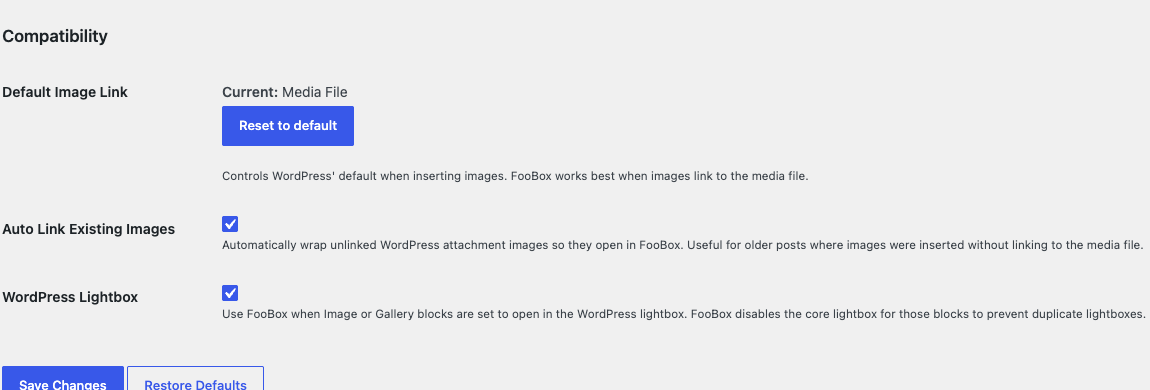
After enabling it, reopen existing posts in the editor so their block attributes can be synchronized, then save the post.
2. Convert a core Image lightbox
Select an Image block and enable the native WordPress Expand on click option.
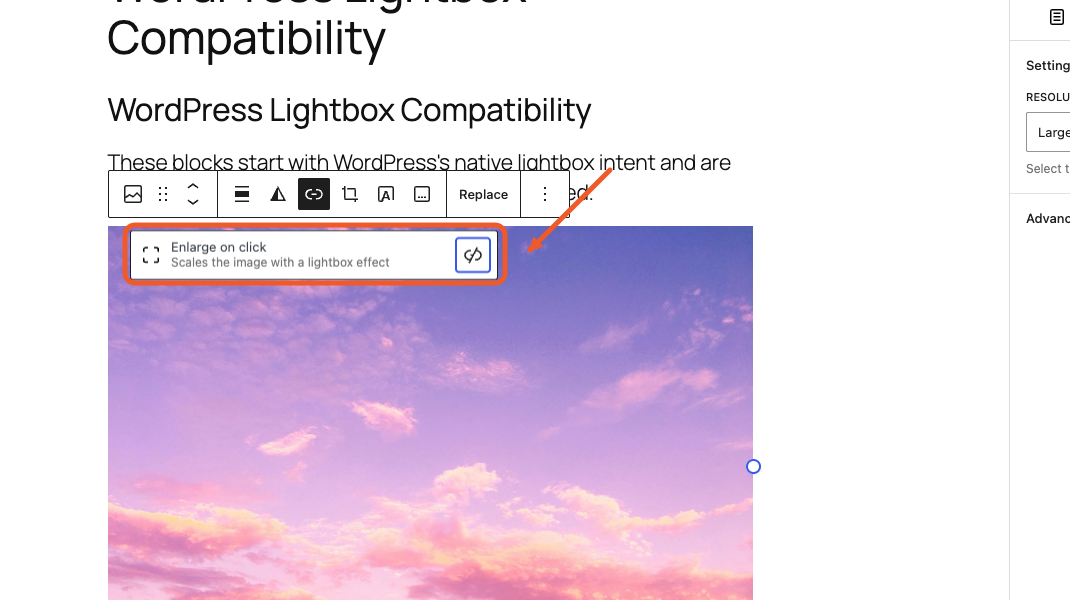
FooBox then:
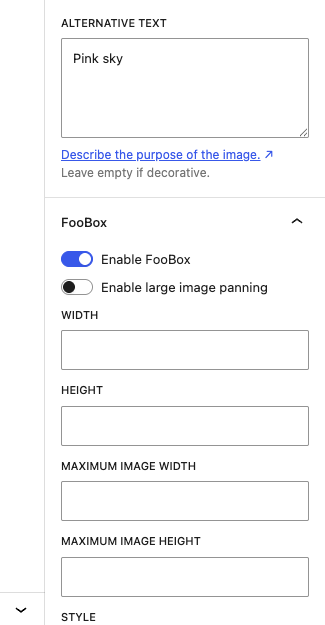
- enables itself on the Image block;
- links the image to its media file;
- disables the core lightbox flag to avoid duplicate overlays;
- exposes the normal FooBox controls for style, theme, group, dimensions, and captions.
3. Convert a core Gallery lightbox
Select the outer Gallery block and choose the native WordPress lightbox link option.
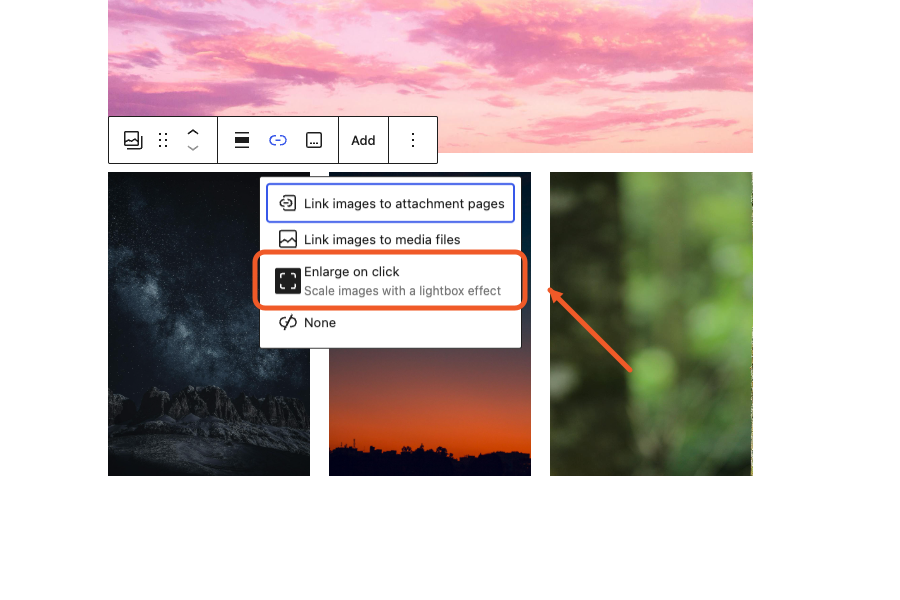
FooBox switches the Gallery to media links, assigns a group, mirrors the FooBox settings to its child images, and disables child core-lightbox flags.
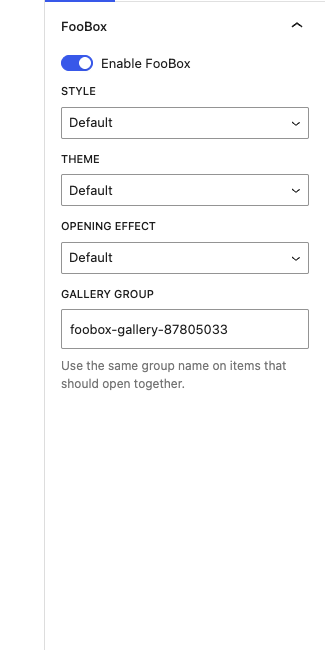
4. Preview the result
The frontend opens one FooBox overlay rather than stacking FooBox and the core WordPress lightbox.
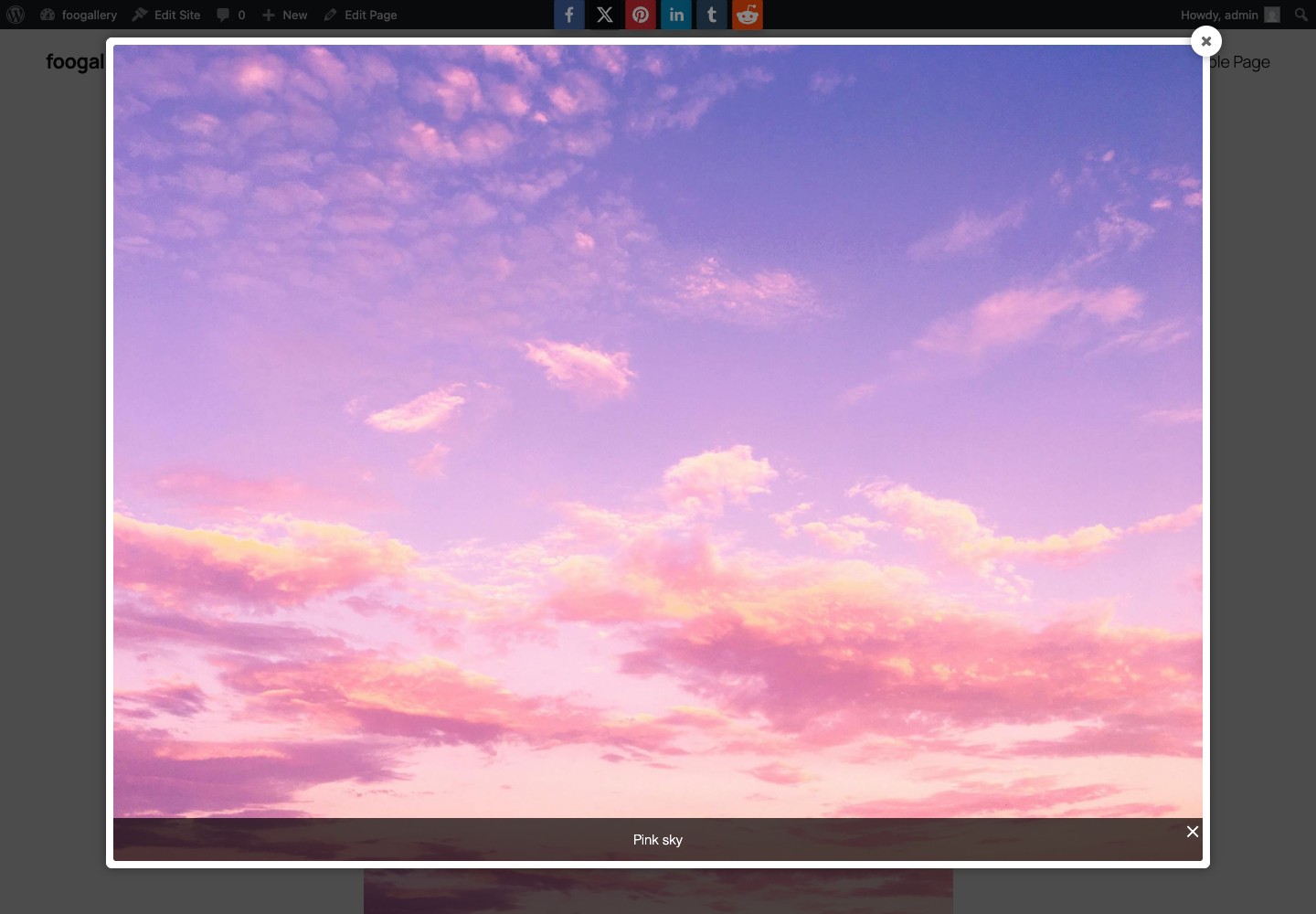
Existing saved content
FooBox includes a frontend rendering fallback for existing Image and Gallery blocks that still contain core lightbox intent. Editing and saving the post is still recommended because it makes the conversion explicit in the block attributes.
Troubleshooting
- The core overlay still opens: confirm the compatibility setting is enabled, reopen the post, and save it again.
- Two lightboxes appear: check whether the theme or another plugin is forcing its own lightbox.
- A Gallery opens as independent images: select the outer Gallery, confirm its FooBox group, and save.
- You do not want automatic takeover: disable WordPress Lightbox compatibility and configure FooBox directly on the blocks you choose.


