
Use a core Gallery block to create a navigable FooBox collection. Configure the outer Gallery block once; FooBox mirrors its settings to the child Image blocks when the post is saved.
1. Add the Gallery
Insert a Gallery block and select all the images that belong to it.
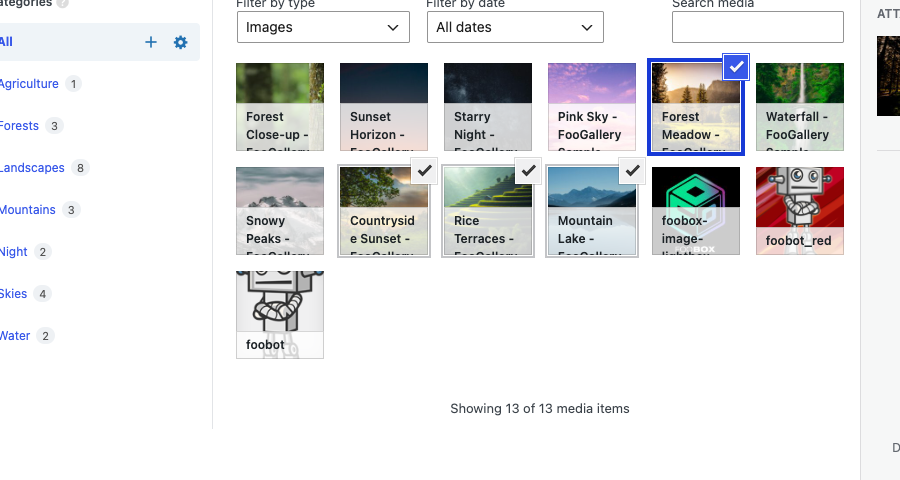
Reorder or caption the images with WordPress’s normal Gallery and Image controls.
2. Select the outer Gallery block
Click the gallery and use Select parent block: Gallery, the List View, or the breadcrumb at the bottom of the editor. The inspector heading must say Gallery, not Image.
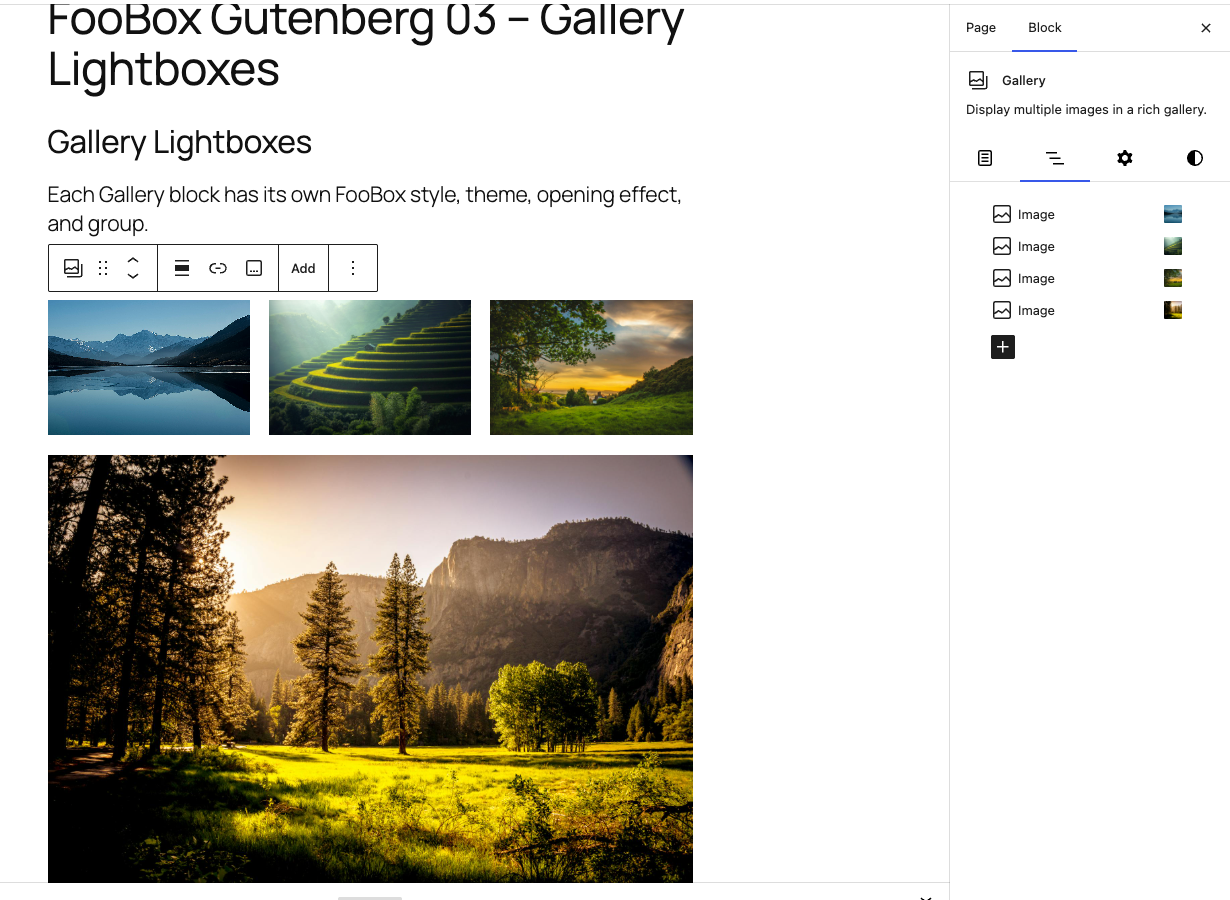
Selecting an individual child Image exposes image-specific controls and does not configure the whole gallery.
3. Enable FooBox and link every image
Open Block → Content → FooBox and turn on Enable FooBox. If displayed, click Link gallery images to media files.
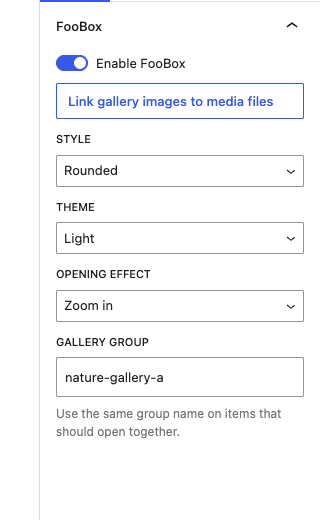
The Gallery remains normal core block markup. FooBox updates the child links rather than replacing the Gallery block.
4. Configure the gallery instance
Set the gallery’s Style, Theme, Opening effect, and Gallery group.
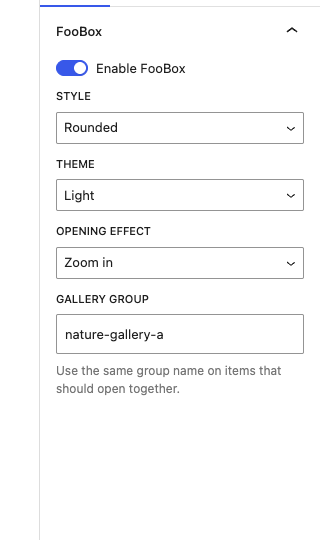
The group keeps the child images together without relying on the legacy global rel grouping option. Opening effects require FooBox Pro; the other controls work in Free.
Independent galleries on one page
Each outer Gallery owns its FooBox configuration. This means two galleries can use different styles, themes, opening effects, and group names on the same page.
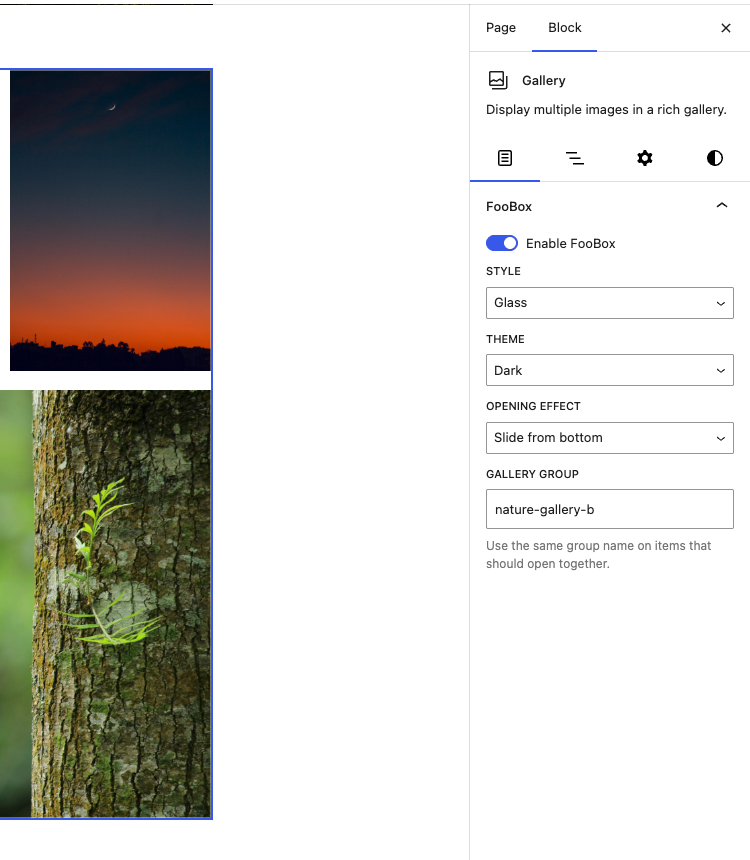
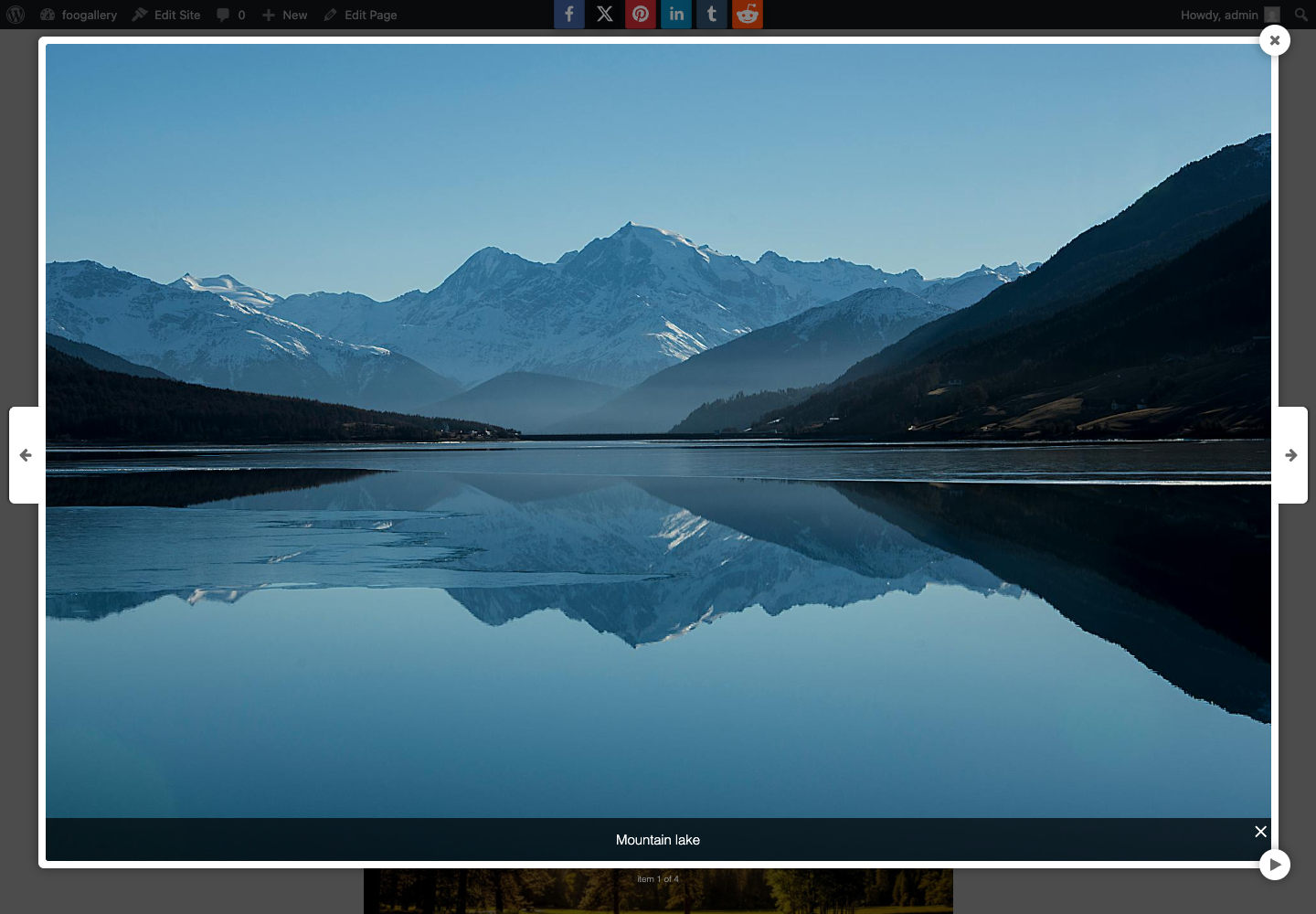
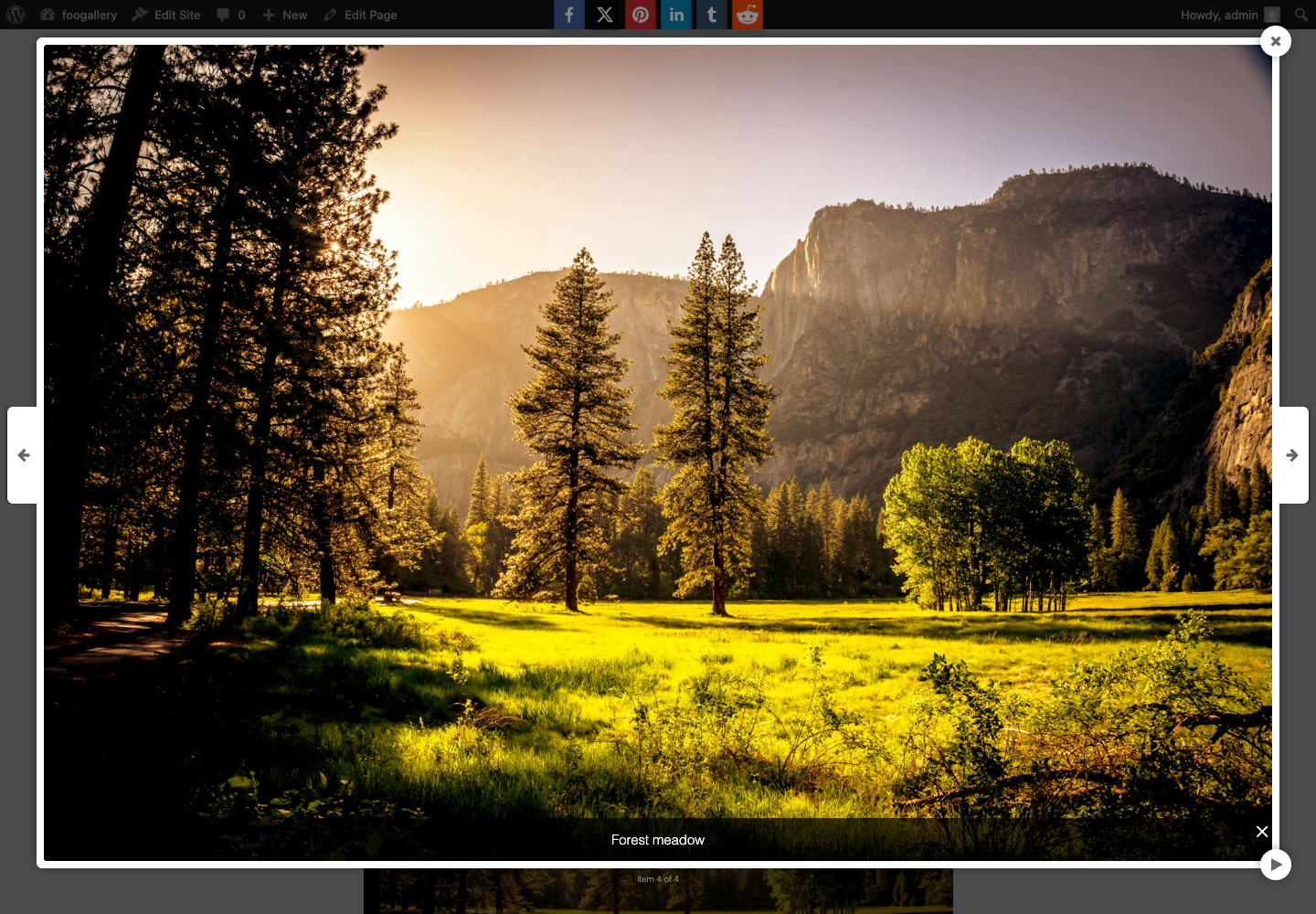
For example, the first gallery can use Rounded/Light/Zoom in while the second uses Glass/Dark/Slide from bottom. The configuration belongs to the gallery that was clicked, even when another gallery appears earlier in the page and initializes first.
Editing after setup
When images are added, removed, or reordered:
- Select the outer Gallery again.
- Confirm FooBox remains enabled.
- Confirm the Gallery group is still correct.
- Use Link gallery images to media files if new images are not linked.
- Save the page so the parent settings are mirrored to all children.
Troubleshooting
- The images open as separate items: set one Gallery group on the outer Gallery and save the page.
- Only one image works: link every gallery image to its media file.
- The panel says Image: select the parent Gallery block.
- A second gallery uses the wrong appearance: save with FooBox 2.8.3 or newer so each outer gallery’s instance keeps its own settings.


