
FooBox controls are added directly to supported WordPress blocks. You configure the trigger in the editor, save the page, and FooBox reads those settings on the frontend.
1. Review the compatibility settings
Go to FooBox → Settings → General → Compatibility before building lightboxes.
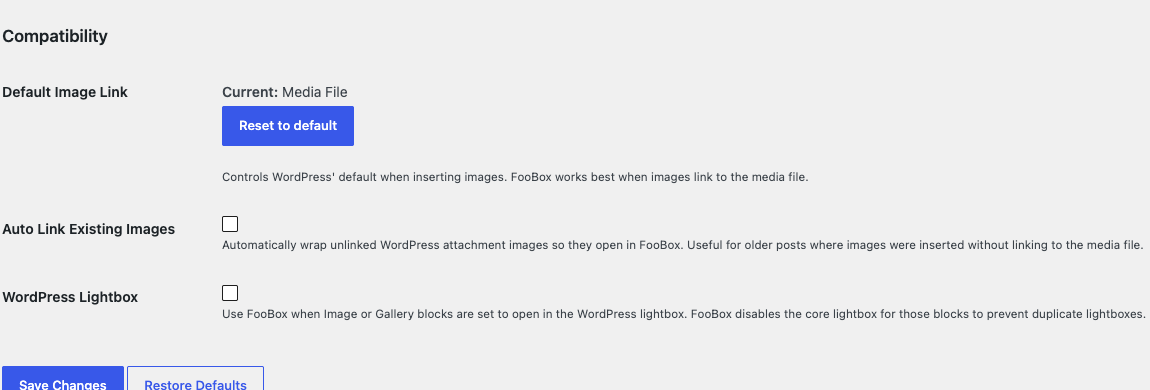
The settings serve different purposes:
- Default Image Link makes newly inserted WordPress images link to their media files by default.
- Auto Link Existing Images helps older attachment images that were inserted without links.
- WordPress Lightbox lets FooBox take over Image and Gallery blocks configured with WordPress’s own lightbox option. It is off by default so existing sites are not changed unexpectedly.
For the most predictable new content, link Image and Gallery blocks to their media files. See the dedicated compatibility guide if you prefer using the core WordPress lightbox control.
2. Add and select a supported block
Add an Image, Gallery, Button, or Group block. Select the actual block you want to configure, then open the settings sidebar.
In WordPress 7, choose the Block tab and then its Content tab. The FooBox section appears below the block’s native controls.
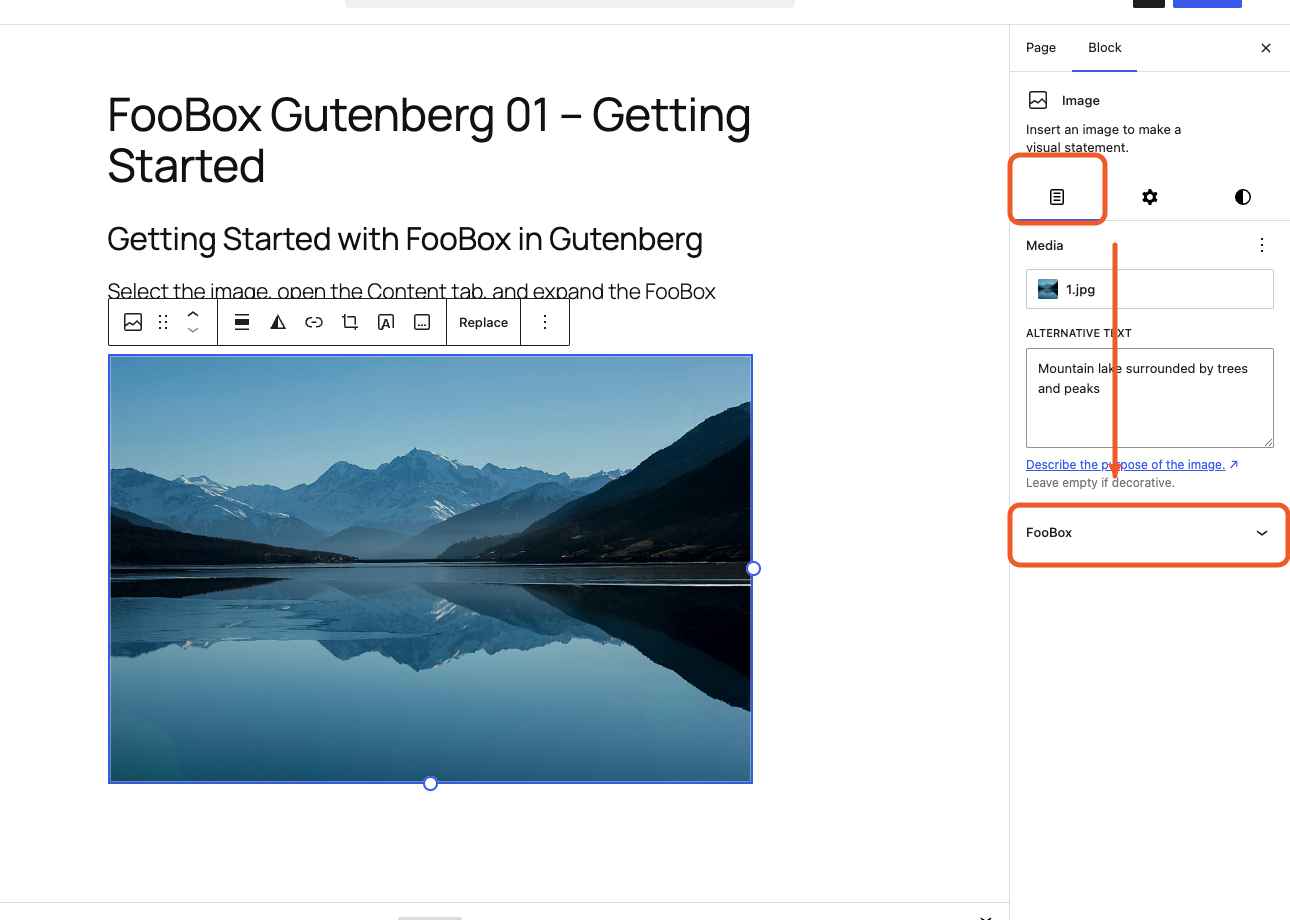
If the FooBox section is not visible, confirm that:
- the outer block is selected, rather than text or an inner block;
- the settings sidebar is open;
- the Content tab is selected;
- the block is a supported core block.
3. Enable FooBox
Expand FooBox and turn on Enable FooBox. Group blocks use the equivalent Use as hidden FooBox content control.
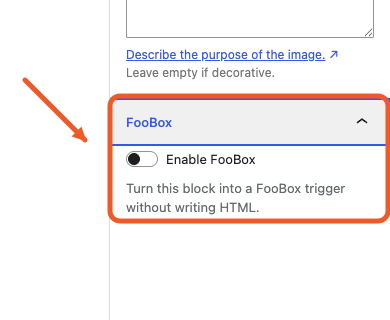
The panel now exposes the settings appropriate to that block. Common settings include dimensions, style, theme, opening effect, Gallery group, and captions.
4. Check the editor indicator
FooBox-enabled blocks receive a visible editor outline. Hidden Group content uses a different outline so it can still be found and edited even when it will not appear in the normal frontend page flow.
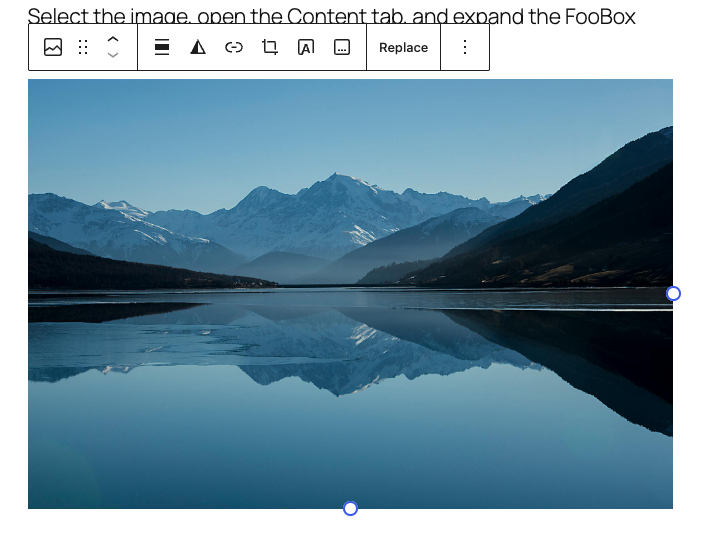
The outline is editor-only and is not included in the published page.
5. Preview before publishing
Use Preview and activate every trigger. Check the selected media, dimensions, captions, gallery navigation, and content handler. FooBox settings are saved with the block, so changing one block does not have to change the site-wide defaults or another lightbox on the same page.
What to read next
- Start with a single Image lightbox.
- Build a Gallery lightbox.
- Use a Button as the trigger.
- See the Free and Pro feature table.
Free and Pro at a glance
| Feature | FooBox Free | FooBox Pro |
|---|---|---|
| Image lightboxes | Yes | Yes |
| Gallery lightboxes | Yes | Yes |
| Button with image or auto-detected image target | Yes | Yes |
| Styles, themes, captions, grouping, and dimensions | Yes | Yes |
| WordPress core lightbox takeover | Yes | Yes |
| Opening effects | Configuration is visible | Yes |
| Hidden Group/HTML content | Configuration is visible | Yes |
| Video and iframe content | Configuration is visible | Yes |
| Video poster images | Configuration is visible | Yes |
| Large-image panning interaction and overview | No | Yes |
Pro controls remain visible in the Free editor. This lets a page be prepared before an upgrade, but the Pro content handler or effect is required on the frontend.


