
FooBox Pro can open normal Gutenberg content as an inline lightbox. Build the content in a Group block, hide that Group on the normal frontend, and point a Button at its HTML ID.
This replaces the older workflow of writing a hidden <div> in a Custom HTML block.
1. Build the content in a Group
Add a Group block and compose the lightbox content with any blocks that can render normally inside it, such as Image, Heading, Paragraph, List, Columns, or Shortcode.
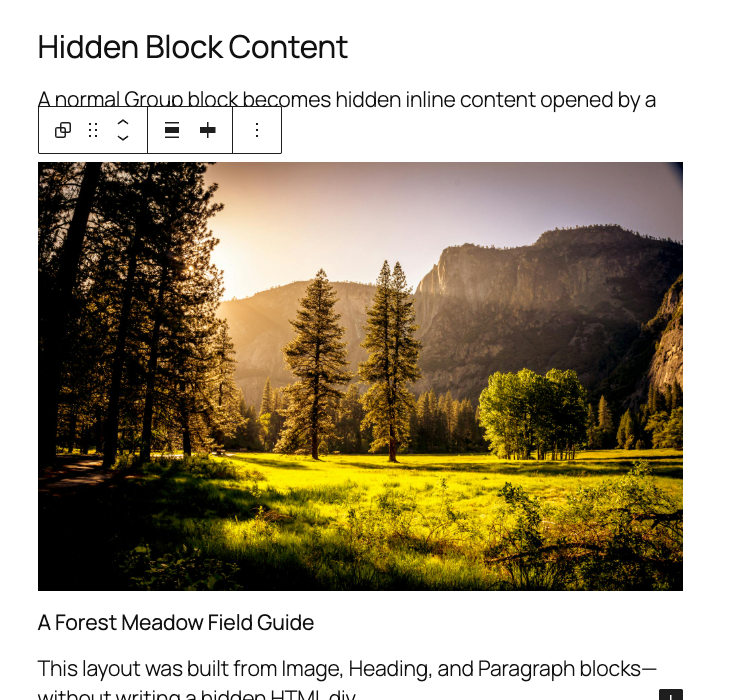
Keep interactive widgets and third-party blocks within the requirements of their own plugins.
2. Turn the Group into hidden FooBox content
Select the outer Group and open Block → Content → FooBox. Enable Use as hidden FooBox content.
Set a unique HTML ID, such as nature-field-guide, or click Generate id. Leave Hide on front end enabled when the Group should only appear in the lightbox. Set Width and Height for the inline content area.
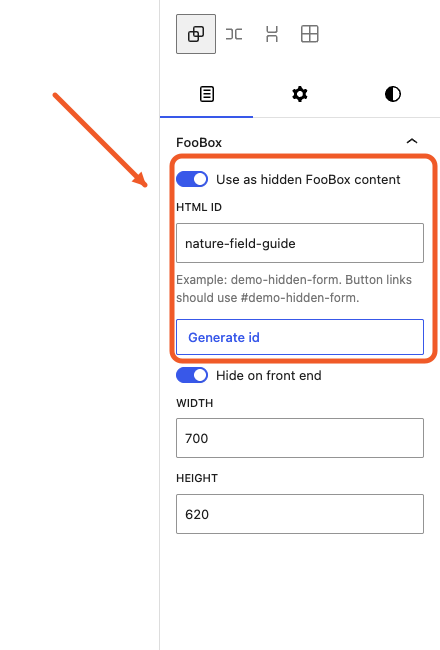
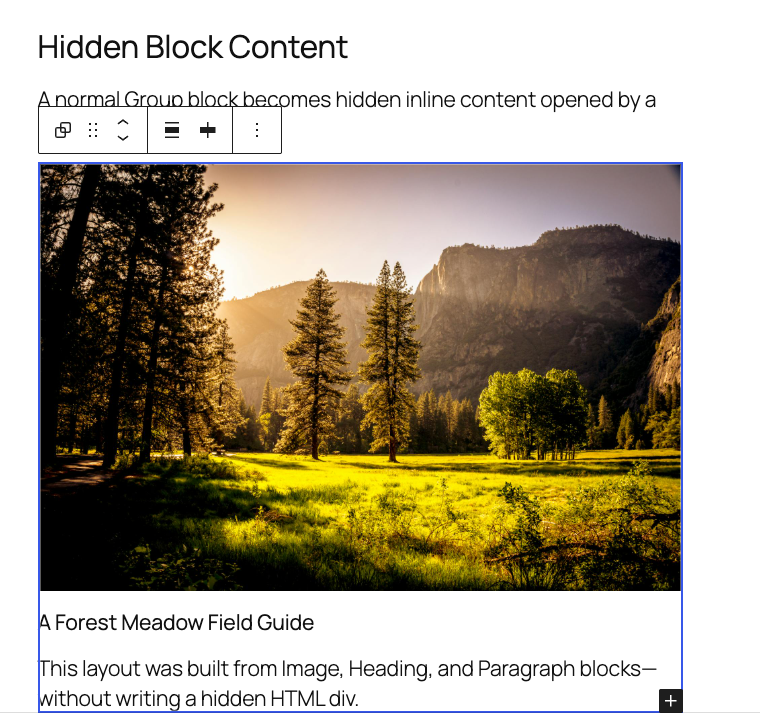
The editor keeps the Group visible and adds a distinct outline so the hidden content remains editable.
3. Create the trigger Button
Add a Button and select the individual Button block. Enable FooBox, then set:
- Content type: HTML content
- Lightbox URL or target:
#followed by the Group’s HTML ID
For a Group with the ID nature-field-guide, the Button target must be #nature-field-guide.
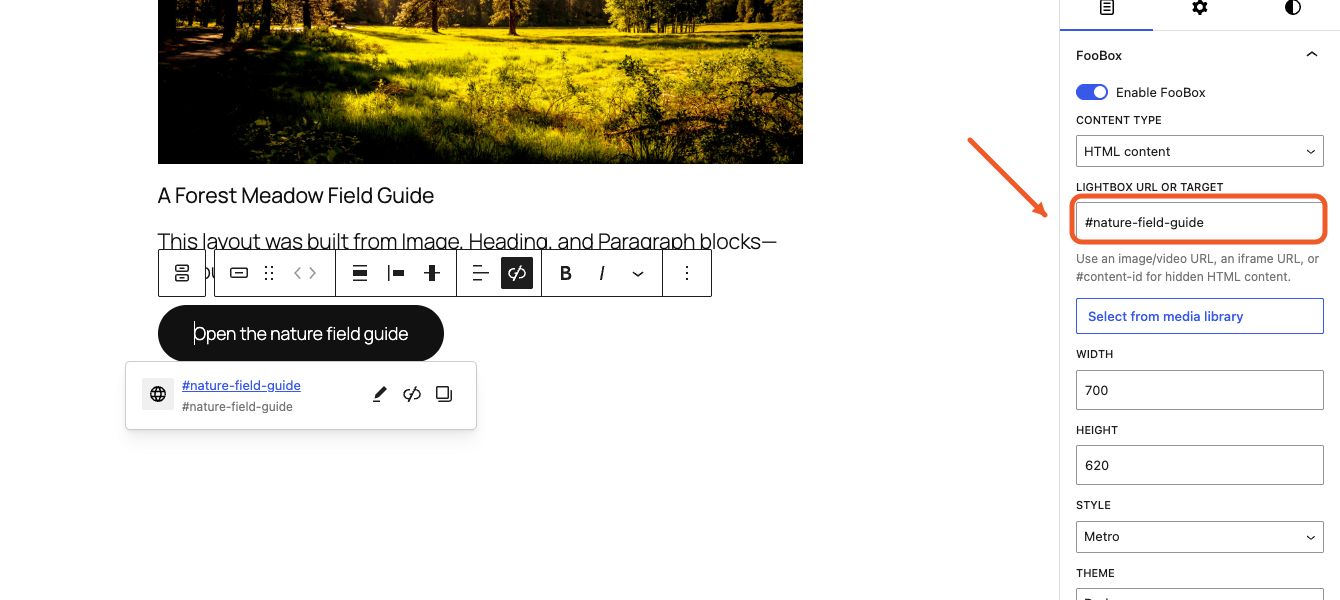
Set the Button’s dimensions to suit the Group content. Choose a style, theme, opening effect, and caption if required.
4. Preview the inline layout
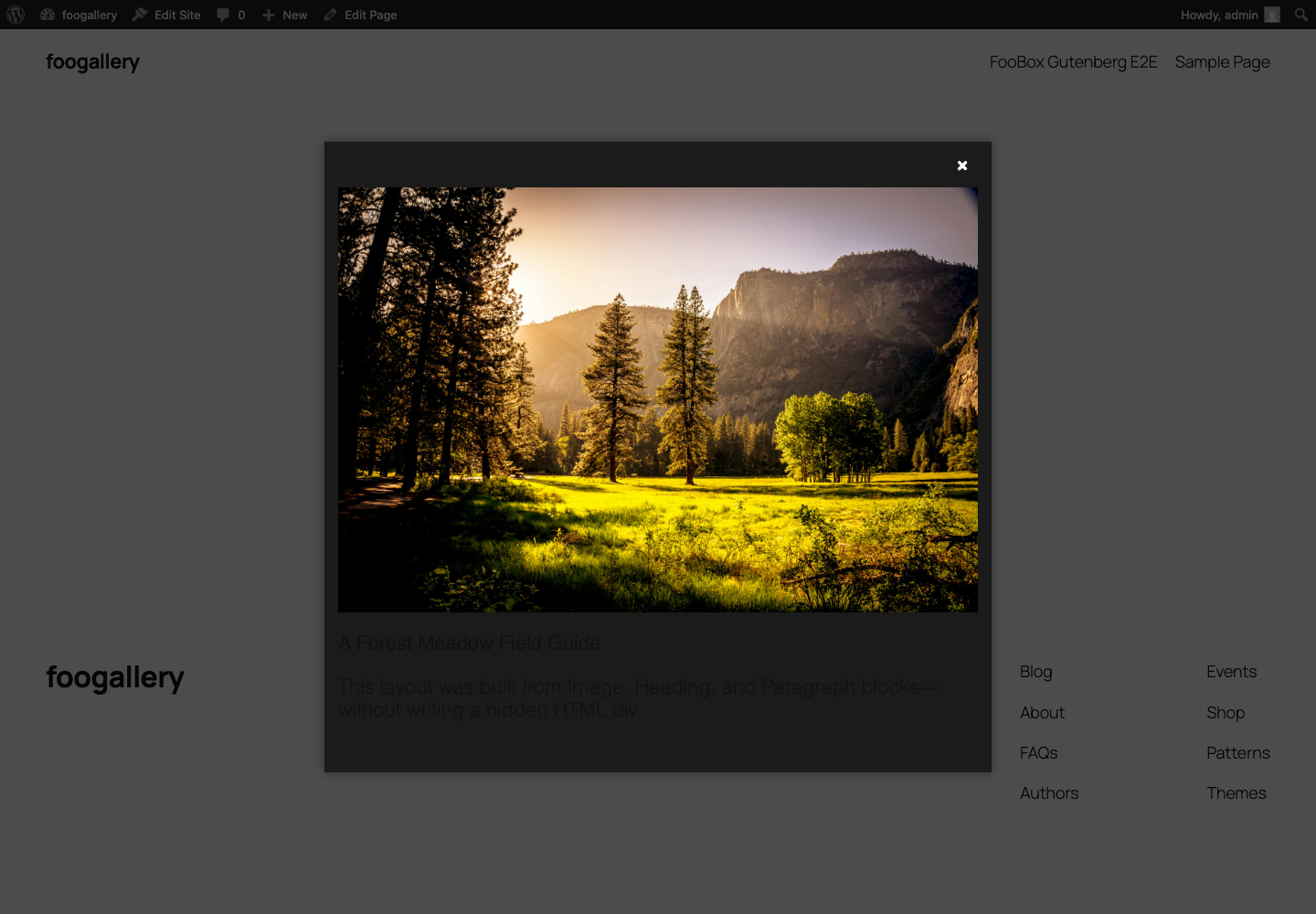
On the normal page, only the Button is visible. Clicking it opens the rendered Group inside FooBox.
Important rules
- Every hidden Group must have a unique HTML ID on the page.
- The trigger must include the leading
#in its target. - The Button content type must be HTML content.
- Disabling Hide on front end shows the Group in the page as well as making it available to FooBox.
- The hidden HTML content handler requires FooBox Pro. Free displays the editor controls so the content does not need to be rebuilt after an upgrade.
Troubleshooting
- The Button does nothing: compare the Group ID and Button target character for character.
- The page jumps to the Group: confirm FooBox Pro is active and HTML content is selected.
- The hidden content appears in the page: enable Hide on front end on the outer Group.
- Only one nested block is selected: use List View or the editor breadcrumb to select the outer Group.


