
FooBox Pro Button blocks can open supported video URLs, self-hosted videos, and external pages. The target and handler are configured in the same FooBox panel used for image Buttons.
YouTube and supported video URLs
- Add and select a Button block.
- Open Block → Content → FooBox and enable FooBox.
- Set Content type to Video, or use Auto-detect from URL for a supported service URL.
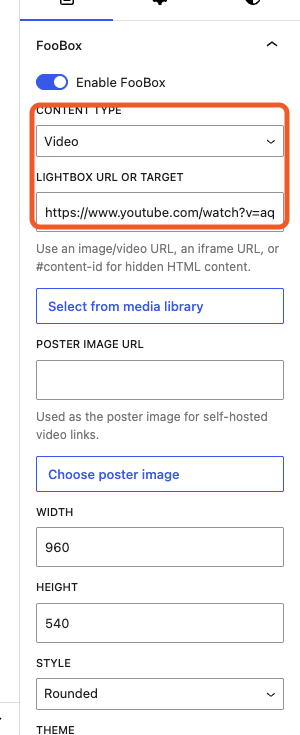
- Paste the video URL into Lightbox URL or target.
- Set Width and Height.
960 × 540is a useful starting point for 16:9 video. - Choose an optional style, theme, opening effect, and caption.
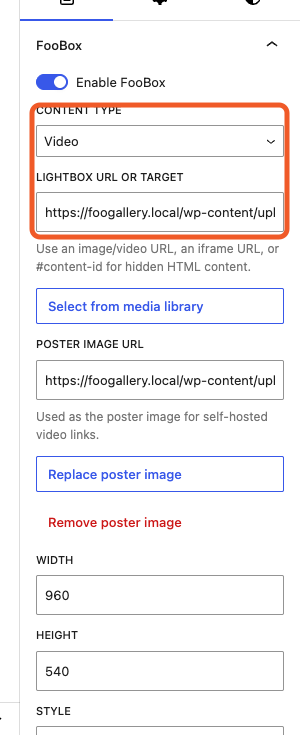
Auto-detection selects the video handler from a recognized URL. Choose Video explicitly for a self-hosted file or when the URL is otherwise ambiguous.
Self-hosted video and poster images
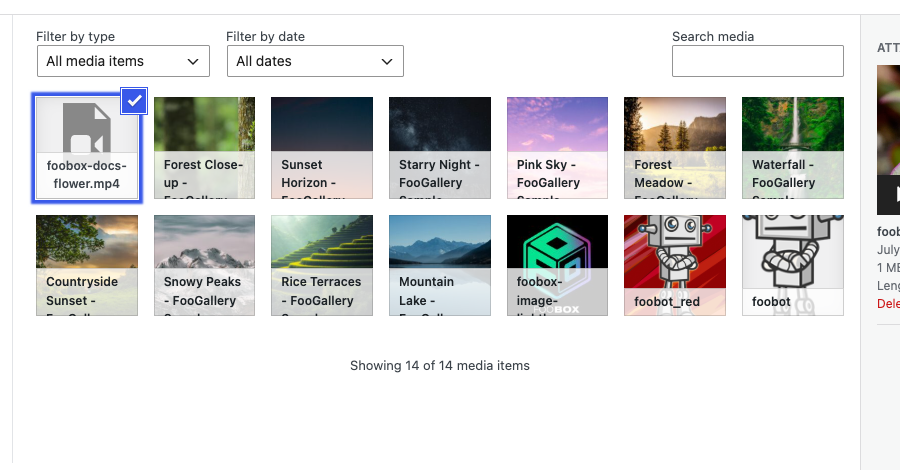
Upload an MP4 or another browser-compatible video to the Media Library. Select a Button, choose Video, then click Select from media library beside the target field.
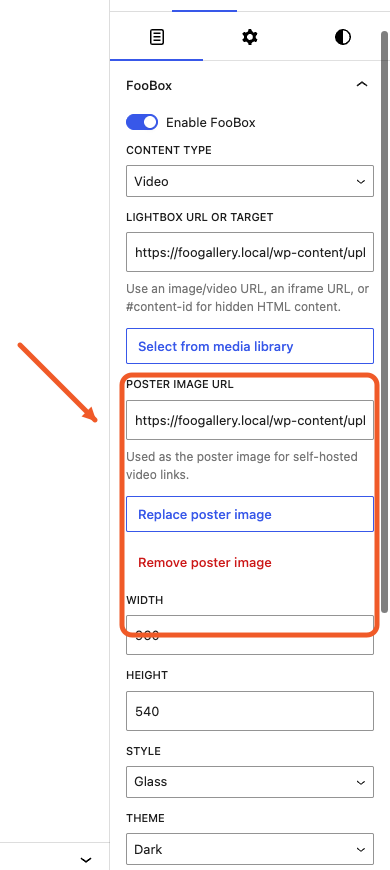
For self-hosted video, add a poster so the lightbox has a useful visual before playback begins:
- Enter a Poster image URL, or click Choose poster image.
- Pick an image from the Media Library.
- Use Replace or Remove poster image to manage it later.
Preview the page and click the Button. Confirm the video controls, poster, aspect ratio, and close control are usable.
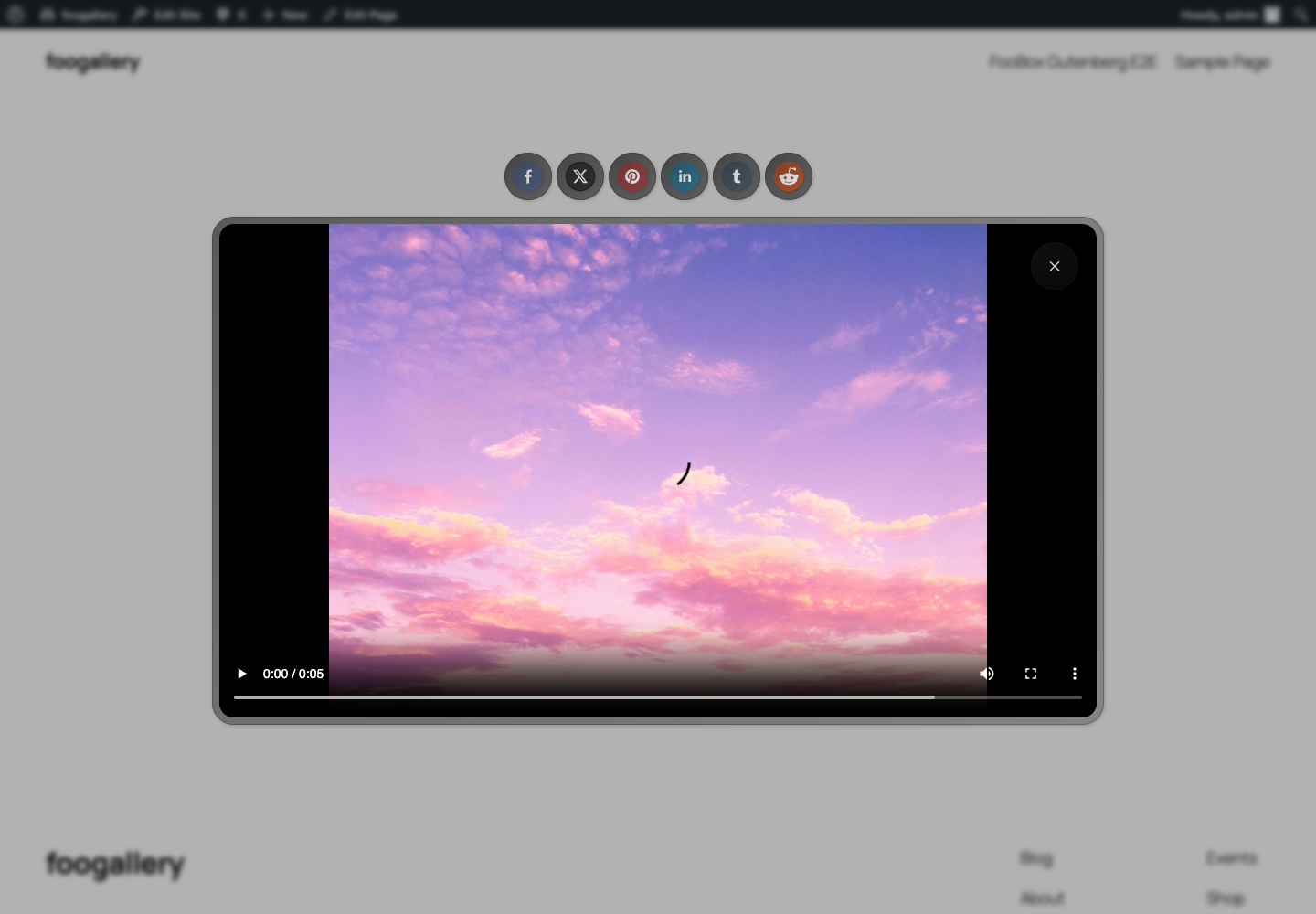
The poster URL is saved with the trigger as FooBox cover data.
Iframe content
Use an iframe when the lightbox should display another web page:
- Add and select a Button.
- Enable FooBox.
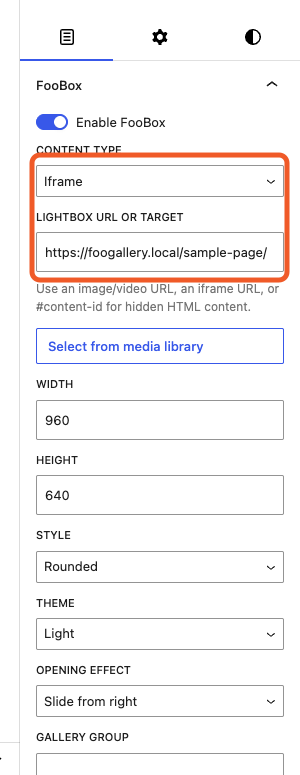
- Set Content type to Iframe.
- Enter the complete page URL in Lightbox URL or target.
- Set Width and Height for the embedded page.
- Choose optional appearance settings and captions.
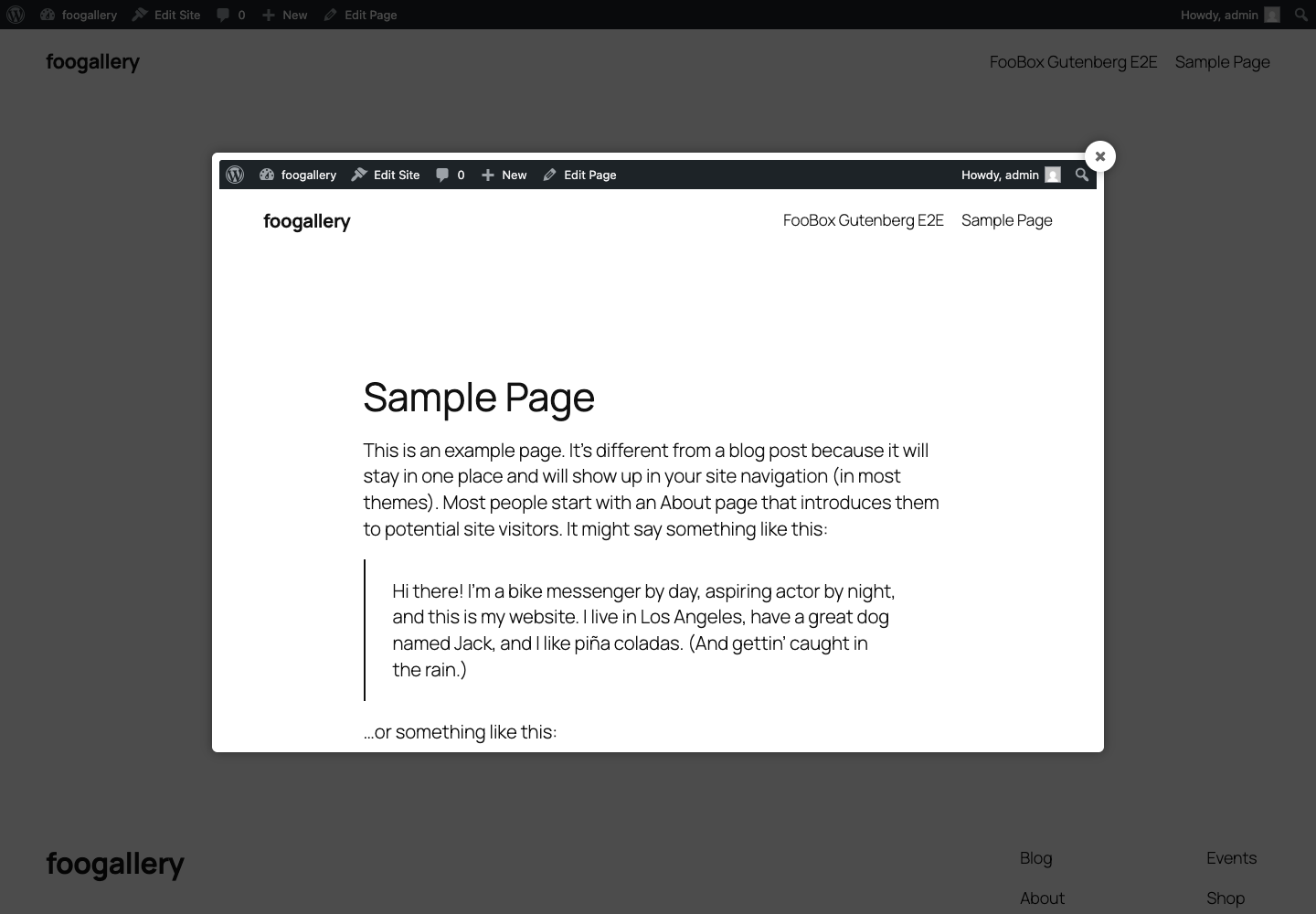
The destination site must permit iframe embedding. A site can block embedding with its response headers; FooBox cannot override that restriction.
Troubleshooting
- The video opens as a normal link: confirm FooBox Pro is active, Enable FooBox is on, and the content type is Video or supported Auto.
- A self-hosted video will not play: verify the file format and MIME type are supported by the visitor’s browser.
- The poster does not display: poster controls apply to FooBox Pro video content; verify the image URL is reachable.
- The iframe is blank or refused: use a destination that permits iframe embedding.
- The content is too small: set explicit Width and Height on the Button’s FooBox controls.


