
A core Button block can open media without showing a thumbnail on the page. Image targets and image auto-detection work in FooBox Free. HTML, iframe, and video handlers require FooBox Pro.
1. Add and select a Button
Add a Buttons block, enter the button label, and select the individual Button inside it. Open Block → Content → FooBox and turn on Enable FooBox.
2. Choose the content type
The Content type menu offers:
- Auto-detect from URL — FooBox selects the handler from the target URL.
- Image — always treats the target as an image.
- HTML content — opens an element on the page; requires Pro.
- Iframe — embeds a page URL; requires Pro.
- Video — opens a supported or self-hosted video; requires Pro.
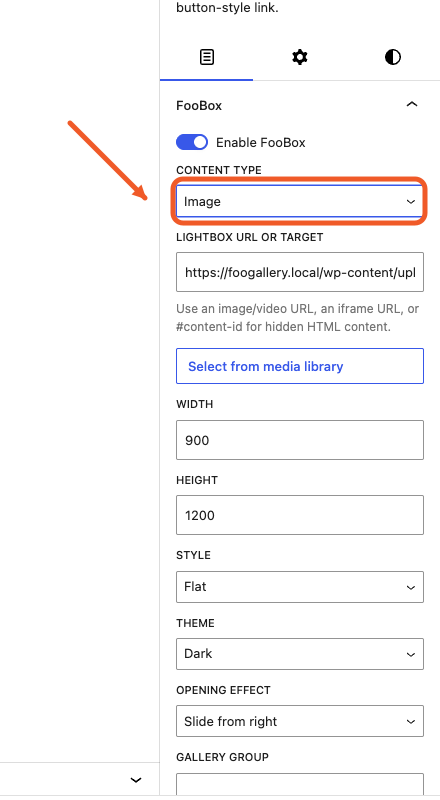
For a straightforward image button, choose Image or Auto-detect from URL.
3. Select the target
Enter an image URL in Lightbox URL or target, or click Select from media library and choose an attachment. FooBox fills the field with its media URL.
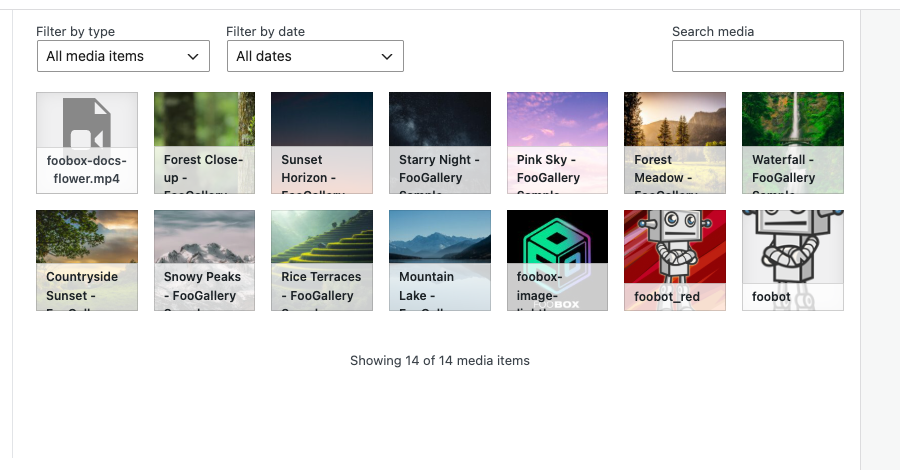
The URL used by FooBox is independent of the visible button label.
4. Configure dimensions and appearance
Set Width, Height, Style, Theme, Gallery group, Caption title, and Caption description as needed. Opening effect is a FooBox Pro feature.
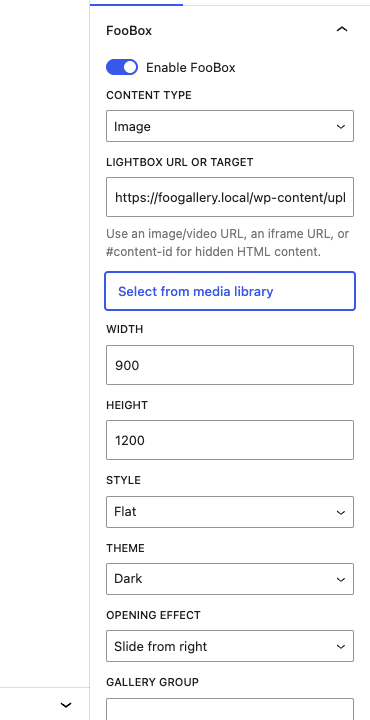
Use the same Gallery group on this Button and other triggers if they should navigate as one collection.
5. Preview the Button
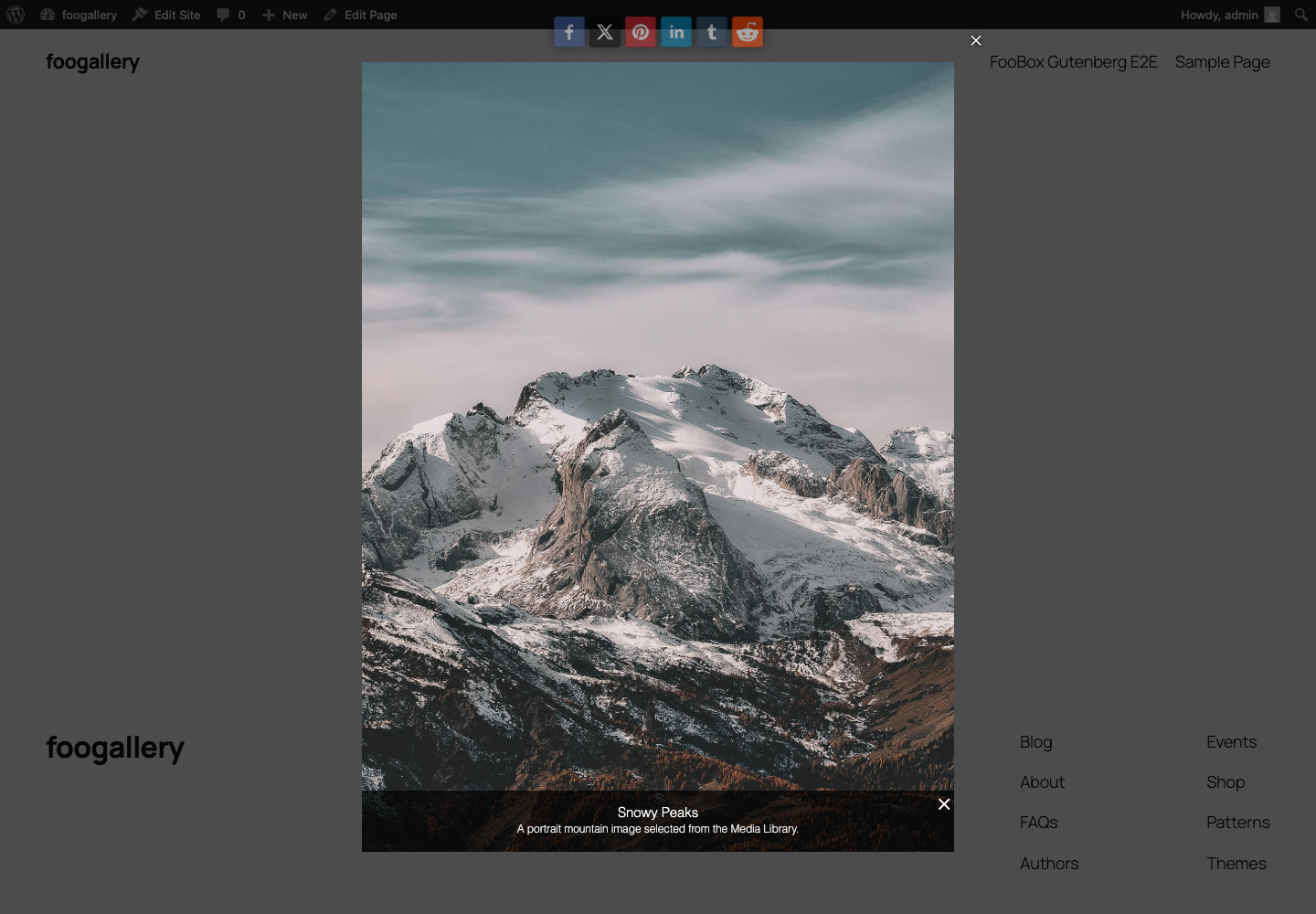
Save or preview the page and click the Button. The target should open in FooBox while the Button remains the only visible trigger in the page content.
Choosing Auto versus Image
- Use Image when the target must always use the image handler.
- Use Auto-detect from URL for image links when you want FooBox to identify the target automatically.
- For YouTube and supported video URLs, Auto can identify the video only when FooBox Pro’s video handlers are active.
- Use an explicit Pro content type when a URL is ambiguous or when you need an iframe or HTML target.
Troubleshooting
- The FooBox controls are missing: select the individual Button, not only the outer Buttons container.
- The Button navigates away: make sure Enable FooBox is on and the target URL is valid.
- A video, iframe, or HTML target does not open in Free: those handlers require FooBox Pro.


