
Use a core Image block when the image itself should open FooBox. Image lightboxes, captions, styles, themes, groups, and size controls work in FooBox Free. Opening effects and the large-image panning interaction require FooBox Pro.
1. Add an Image block
Insert an Image block and choose an image from the Media Library.
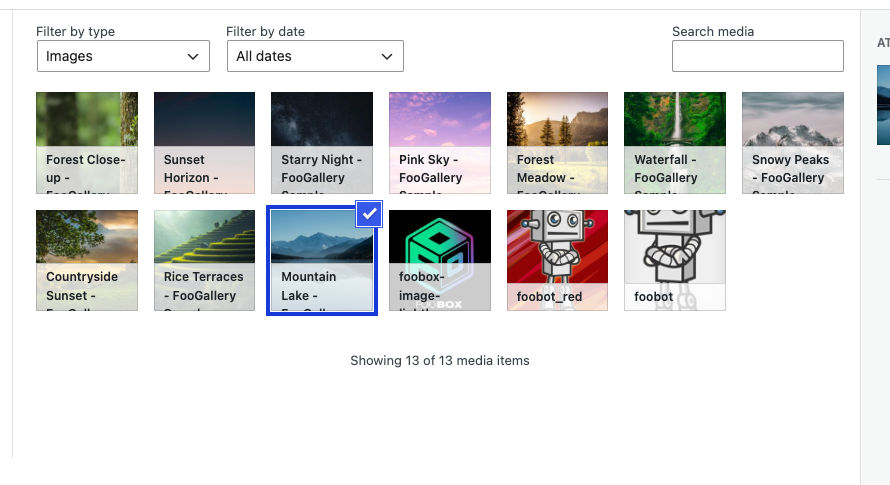
Use descriptive alternative text for accessibility. The Image block’s alternative text is separate from the optional FooBox caption fields.
2. Enable FooBox and link the media file
Select the Image block, open Block → Content → FooBox, and turn on Enable FooBox.
FooBox needs a target URL. If the image is not linked to its media file, click Link image to media file in the FooBox panel. You can also use the native Image block link control and choose Link to image file.
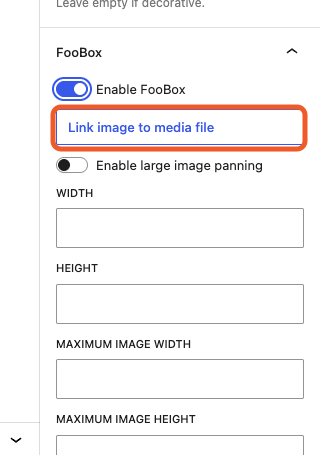
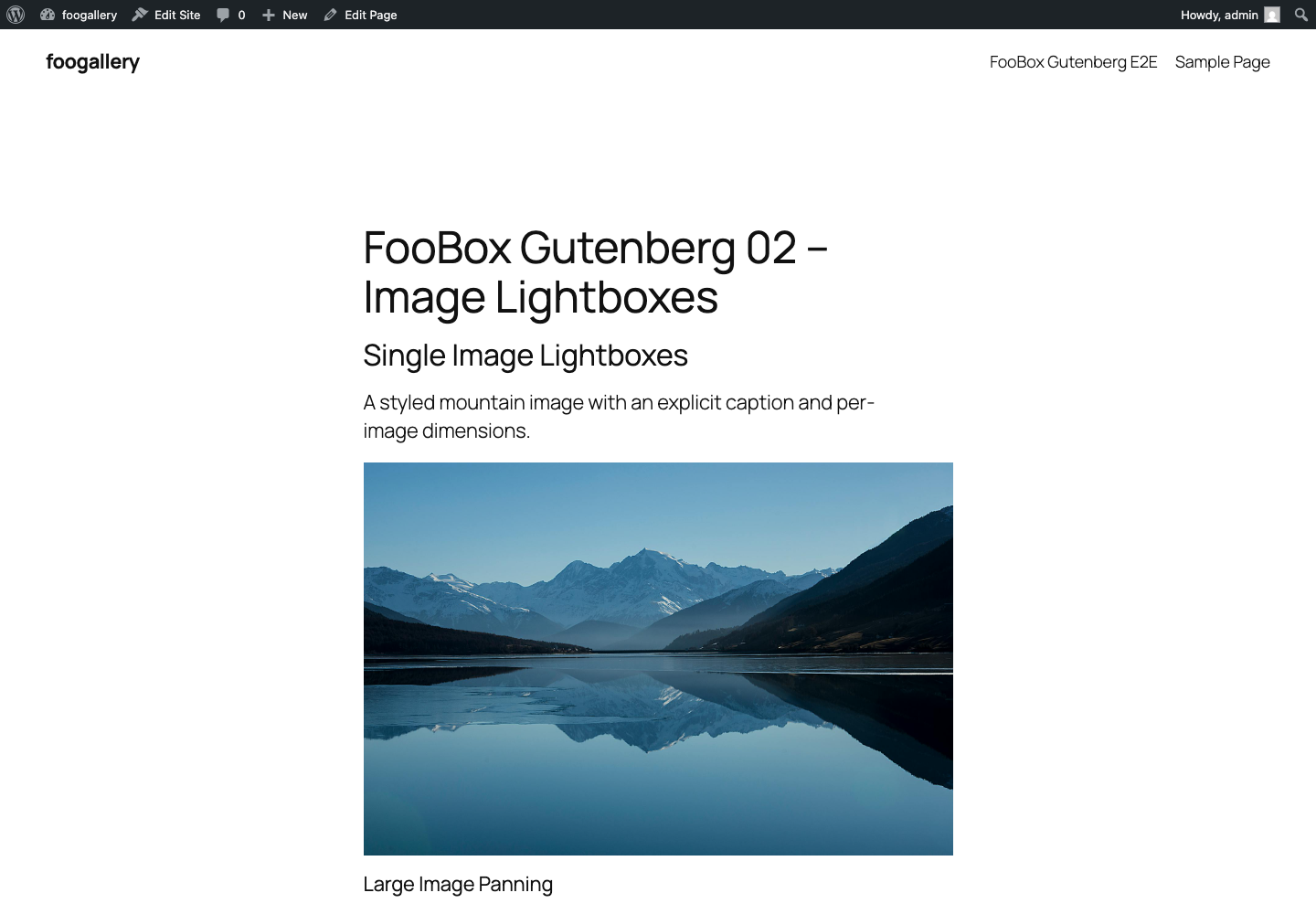
The page displays the selected image size, while the link opens the original media file in FooBox.
3. Set the lightbox dimensions
Use Width and Height to define the intended lightbox size. Use Maximum image width and Maximum image height to limit how large the image may be rendered.
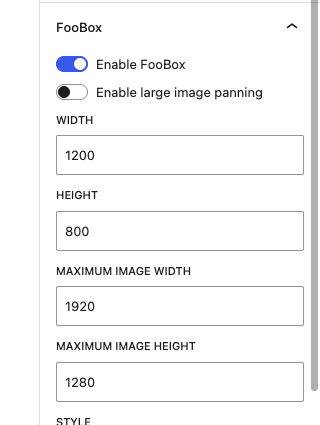
Leave a field empty to inherit the FooBox defaults. Dimensions are saved on this Image block only.
4. Choose the appearance
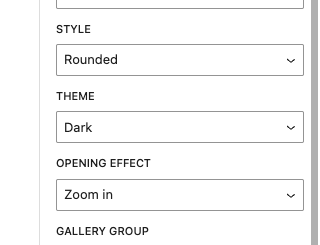
Choose a Style and Theme for this image. The available styles are Default, Rounded, Flat, Metro, and Glass; the themes are Default, Light, and Dark.
Opening effect provides animated open and close transitions in FooBox Pro. The field remains visible in Free so content can be configured before upgrading.
5. Add grouping and captions
Use Gallery group when this image should navigate with other FooBox triggers. Every item in the same collection must use exactly the same group value.
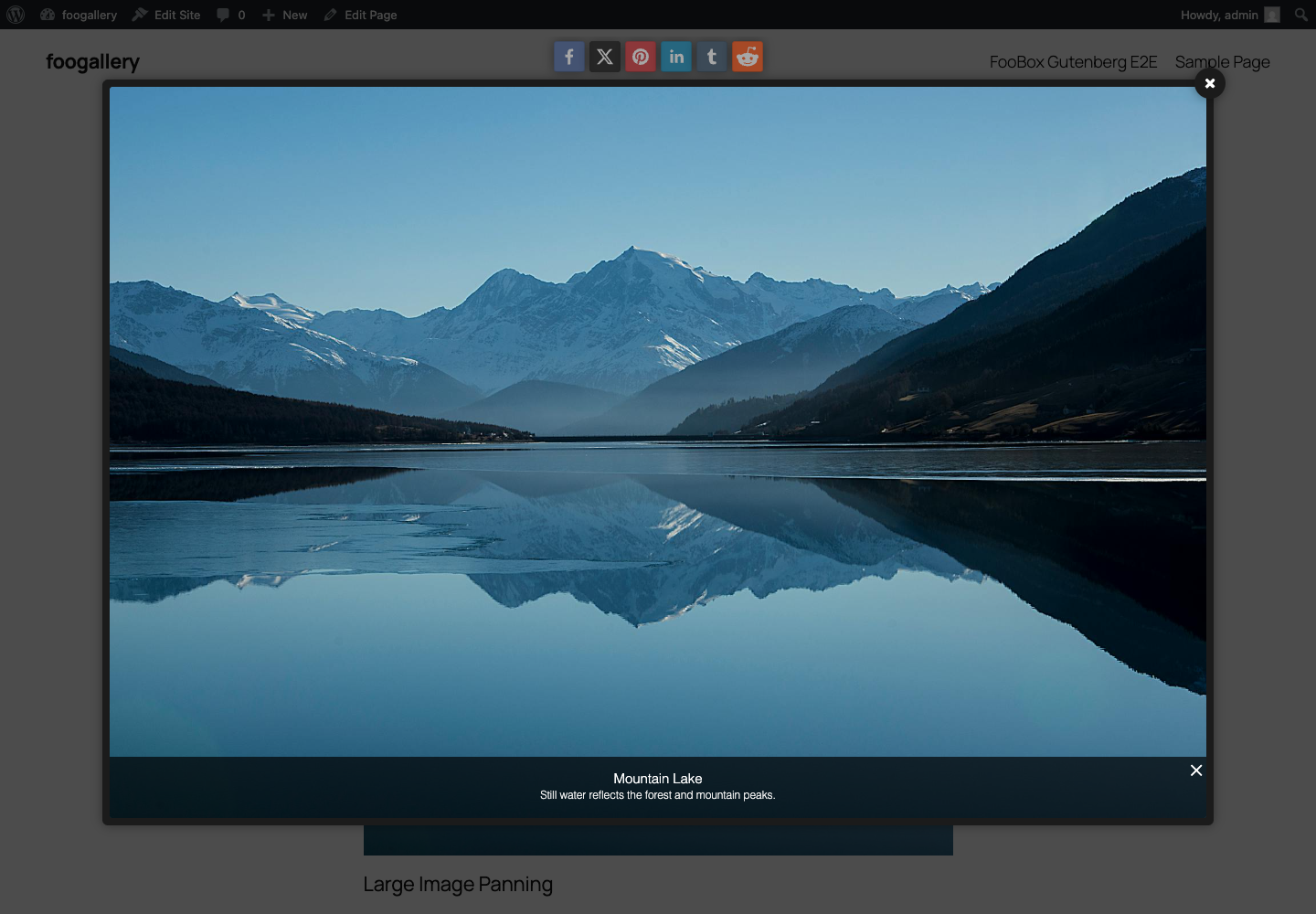
Fill in Caption title and Caption description when the lightbox needs wording different from the attachment metadata.
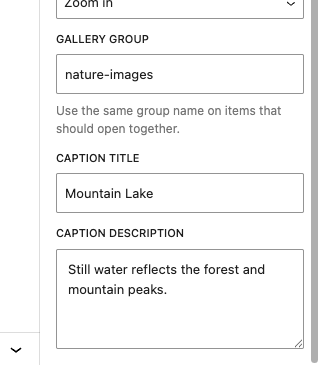
Caption titles and descriptions use FooBox’s normal caption formatting on the frontend.
6. Preview the result
Save or preview the page, then select the image. Confirm that the full media file opens with the expected style, theme, dimensions, and caption.
Large-image panning (Pro)
For an image that is larger than the lightbox viewport:
- Select the Image block and enable FooBox.
- Link it to the media file.
- Turn on Enable large image panning.
- Set the lightbox Width and Height.
- Optionally cap the source with Maximum image width and Maximum image height.
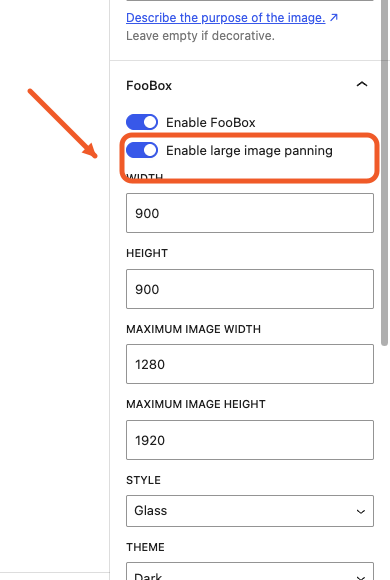
On the frontend, FooBox Pro’s panning add-on lets visitors explore the oversized image instead of forcing the entire image into the viewport. The overview position is controlled in the FooBox Pro settings.
Troubleshooting
- The browser opens the image directly: enable FooBox on the Image block and confirm FooBox assets are enabled for the page.
- Nothing happens: verify the Image block links to the media file.
- The wrong caption appears: fill the explicit FooBox caption fields or clear them to use the normal attachment-derived caption.
- An opening effect or panning does not run in Free: these frontend behaviors require FooBox Pro.


