
Mosaic PRO arranges a collection in varied tiles. Use it for mixed portrait and landscape photos, then mark favourites to influence which images receive more space. Compare the two live Mosaic demos.
In this guide
- Before you start
- Create a Mosaic gallery
- Choose tile sizes and spacing
- Give favourite photos more space
- Adjust the phone layout
- Publish and check your gallery
- Troubleshooting
- Related layouts and next steps
Before you start
Mosaic PRO is included in FooGallery PRO Starter, Expert and Commerce, starting with FooGallery 3.3.20. It is not part of FooGallery Free. Install and activate a supported PRO version and licence, then open FooGallery > Galleries in WordPress. Compare the plans if you also need video, filtering or selling tools.
Create a Mosaic gallery
- Choose Add Gallery, give the gallery a descriptive title and add photos from the Media Library or upload new images.
- Choose Mosaic PRO in the layout selector above Gallery Settings.
- In General, start with Medium Tile Density and a small Thumbnail Gap. Preview the collection before changing several settings at once.
- Save or update the gallery. The gallery block or shortcode on an existing page will continue to use the same gallery.
Choose tile sizes and spacing
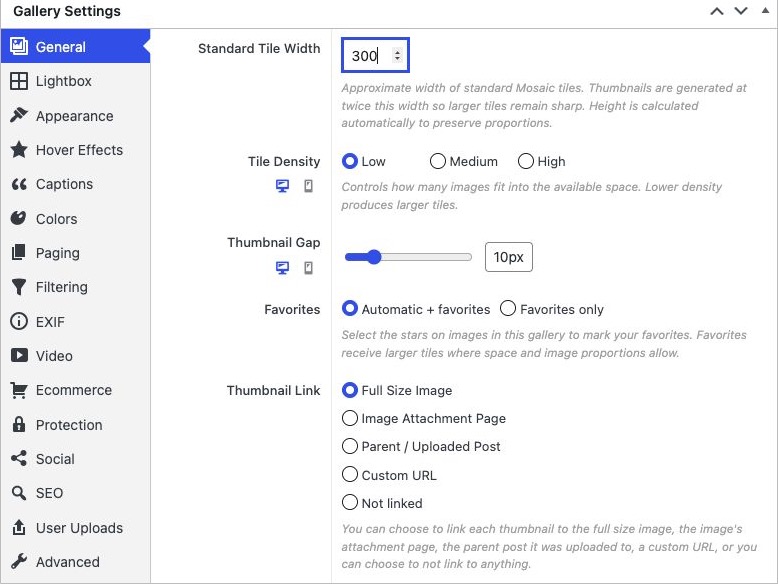
| Setting | What to choose |
|---|---|
| Standard Tile Width | Sets the approximate width of a standard tile. The current editor generates thumbnails at twice this width to keep larger tiles sharp, while preserving image proportions. Earlier versions label this control Thumbnail Width. |
| Tile Density | Low makes a more spacious arrangement with larger tiles; High fits more images into the available space. Start with Medium and compare the result. |
| Thumbnail Gap | Sets the space between tiles. Use enough room to separate images without making a small gallery feel fragmented. |
| Thumbnail Link and Lightbox | Choose Full Size Image and a supported lightbox when visitors should open and browse the full photos. A Custom URL or Not linked changes that click behaviour. |
Give favourite photos more space
Use the stars on images in the gallery editor to mark favourites. These are your layout choices for this gallery; visitors do not need to vote or make selections.
- Automatic + favorites: the layout can choose prominent tiles as well as favouring your selected images.
- Favorites only: limits the preference for larger tiles to the images you starred.
A favourite is a layout preference, not a fixed tile size or position. Image proportions, available width and the rest of the collection affect what fits. Preview both portrait and landscape images, and avoid starring so many photos that nothing stands out.
Adjust the phone layout
Switch to the mobile preview in the gallery editor. Mosaic supports separate mobile Tile Density and Thumbnail Gap values. Keep the inherited desktop value where it already works, and change the phone value only where needed. See Using Mobile Gallery Settings for the shared workflow.
Publish and check your gallery
- Save the gallery, then edit the page or post where it should appear.
- Insert a FooGallery block and select your gallery, or paste the generated gallery shortcode into a core Shortcode block.
- Preview the public page at desktop and phone widths. Open a photo and check the lightbox, captions and navigation.
- If you enable filtering or advanced pagination, check that your plan includes those features. Mosaic starts with Starter; filtering requires Expert or Commerce.
Troubleshooting
- A favourite stays small: try a different density or gallery width and check the photo proportions. A star cannot force a particular size when the tile would not fit.
- Large tiles look soft: check Standard Tile Width (or Thumbnail Width in older versions), the original image dimensions and WordPress thumbnail generation. Avoid enlarging a small original.
- A caption is difficult to read: shorten the thumbnail text and check its hover/caption settings on a real phone. Full-size image captions can carry more detail in the lightbox.
- A photo does not open: check Thumbnail Link and the chosen lightbox. For wider script conflicts, use the gallery loading guide.
Related layouts and next steps
Compare Masonry columns, Justified rows and Wall’s animated introduction. Read the Wall setup guide for background sections.


