
FooConvert Pro adds WooCommerce-aware triggers for shopping behavior, including product views, add-to-cart, cart updates, cart removal, coupon events, checkout/payment state, validation errors, and cart idle behavior.
Before You Start
- Set WooCommerce display rules before relying on trigger conditions.
- Use real cart actions when testing add, remove, update, coupon, and idle triggers.
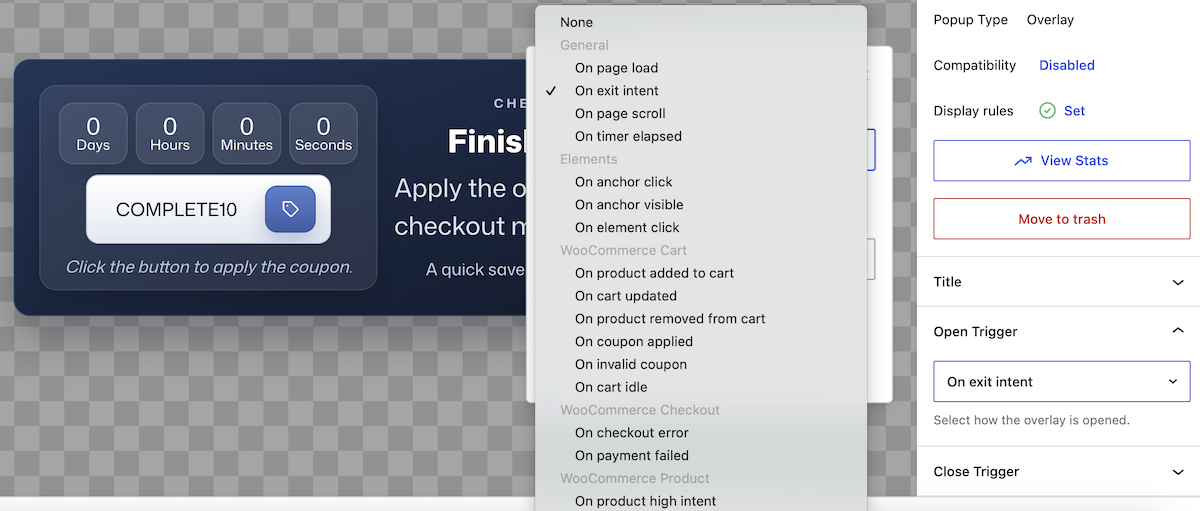
Steps for Using WooCommerce Triggers
- Open the editor for the popup you want to use and configure the Open Trigger settings.
- Use ‘Product add to cart’ for when a shopper adds a product and should see a related offer.
- Use ‘On cart updated’ or ‘On product removed from cart’ for threshold, free shipping, or recovery prompts.
- Use ‘On cart idle’ when a shopper stops interacting with the cart for a set number of seconds.
- Use ‘On coupon applied’, checkout, payment, or validation-related signals for checkout-specific campaigns.
- Add conditions such as subtotal thresholds, product IDs, coupon codes, or repeat product views where necessary.
- Preview and then perform the real WooCommerce action in a test browser session.
Tips for Triggering Commerce-Based Popups
- WooCommerce triggers are strongest when paired with a narrow page rule.
- Use cart subtotal conditions for free shipping and discount threshold campaigns.
- Avoid triggering multiple popups from the same cart event.


