
FooConvert Pro adds WooCommerce display rules so popups can target store-specific contexts such as cart, checkout, product, product category, product tag, shop, account, and order flows.
Before You Start
- Confirm WooCommerce is active and the target pages exist.
- Use test products, cart contents, and orders to help verify store-specific rules.
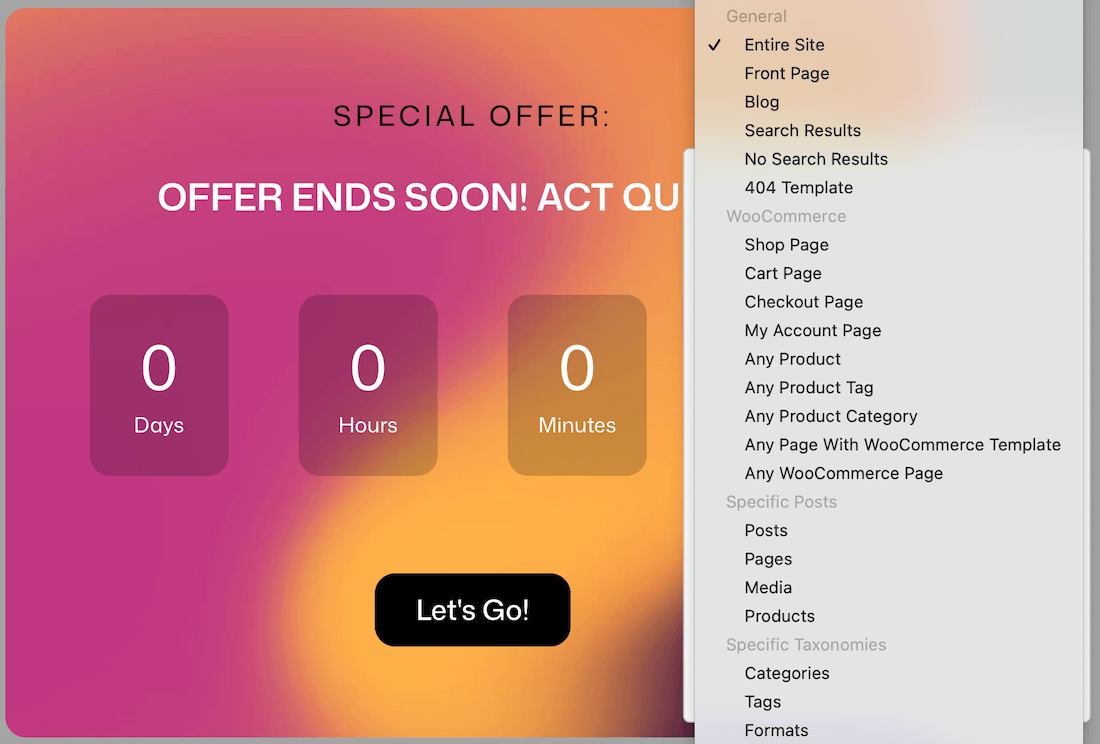
Steps for Using Commerce Display Rules
- Open your popup in the editor and click Display rules. (Note that predesigned ecommerce popups have some display rules set by default, but you can confirm that these are correct or edit as needed.)
- Add WooCommerce locations such as Cart, Checkout, Shop, Product, Product Category, Product Tag, Account, or Order-related screens as available.
- Use standard locations with WooCommerce rules when a campaign spans both content and commerce pages.
- Add exclusions for pages where the popup could interrupt payment, login, or account tasks.
- Choose Users rules if an offer is only for logged-out shoppers, customers, or shop managers.
- Preview matching cart, checkout, product, and excluded contexts.
Tips for Using WooCommerce Display Rules
- Cart and checkout rules are ideal for recovery and coupon offers.
- Product and category rules are better for contextual upsells or launch messaging.
- Keep WooCommerce rules documented alongside the campaign goal to avoid forgotten store-wide prompts.
- Avoid broad entire-site commerce popups unless the offer is relevant everywhere.


