
The Free Shipping Progress block reads WooCommerce cart state and shows shoppers how close they are to a free shipping threshold. It can show locked, almost there, unlocked, and unavailable states.
Before You Start
- Confirm the store free shipping threshold or campaign threshold in WooCommerce.
- Use a WooCommerce-aware display rule or trigger so the block appears in the right shopping context. (This is set up by default on the Almost Free Shipping Bar.)
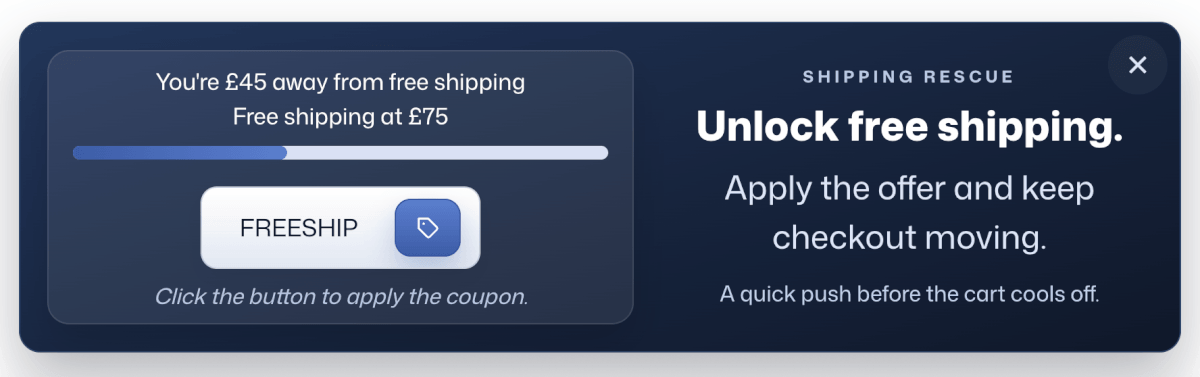
How to Set Up the Free Shipping Block
Here’s how to set this up:
- Add the Free Shipping Progress block to your popup or select the Almost Free Shipping Bar Pro template.
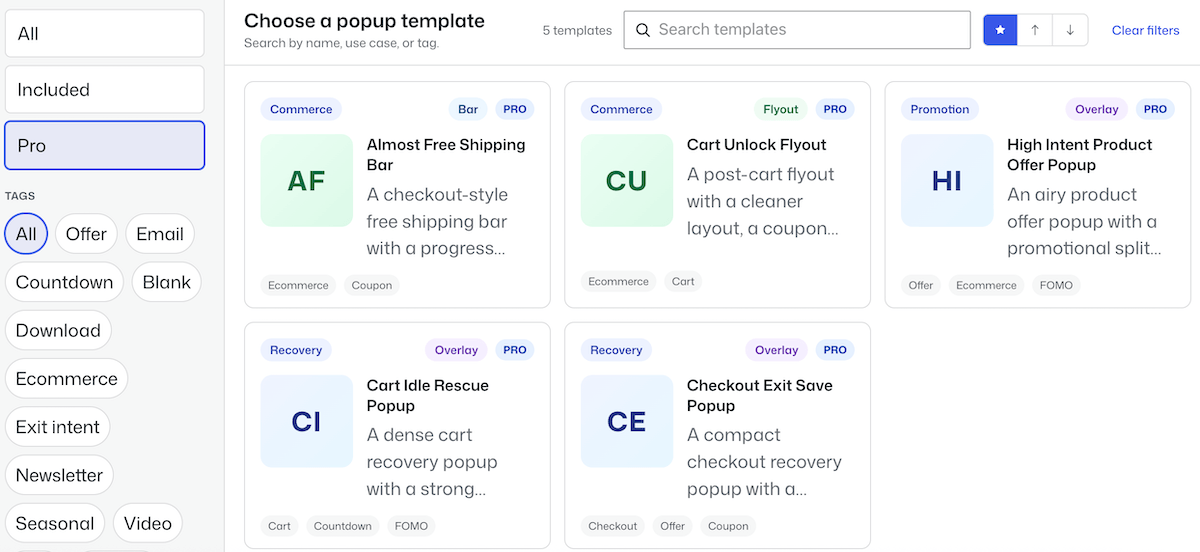
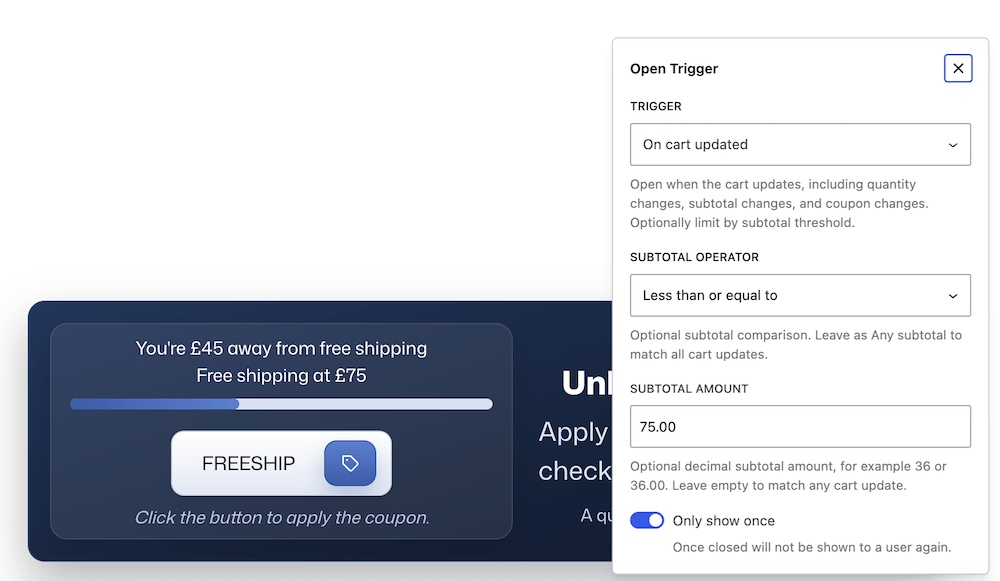
- In the Open Trigger setting, ensure ‘On cart upload’ is selected and the set the Subtotal Operator and Amount.
- Choose whether totals are rounded and whether the progress bar fills the available width.
- Customize the locked, almost, unlocked, and unavailable content slots.
- Style the bar track, fill, percent, spacing, typography, and container.
- Pair the block with Apply Coupon when a free shipping coupon should be applied from the popup.
- Preview with cart items below and above the threshold.
Tips for Using the Free Shipping Popup
- Use a bar or flyout for free shipping nudges; overlays can feel heavy for this use case.
- The unavailable state should be polite and short because cart data may not exist on every page.
- Keep threshold copy dynamic by using remaining and threshold messaging.
- Add test cart items to verify the block’s behavior.


