
The FooConvert Pro Apply Coupon block lets visitors apply a WooCommerce coupon from a popup button instead of copying a code manually. It is useful for cart recovery, checkout saves, and free shipping incentives.
Before You Start
- Create the coupon first in WooCommerce, using a code like CART10 or FREESHIP.
- Use a popup that targets a shopping context such as cart, checkout, product, or exit intent.
- Keep the coupon label short enough for mobile.
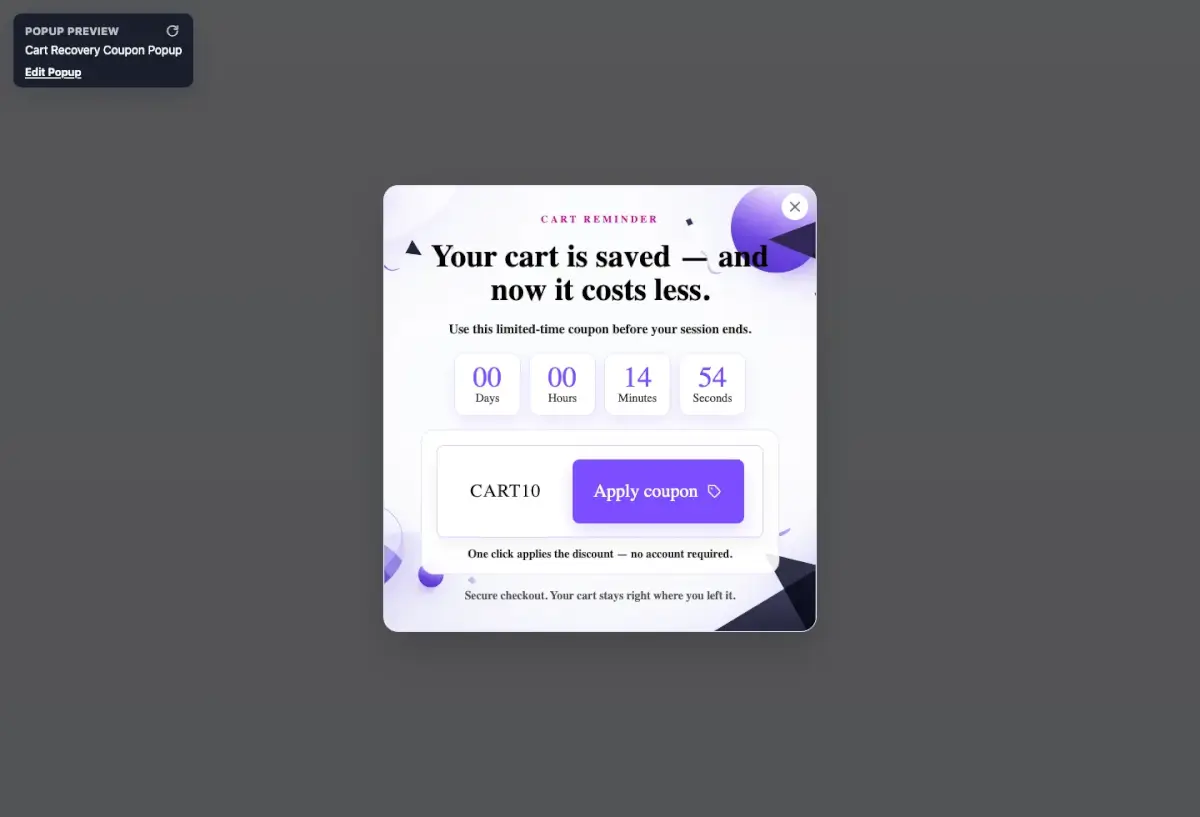
Creating an Apply Coupon Popup
Here are the steps to follow to create this type of popup.
- Add the Apply Coupon block to a popup or choose a FooConvert PRO template that includes it.
- Select or enter the WooCommerce coupon code in the Apply Coupon block.
- Set or edit the layout, visibility, button text, icon, width, alignment and so on until the popup meets your requirements. Note that if you have selected one of the premade templates, most of the settings are already filled in for you.
- Preview the popup and click the button from a cart or checkout context.
- Confirm the coupon result message and that the WooCommerce cart totals update as expected.
Tips
- Pair Apply Coupon with a Countdown for greater urgency or Free Shipping Progress for cart threshold nudges.
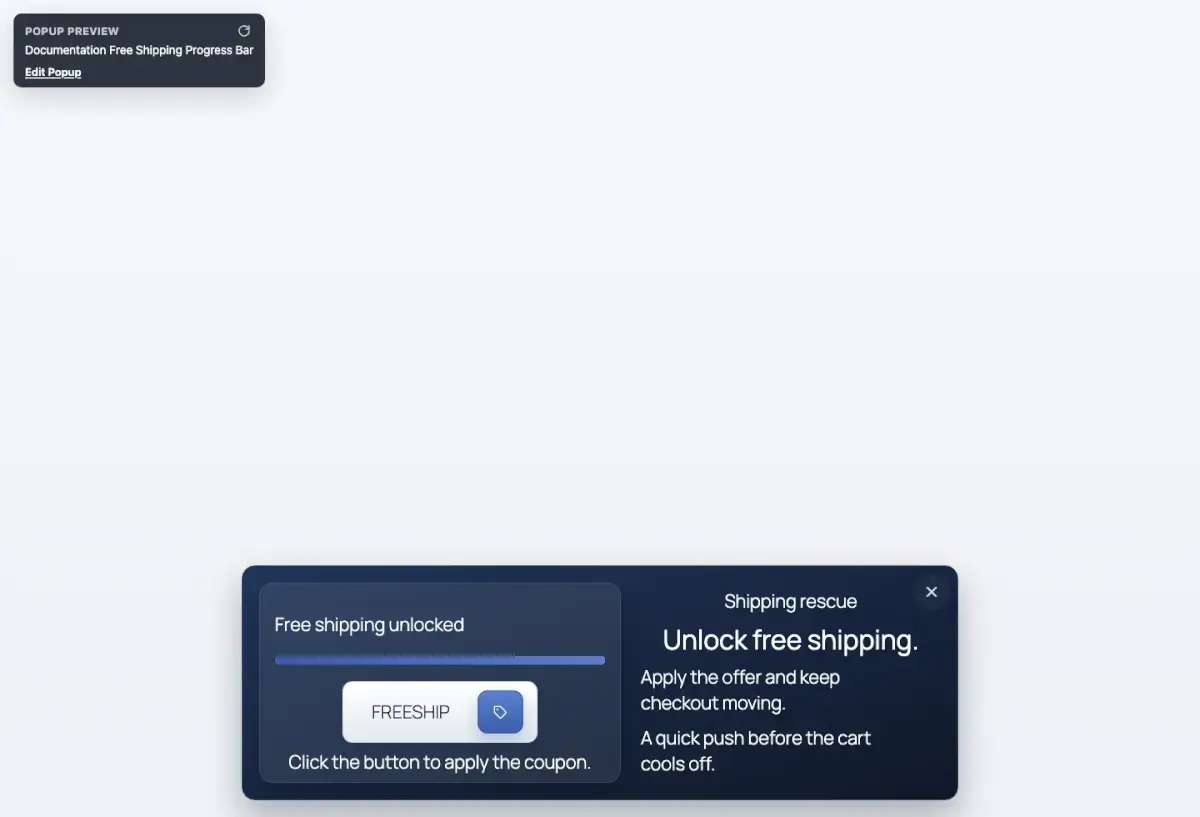
- Use one coupon per popup unless the campaign explicitly compares offers.


