
The PRO Analytics add-on for FooConvert gives you access to valuable insights and actionable data for each of your popups. With Pro Analytics, you can see how popups are performing and where they can be improved, helping you generate higher conversions.
FooConvert comes with basic analytics, but for more insightful data, the Pro version is recommended.
Top Performers
With PRO Analytics you can see your top performing popups from the FooConvert dashboard. You can view which bar, flyout or popup is performing best by engagements, clicks, conversions and so on. These numbers will updated regularly, but you can also click on Update Stats to give you the latest numbers

Hovering over the individual popups in the Top Performers menu will show you 2 links. You can either click on the Edit icon – this will take you to the editor page for that poppup – or you can click on the Stats icon. This will redirect you to the analytics page. Alternatively, you can go to the Popup page to access the stats for each item.

Popup Analytics
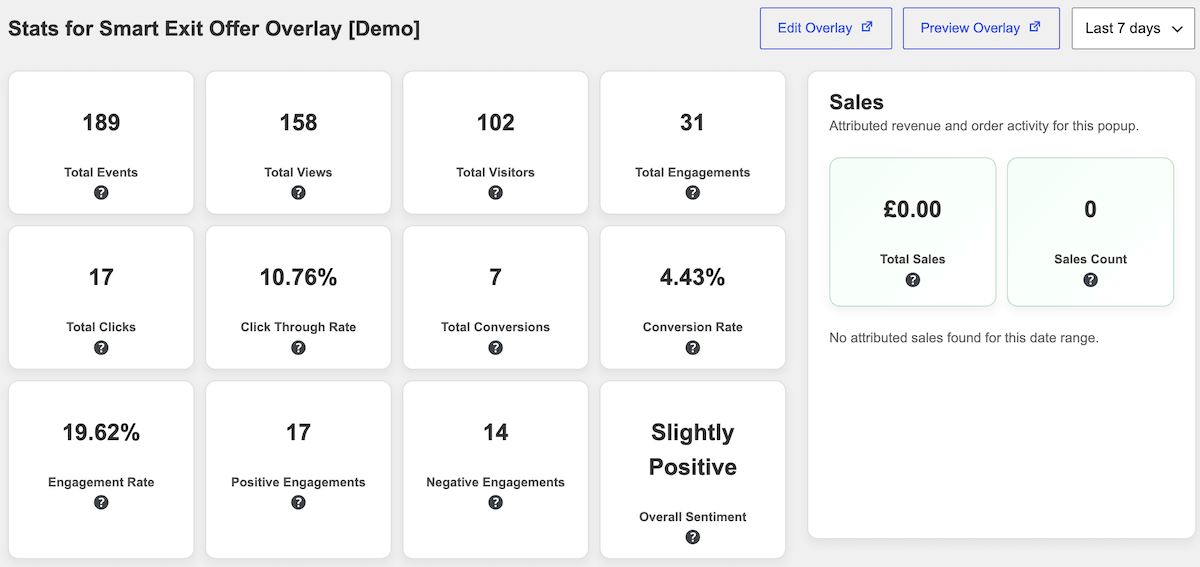
FooConvert gathers data for each popup that is displayed on your website. On that page, you will see data such as the number of views, clicks or conversions. You can also see percentages such as the Click Through Rate, Conversion Rate or Engagement Rate. FooConvert will also measure the overall sentiment attached to the interaction, such as whether the engagement is negative or positive. For WooCommerce-related widgets, you can also see the total sales and the attributed revenue for each of your popups.
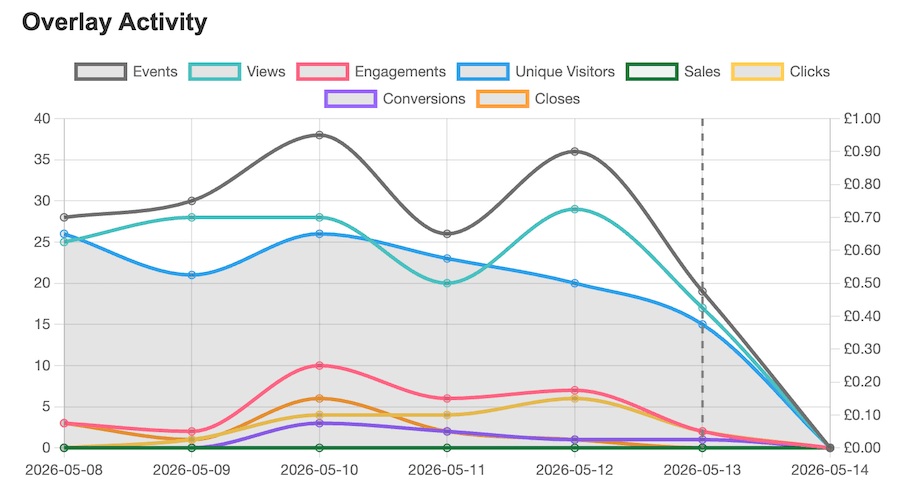
These numbers will also be translated into a graph. This will display vital data such as the conversions, closes, views and engagements. Clicking on the items above the graph will hide that data, allowing you to focus on specific analytics, should you wish to. You will also be able to select the period for which the data is displayed.
Retention Period
FooConvert PRO Analytics will display data for a set period of time, allowing you to track analytics for the duration of a campaign. By default, the retention period is set to 30 days. However, you can change this by going to FooConvert -> Settings. In the general settings, change the Retention Period to the your desired number of days.

Should you change the retention period, you will have access to this data in the analytics for each of your popups.
Note that the greater the retention period, the more data that will be saved in your database. As such, it is inadvisable to make this too high. We recommend that you do not set this to more than 100 days.


