
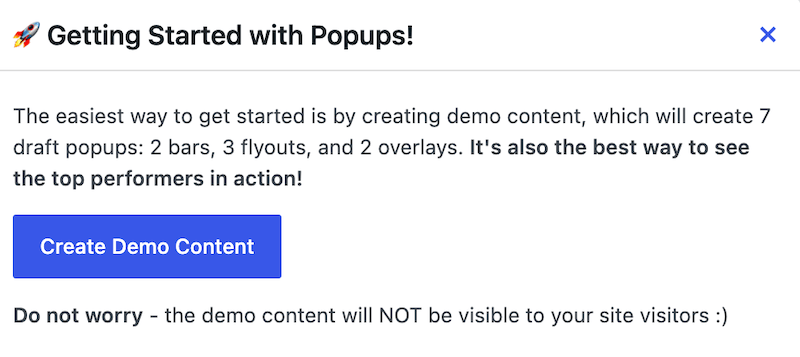
When you first install FooConvert, you will be able to create demo content. This is a useful way to see how the different popup types work and what can be accomplished with them. Demo popups will not be visible to any visitors to your site when created.
To create the demos, go to the FooConvert Dashboard and click on Create Demo Widgets. This will create demos for each of the widget types, and create demo stats for these widgets, giving you insight into how the FooConvert analytics will display.
Once you’ve created the demo content, you will find the draft versions of these in the Popup tab under FooConvert. You will be able to select any of the demo popups and edit these. This will give you a better understanding of the capabilities of FooConvert, and you can then use these demos as actual popups on your site.
Once you’ve edited or customised the appearance, you can also set the display rules for the popup and the trigger settings. Following this, you can publish the popup and it will display on your site. Note that once it is published, it will no longer be considered demo content.
As mentioned, the demo content also comes with demo stats. This will give you some insight into how the stats work, and what you can expect once you have live popups running on your site.


