
Review uploads per gallery or in bulk, control automatic approval, and find saved uploader information.
User Uploads guides
- Getting started
- Who can upload
- Links, QR codes and upload pages
- File limits and optimization
- Fields, labels and appearance
- Moderation and approvals (this guide)
- Receipts and email notifications
On this page
Keep User Uploads > General > Auto Approve = No to review submissions. Contributors see an awaiting-moderation confirmation; their files are not yet public gallery items.
Review one gallery’s submissions
- Edit the gallery and open Uploads Awaiting Moderation.
- Inspect the image or video poster and the contributor’s supplied details. For a video, use the queued MP4 link to review the file.
- Choose Approve to add the upload to the Media Library and gallery, or Reject to remove the queued submission.
- Check the result and any displayed error. An unsuccessful action needs attention; it should not be treated as a completed approval.
Rejected queued uploads are deleted and are not added to the gallery or Media Library. Check the submission before rejecting it.
Moderate multiple galleries in bulk
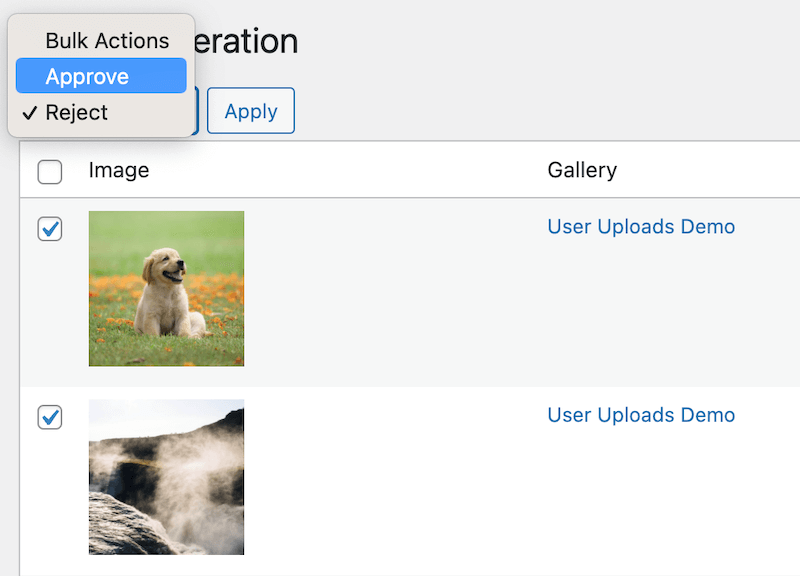
- Open FooGallery > Moderation to see queued uploads across galleries. Check the gallery name beside each submission.
- Select the files, choose Approve or Reject from Bulk Actions and choose Apply.
- Review any per-upload failures. Configured approval/rejection emails also apply to successful bulk actions.
Use automatic approval deliberately
Set User Uploads > General > Auto Approve = Yes and save the gallery to add successful submissions directly to the Media Library and gallery. The confirmation then reports approval rather than a moderation queue. Upload permissions and file limits still apply, but the administrator does not review each file first.
Find contributor details after approval
Open an approved attachment in FooGallery’s Advanced Attachment Modal and select Upload Info. It retains available original filename, upload context and collected information; uploader names and email addresses are restricted to administrators. Additional fields are retained after approval. When viewing the attachment from another gallery, the source gallery is identified and linked.
If an approved image is not visible
Confirm the moderation action succeeded and you are viewing the intended gallery. Refresh the public page and check active paging or filters before investigating a page-cache issue. You do not need to re-upload the file to make an already-approved item appear. For notifications, see Receipts and email notifications.
Related: Getting started and all guides · Try the upload demos.


