
Choose open, logged-in, or code-protected submissions and manage visitor upload access.
User Uploads guides
On this page
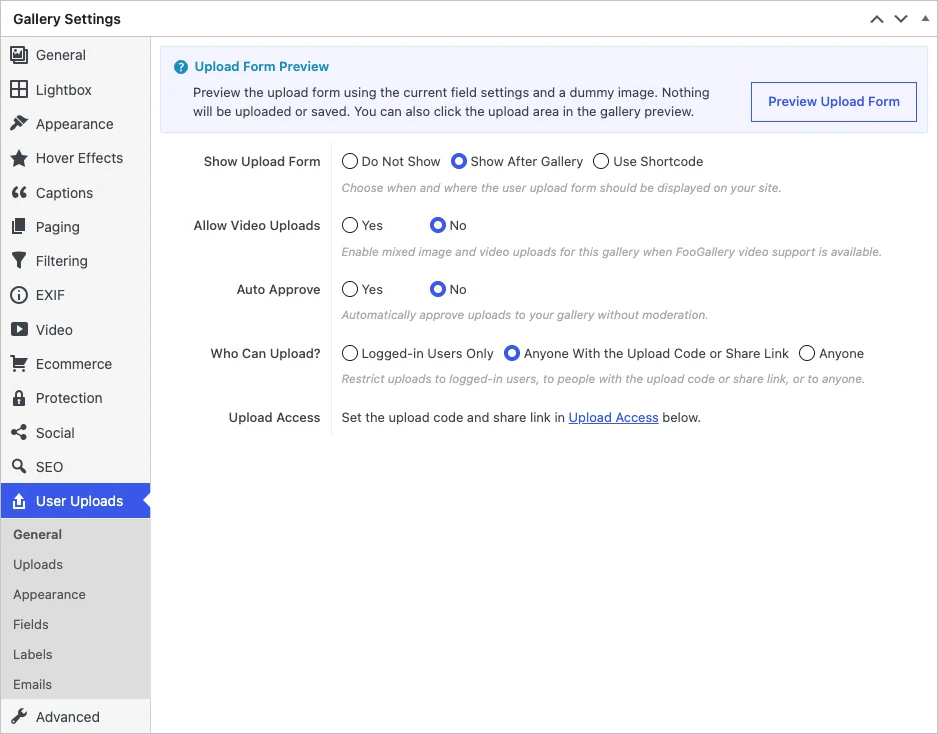
Open FooGallery > Galleries > your gallery > User Uploads > General. Set Who Can Upload? independently from Auto Approve and the file limits.
Choose an access mode
| Mode | Use it when |
|---|---|
| Logged-in Users Only | Contributors already have WordPress accounts. Set the required role where shown; Anyone in the role selector means any logged-in user. |
| Anyone With the Upload Code or Share Link | Guests should contribute without WordPress accounts. A code is required by default; link-only access is an explicit option. |
| Anyone | The upload form should accept public submissions. File limits and moderation still apply. |
Set an upload code
- Select Anyone With the Upload Code or Share Link, then save the gallery.
- Scroll to the separate Upload Access panel below Gallery Settings. Choose Set a code, or Change code when one already exists.
- Enter a code with 8 to 64 characters, or choose Generate. Select Save code and copy it while it is displayed.
- Share the code with the intended guests. Open the upload page in a private browser window, enter the code and choose Unlock.

Codes ignore capitalization and spaces at the beginning or end. The saved code cannot be displayed again after you leave that state; set a new code if it is lost. A successful unlock normally lasts 24 hours in that browser and applies only to this gallery.
Keep Auto Approve = No to review files before publication. Entering a valid code does not approve an upload or bypass its limits.
Change or revoke access
| Control | Effect |
|---|---|
| Change code | Invalidates sessions unlocked with the old code. Visitors need the new code. Link-based access is managed separately. |
| Regenerate link | Replaces the share link and invalidates access granted by the old link. Update invitations and printed QR codes. |
| Turn off link | Disables share-link access, including sessions granted by that link. The upload code remains available. |
| Sign out all visitors | Ends existing code- and link-based sessions. The current code and link remain valid, so guests can unlock again. |
When Skip the Code is enabled, anyone with the current share link can regain access. To withdraw that invitation, replace or disable the link. Sign-out alone does not withdraw it. See Links, QR codes and upload pages for the default code requirement and link-only option.
Continue when access ends during an upload
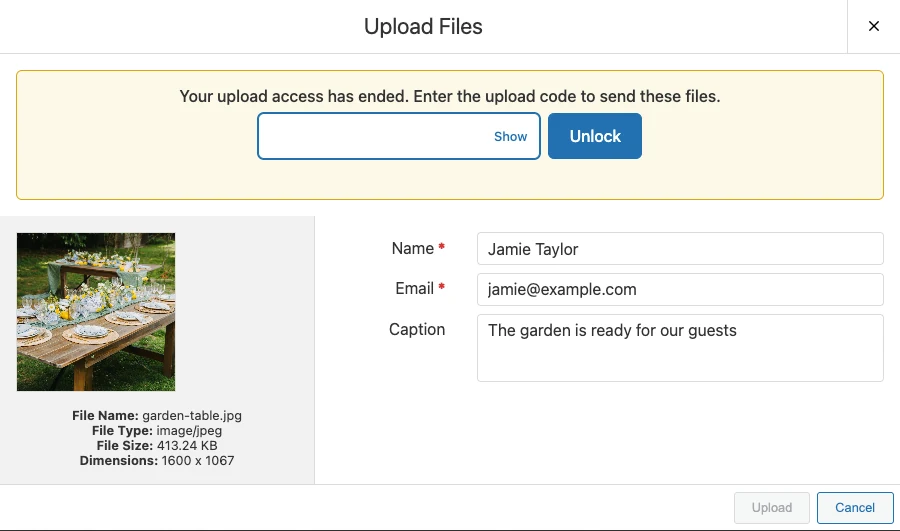
Keep the upload dialog open, enter the current code and choose Unlock. The selected files and entered details remain in that open dialog; choose Upload when it becomes available. If the code changed, ask the organizer for the new one. This is not a saved draft: closing or reloading the page can lose that work.
If a guest cannot unlock
- Check the code belongs to this gallery and has not been replaced. If it is lost, set a new one.
- After repeated incorrect attempts, wait for the displayed cooldown before trying again.
- Confirm the gallery is published, has no WordPress password, and still uses code or share-link access. Draft and private galleries cannot use the public protected upload flow.
- Send the complete current share link. A regenerated or disabled link is no longer a valid invitation.
Related: Getting started and all guides · Try the upload demos.


