
Set file counts, sizes and formats, prepare images in the browser, and enable supported MP4 uploads.
User Uploads guides
- Getting started
- Who can upload
- Links, QR codes and upload pages
- File limits and optimization (this guide)
- Fields, labels and appearance
- Moderation and approvals
- Receipts and email notifications
On this page
Edit the gallery and open User Uploads > Uploads. These settings apply to that gallery; they do not raise your hosting account or server limits.
Set count, size and allowed types
- Maximum Uploads Allowed limits the number of files per submission, not a lifetime total per visitor. Leave it blank for unlimited files per submission.
- Maximum Upload Size sets the maximum size in MB for each file. Uploads must also fit the site’s WordPress/PHP/server limits. There is no universal WordPress 5 MB limit.
- Allowed File Types controls the extensions accepted by this gallery. Galleries without a saved custom list include JPG, JPEG, PNG, WebP and AVIF. Existing custom lists keep their saved choices.
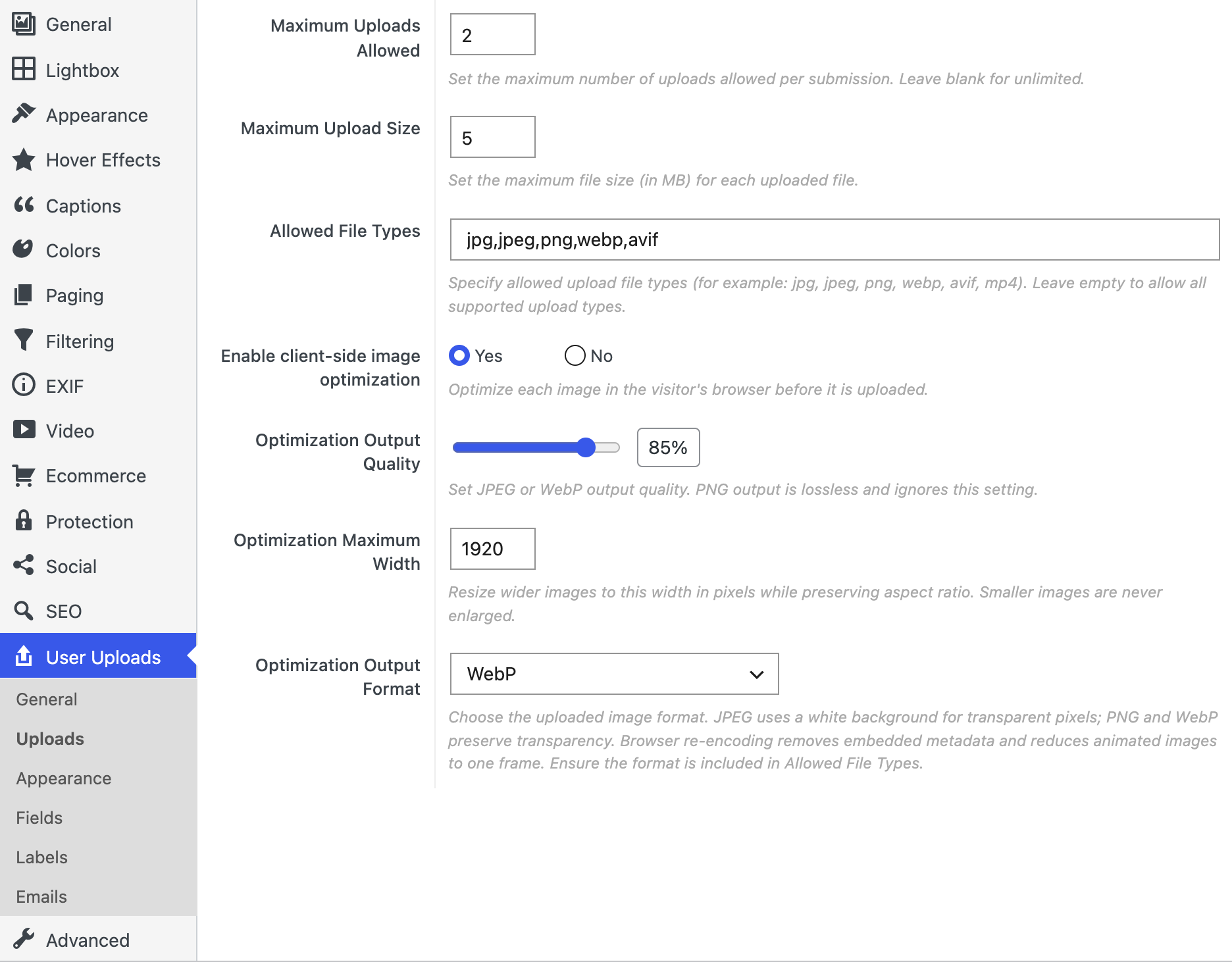
Direct AVIF uploads require WordPress 6.5 or newer and AVIF support in the server image library. Test the formats you intend guests to use on your actual site.
Prepare images in the visitor’s browser
- Enable image optimization for this gallery. It is optional and off by default.
- Set a maximum width and choose JPEG, PNG or WebP output. Set quality for JPEG or WebP; PNG is lossless and ignores quality.
- Include the selected output format in Allowed File Types, then save the gallery.
- Try a supported image. The upload dialog shows preparation progress before the prepared file is submitted.
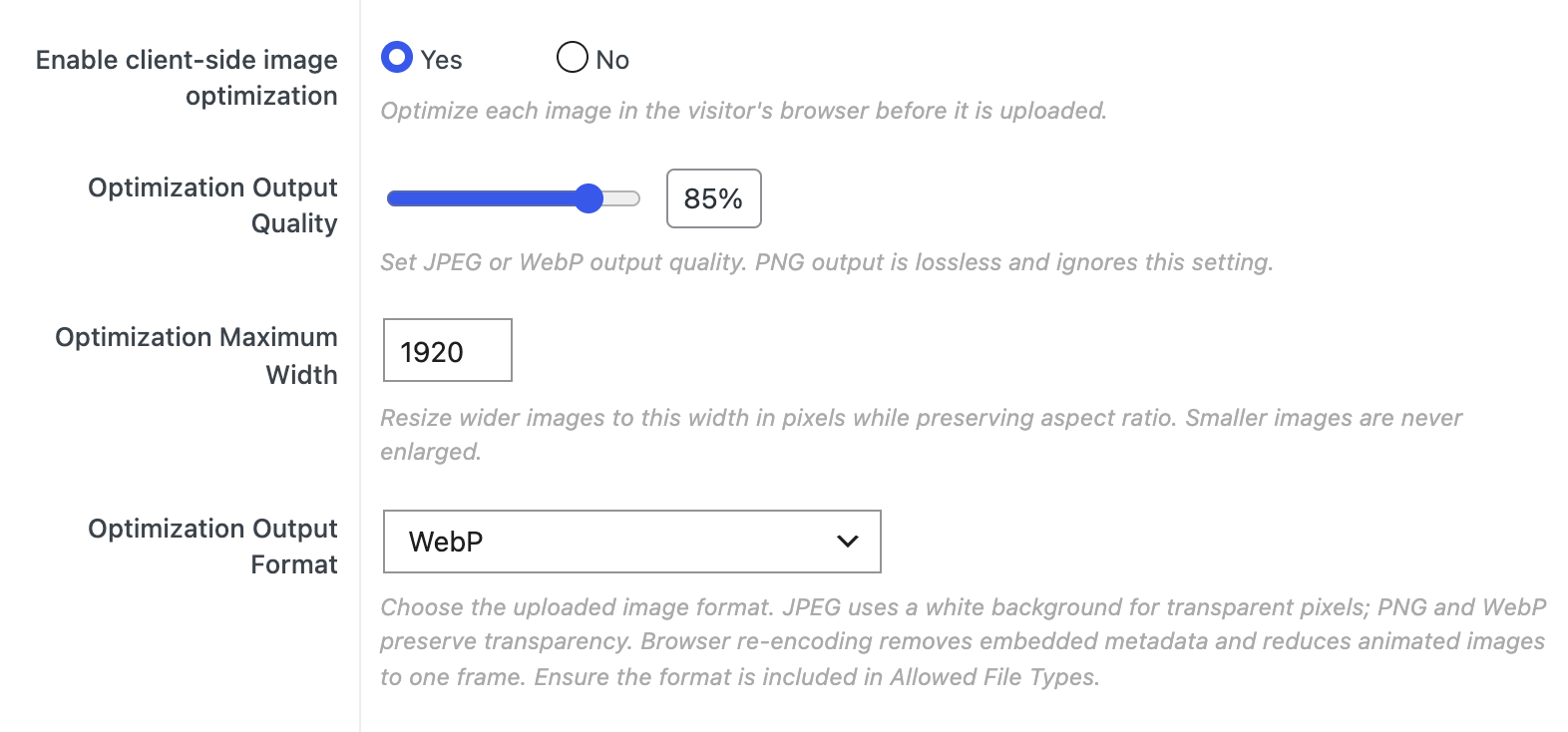
Browser re-encoding removes embedded image metadata and turns animated images into a single frame. Collect captions, alt text and other details through the form when you need them. Optimization does not process MP4 videos.
Allow supported MP4 videos
In User Uploads > General, enable Allow Video Uploads. It is off by default and currently supports MP4 only. FooGallery video support must also be active; without it, the form remains image-only even if the toggle is enabled. Adjust allowed types, upload size, file count and visitor-facing labels for a mixed-media form.
Videos use a generated poster for preview and can follow the same moderation process. Test an MP4 on the intended phones and browsers before inviting video submissions.
If a file is rejected or preparation fails
- Read the displayed validation message. Check the file’s size, extension and type against the gallery settings.
- Check that the optimization output format is allowed. Try a small JPEG or PNG to distinguish a format issue from a general upload problem.
- If the server refuses uploads below the gallery limit, inspect WordPress/PHP/server limits with your host.
- If a browser cannot decode an image, try another supported file. Do not promise conversion of every format supplied by a phone.
- For an unavailable video option, confirm FooGallery video support is active.
Related: Getting started and all guides · Try the upload demos.


