
FooGallery PRO Starter includes a color feature that allows you to set the background color of your images, and sort them by color. Here’s a screenshot of how this looks:
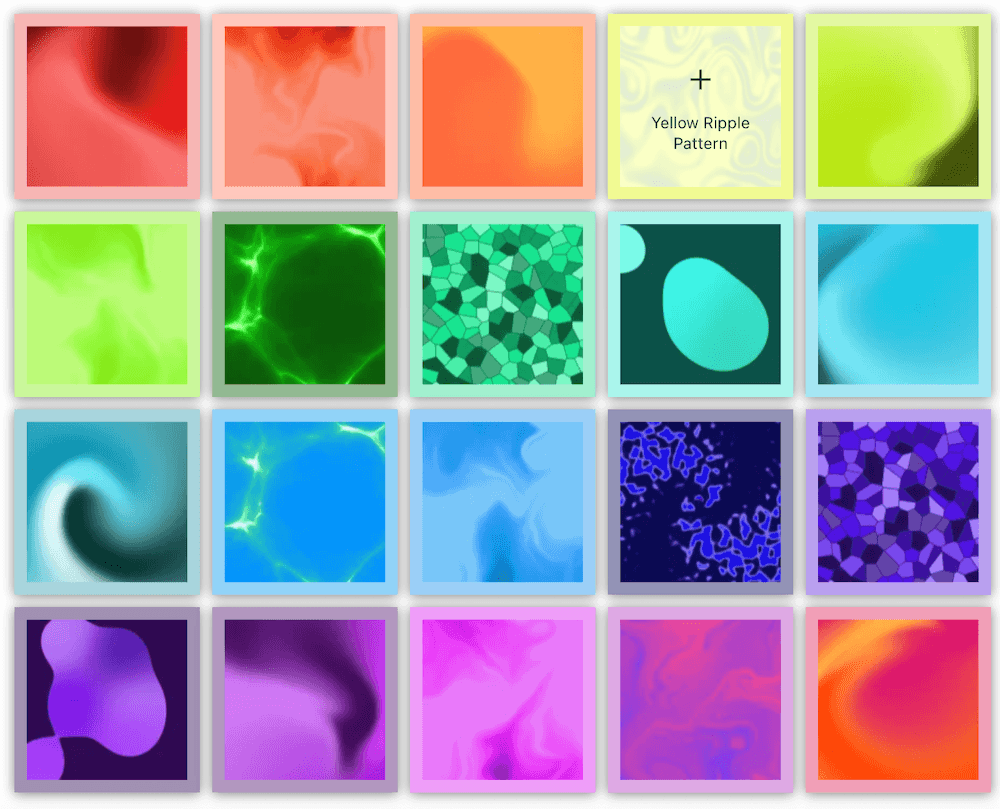
In your gallery settings, click on the Colors tab and begin by extracting the colors from your gallery images. This will identify the dominant color in each of the images.
You can then use this to set the background color for your gallery images and/or the images in the lightbox. These settings include:
- BG Color: this can be disabled, or set to Opaque or Tinted. If tinted is selected you can choose the percentage of tint used for the background.
- Lightbox BG Color: If you want the background color to be applied in the space behind the image when opened in the lightbox, then you can enable this by selecting Opaque or Tinted. Again, you can set the degree to which the background is tinted.
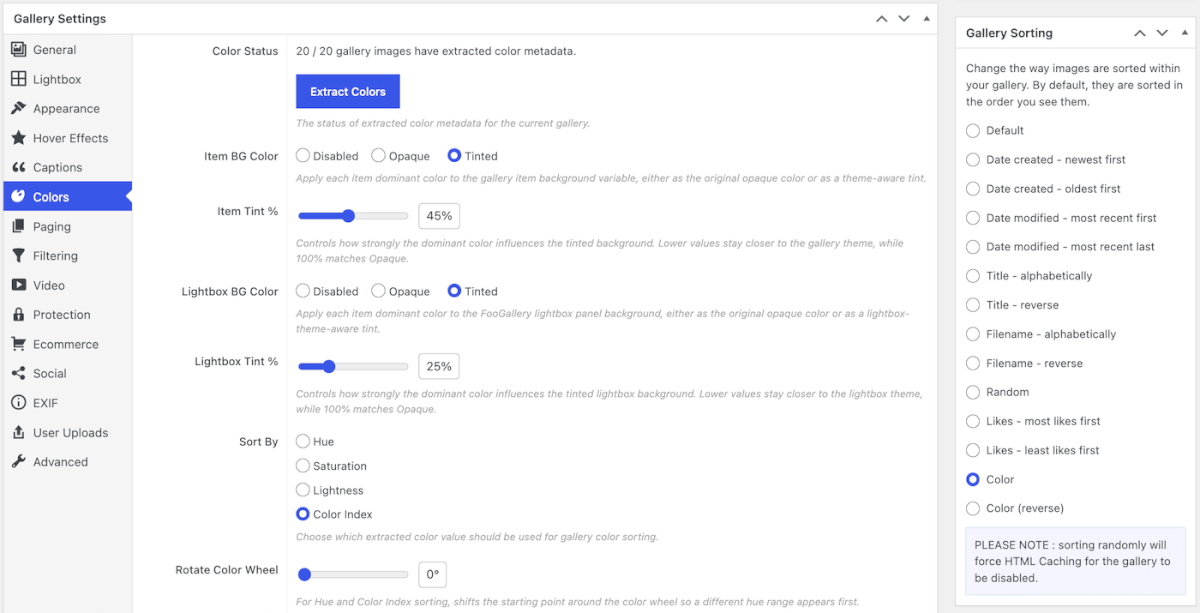
The color feature also allows for color sorting. Here you can:
- Sort by Hue, Saturation, Lightness or Color Index. These will change the order of the gallery. For example, choosing Lightness will sort the gallery from darkest to lightest background color.
- If you choose to sort by Hue or Color Index, you can rotate the color wheel to start from a different color.
- You can also choose to sort by Color (reverse) from the Gallery Sorting options. This will reverse the order of your images, for example, going from lightest to darkest.
To see this in action, take a look at the Color Demo.
This feature is available in FooGallery PRO Starter.


