

Filtering For WordPress Galleries
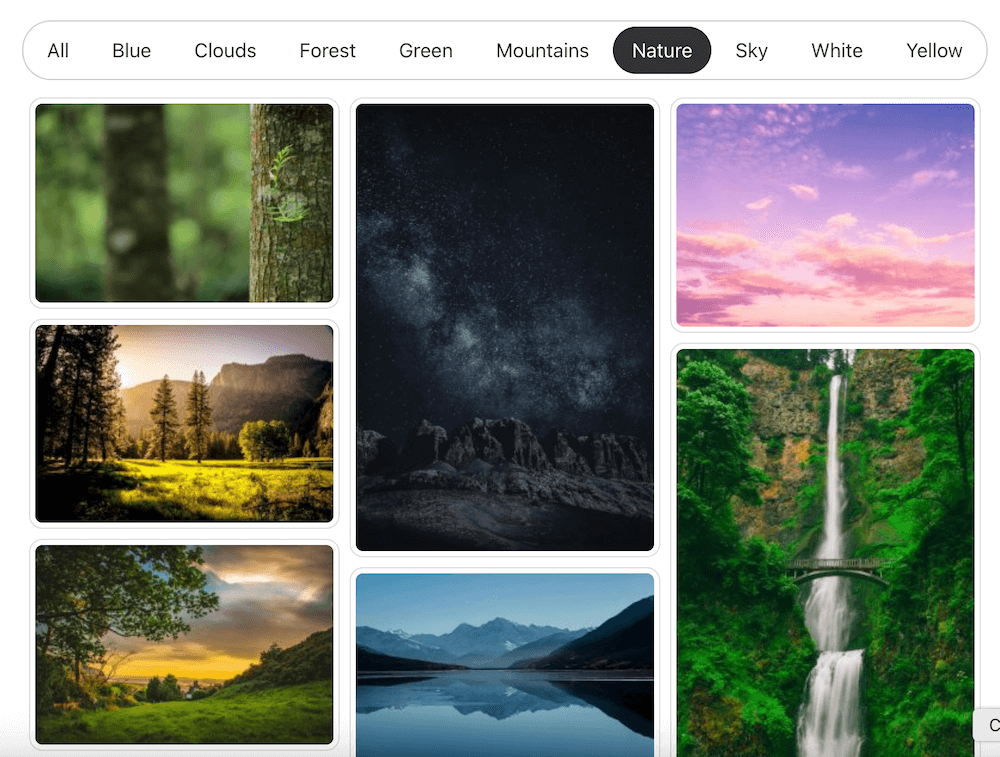
FooGallery filtering helps visitors narrow a WordPress gallery using tags, categories, or multi-level filtering controls.
Add frontend filtering using tags or categories.
Supports multi-level filtering.
Change filtering style to buttons, pills or dropdown.
PRO Expert required plan
100K active installs
4.8 / 5 rating
30-day guarantee
Live demos
WordPress Gallery Demos Using Filtering
Use the demo below to see how Gallery Filtering behaves in a real scenario.
Demo 1 – filtered gallery using pill block style









The demo shows a masonry gallery with tag filtering using a pill block style
Demo 2 – advanced filtering showing counts

This demo shows advanced filtering options like image counts inside filters
Demo 3 – Multi-level Filtering (as Dropdowns)
This demo shows multi-level filtering with the dropdown style
Demo 4 – Multi-level Filtering (as buttons)
This demo shows multi-level filtering with the button block style. Please note that dropdowns will be shown on mobile devices.
Demo 5 – Filtering + Pagination


This demo shows how you can use filtering and pagination in the same gallery.
Demo 6 – Custom Demo : Team Profiles







This demo shows how you can use filtering to showcase your company team profiles.
Who this is for?
For galleries with too many images to browse all at once.
Use filtering when visitors need to narrow a gallery by tags, categories, topics, products, or visual groups.
- Large portfoliosLet visitors jump to the work type, project, or style they care about.
- Resource librariesMake big image collections easier to scan without splitting them across many pages.
- Product galleriesHelp shoppers narrow examples by category, use case, or collection.
Availability
Check the FooGallery plan for this feature.
Use the FooGallery WordPress gallery plugin overview to compare Free, PRO Expert, and PRO Commerce before choosing your next step.
Not included
Free
This feature is not included in FooGallery Free.
Not included
PRO Starter
This feature is not included in PRO Starter.
Minimum plan
PRO Expert
PRO Expert includes this feature.
Also included
PRO Commerce
PRO Commerce includes all PRO Expert features.
Ready for the next step?
Read through the relevant documentation or head over to our pricing to get started
Related features
Compare Related FooGallery Features
Check out these related FooGallery features to improve your WordPress galleries

Gallery Search
Improve user experience with WordPress photo gallery search! FooGallery PRO searches gallery photos to find what you're looking for quickly.

Grid Layout
A grid display with the full-size image opening in the gallery.

Mobile Gallery Settings
Compare inherited desktop values with mobile-specific FooGallery PRO overrides and a live phone preview.
FAQs
Frequently Asked Questions
Answers to common questions about Gallery Filtering.
FooGallery filtering helps visitors narrow (or filter) a WordPress gallery using tags or categories. The tags or categories are set for each media attachment.
No. Filtering is only available in FooGallery PRO Expert or PRO Commerce. Use the compare plans page before choosing a license to find the best fit for your site.
Yes, there are settings to change the color and style of the gallery filters, including making them look like buttons, pills or dropdowns. There are also options to group the filters in blocks to give it a nice consolidated look.
Yes, you can limit the number of filters, or explicitly select which filters are shown on a gallery.
Gallery search is also available as a FooGallery PRO feature, and the search works seamlessly with the gallery filtering. This feature is available in the PRO Expert and PRO Commerce plans.
Sometimes you need more than a single level for filtering. You can define multiple levels of filtering for advanced scenarios.
All filtering features, including multi-level filtering, are available in PRO Expert.
FooGallery filtering uses the media tags and categories built into FooGallery PRO.
Yes, see the demo above where both are used.
Ready when you are
Ready to use Filtering For WordPress Galleries?
Compare FooGallery PRO plans to confirm this feature is available and choose the license that fits your site.