
With FooGallery PRO, you are able to bulk copy gallery settings across to all or just some of your galleries. This is a great feature, and in this post we’ll look at the benefits of using the Bulk Copy metabox, and how to do this.
Benefits of Bulk Copying
One of the biggest advantages of using the Bulk Copy feature in FooGallery PRO is that it saves you time. You are able to style your gallery as you like. You can then choose to copy these settings to other existing galleries, saving you the hassle of replicating all of the settings again.
This gives you a uniformity across your galleries, which means a more polished, professional look for your website.
Another benefit is that the settings can be applied to select galleries, rather than all of them. If you’re a photographer for example, you may want all of your wedding photography galleries to have a particular style. But this style may not suit your family galleries or your portrait galleries. This is where the bulk copying comes in handy. You can create different styles for different sets of galleries.
How to Bulk Copy Settings
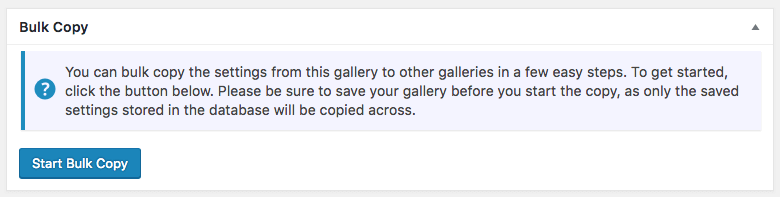
In FooGallery PRO Expert or Commerce, edit the gallery whose settings you want to reuse. Scroll to the Bulk Copy metabox and click Start Bulk Copy.
Choose whether to copy every available setting or only selected sections. You can copy groups such as layout, appearance, hover effects, captions, paging, SEO, or colors while leaving unrelated settings on the destination galleries unchanged.
Next, choose the destination. Select All Galleries to update every existing gallery, or use Custom Selection to choose only the galleries that should receive those sections.
Review the selected sections and destinations, then click Run Bulk Copy. When the operation finishes, spot-check at least one destination gallery before applying another bulk change.
Here’s a quick guide to using this feature.



A Note On Styling Future Galleries
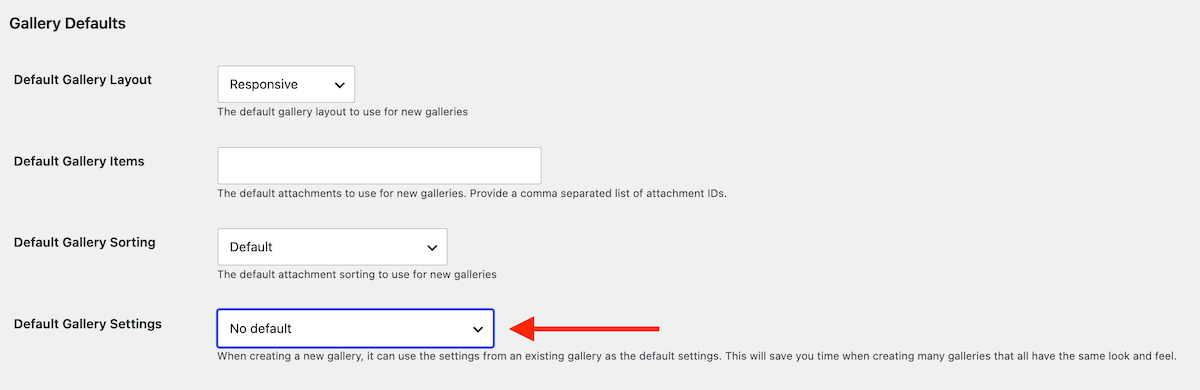
The Bulk Copy feature only makes changes to galleries that already exist. However, on the global settings page for FooGallery, you are able to choose which gallery must be used as the Default Gallery Settings. This means that when you create a new gallery it pulls in the settings from selected gallery as the default settings.
If you go to the FooGallery Settings page from your dashboard, find the Default Gallery Settings option and select the gallery of your choice. Future galleries you create will now automatically have the same settings as this gallery.
FooGallery PRO
This WordPress Media Gallery offers you a variety of templates and settings, ensuring you can create the perfect galleries for your site. With the Bulk Copy feature, you’ll be able to ensure that all of your galleries look the same.
Have a look at all the features for yourself, or upgrade to FooGallery PRO now.