
Your beautiful gallery is worthless if it takes forever to load. In our experience, galleries with an average mobile LCP above 5 seconds consistently rank below less visually impressive competitors who’ve simply prioritised speed.
Gallery performance isn’t a technical nicety. Google’s Core Web Vitals make page speed a direct ranking factor, and slow galleries directly hurt three of the measurements Google uses to evaluate your pages. Clients also judge your professionalism on load time before they ever evaluate your images – and most won’t wait more than three seconds to find out.
The good news: most gallery speed problems have straightforward fixes. You don’t need to be a developer, and you don’t need to sacrifice image quality. You just need to know what’s actually slowing things down.
Here’s the exact process we use.
Step 1: Diagnose Your Gallery’s Speed Problem First
Before optimizing anything, measure what you’re actually dealing with. Two tools give you the full picture:
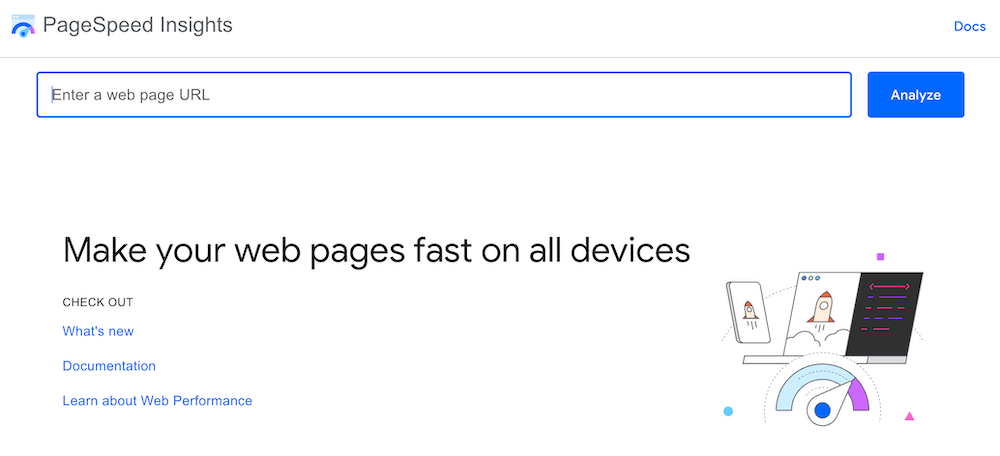
Google PageSpeed Insights (pagespeed.web.dev) gives you official Core Web Vitals scores for both mobile and desktop. Run it on your gallery page specifically, not just your homepage.
Google Search Console. The Core Web Vitals report shows real-world data from actual visitors. This is more reliable than synthetic tests because it reflects your real audience’s devices and connections.
When you run these tests, focus on three numbers, i.e. the Core Web Vitals targets for gallery pages:
- LCP (Largest Contentful Paint): ≤ 2.5 seconds = Good. Gallery images are almost always the largest element on the page, making LCP your most important metric.
- INP (Interaction to Next Paint): ≤ 200ms = Good. This measures how quickly your page responds to user interactions throughout their session; heavy gallery scripts are a common culprit for poor INP scores.
- CLS (Cumulative Layout Shift): ≤ 0.1 = Good. Galleries that don’t reserve space for images before they load cause layout jumps that hurt this score.
Once you know your scores, the sections below address the most common causes of each problem, starting with the highest-impact fixes.
Step 2: Image optimization – 60% of the Impact
Images account for 60–80% of most gallery page weights. This is where the biggest wins are.
Choose the Right File Format
Not all image formats are equal. Here’s a quick reference:
| Format | Best For | File Size vs JPEG | Browser Support |
| JPEG | Photos (baseline) | — | Universal |
| WebP | Photos + graphics | ~30% smaller | 97%+ |
| AVIF | Photos + graphics | ~50% smaller | 95%+ (all major browsers) |
| PNG | Logos, text, transparency | Larger | Universal |
For new FooGallery installations in 2026, the recommendation is AVIF as your primary format with WebP as a fallback. AVIF is now supported across Chrome, Firefox, Safari, and Edge (covering 95%+ of global browser usage) and delivers roughly 50% smaller file sizes compared to JPEG with no visible quality loss. WordPress handles the fallback automatically using a <picture> element when you use an image optimization plugin like ShortPixel or Imagify.
JPEG remains a solid choice if you’re not ready to migrate, but there’s no longer a compelling reason to avoid AVIF for new content.
PNG should be reserved strictly for images with sharp edges, text overlays, or transparent backgrounds. For photographs, it creates needlessly large files.
Compress Without Losing Quality
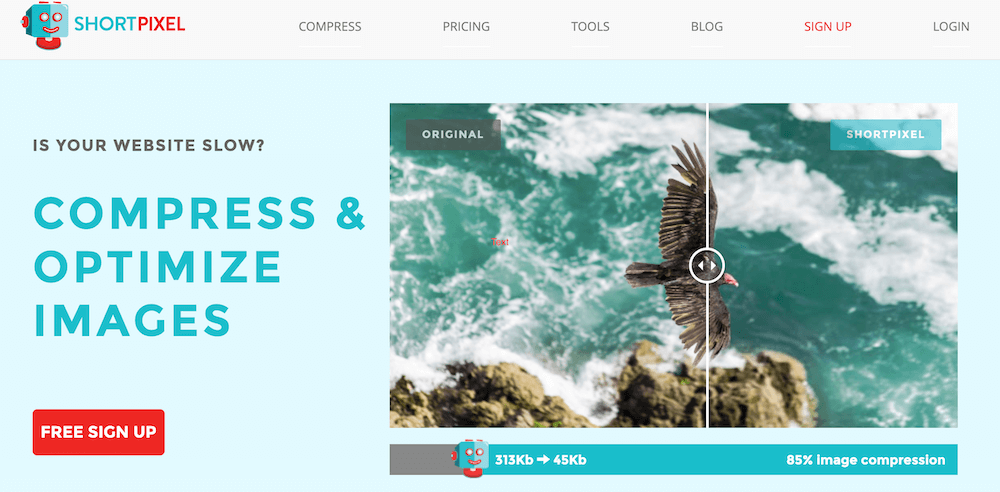
Smart compression can reduce image file sizes by 70–80% without any visible quality degradation, but the right settings often depend on the subject matter.
- Portrait photography handles aggressive compression well because skin tones and soft lighting don’t show compression artifacts easily. You can typically push to 80–85% compression without noticeable quality loss.
- Landscape photography with fine detail, such as sharp foliage, architectural edges or high-contrast textures, requires more conservative compression. These are the images most likely to show artifacts at high compression settings.
- Product photography needs careful balance: customers need to evaluate details, but oversized files slow down ecommerce galleries. Test at 75–80% compression and review the result at full size.
Tools like ShortPixel, Imagify, or TinyPNG handle batch compression well. For individual images, Squoosh (squoosh.app) lets you compare formats and compression levels side by side before downloading.
Serve the Right Image Size for Each Device
Serving a 1920px image to a mobile phone displaying it at 400px wastes bandwidth and slows loading without any visual benefit.
WordPress responsive images automatically generate multiple sizes and serve the appropriate version based on the visitor’s screen. But this only works correctly when your images are uploaded at the right source dimensions and your theme declares proper image sizes.
FooGallery is a performance-focused WordPress gallery plugin with automatic thumbnail generation. It creates optimized thumbnail sizes for each gallery layout and serves the correct version per device automatically. For galleries with our recommended setup, you don’t need a separate responsive images plugin.
For retina displays, 2x resolution versions are needed for sharp appearance but these should only load on high-DPI screens. FooGallery manages this conditionally so you don’t serve unnecessarily large files to standard displays.
Step 3: Lazy Loading and Pagination
Lazy loading is a technique that defers image loading until an image is about to enter the user’s viewport, rather than loading the entire gallery upfront. For a gallery with 50 images, this means a visitor loading the page only triggers the first 8–10 image downloads immediately. The rest load as they scroll.
The performance difference is substantial. In our testing across FooGallery installs, disabling lazy loading on galleries with 30+ images increases initial page load time by an average of 3–4 seconds on mobile.
Native WordPress lazy loading (introduced in WordPress 5.5) adds loading=”lazy” to all images automatically. This is a solid baseline, but it doesn’t include the additional optimizations that dedicated gallery plugins provide.
FooGallery’s lazy loading builds on this with viewport-aware intersection observers, configurable preload distance (so images just outside the visible area start loading before the user reaches them), smooth fade-in transitions, and mobile-specific optimizations. For galleries with 20+ images or pages with multiple gallery instances, ensuring FooGallery’s lazy loading is enabled is the single highest-impact setting change you can make.
So far so good, I am new at website development, making a digital military historical site , I am faced with 1000’s of pictures, so FooGallery has been Great at this enormous task.
Wayne Wiebe
Pagination vs. Infinite Scroll
For large galleries, how additional images load beyond the initial view matters too.
Pagination keeps individual page weights predictable and manageable. It’s better for SEO because search engines can crawl and index each page, giving you more indexed content and allowing each page to rank for specific keywords or topics. It’s also easier for visitors to bookmark or share specific gallery sections.
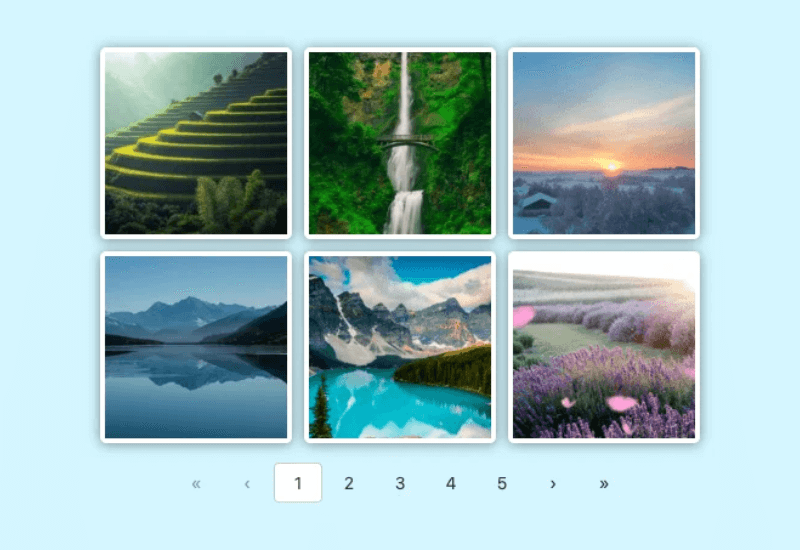
Infinite scroll creates a seamless browsing experience but has two drawbacks: memory usage grows continuously as images load (which can slow older mobile devices), and search engines have historically struggled to reliably crawl infinite scroll content.
The best approach for most photography galleries: paginate at 24–48 images with a clear “Load more” button. This gives you the SEO benefits of pagination with a UX that feels more fluid than traditional page navigation. FooGallery PRO Expert supports both patterns natively.
Step 4: CDN and Caching – The Multiplier Effect
Image optimization and lazy loading reduce what needs to be delivered. CDN and caching determine how fast it gets there.
Content Delivery Networks
A CDN (Content Delivery Network) stores copies of your images on servers located around the world, serving each visitor from the nearest location rather than your origin server. For a photography business serving clients across multiple cities or countries, a CDN can cut image delivery times by 40–60%.
For WordPress gallery sites, the most practical CDN options are:
- Cloudflare: The most widely used. The free tier covers most small-to-medium gallery sites, with image optimization features on paid plans.
- BunnyCDN: Excellent performance-to-cost ratio, popular in the WordPress ecosystem, and now the CDN used by WP Rocket’s RocketCDN. A strong choice for image-heavy sites.
- AWS CloudFront: Enterprise-grade reliability, but requires more technical setup.
- Cloudinary or ImageKit: Specialised image CDNs that also handle on-the-fly resizing, format conversion, and compression. Worth considering if you serve very large image libraries.
Some managed WordPress hosts include CDN functionality. Check before adding a separate service.
Caching for Gallery Pages
Three types of caching affect gallery performance differently:
- Page caching stores the complete rendered HTML of your gallery page, so repeat visitors (and search engine crawlers) receive it without the server regenerating it each time. This is the most impactful caching type for galleries.
- Object caching stores database query results. Websites with many galleries, complex filtering, or album structures benefit most as it reduces the database queries needed to build each gallery view.
- Browser caching tells visitors’ browsers to store your images locally for a set period, eliminating re-downloads on return visits. Properly configured browser caching headers can reduce bandwidth usage by 60–80% for returning visitors.
FooGallery is compatible with the major WordPress caching plugins, including WP Rocket, W3 Total Cache, and WP Super Cache, without requiring special configuration. If you’re experiencing caching conflicts, our troubleshooting guides covers common plugin conflict resolutions.
Step 5: Core Web Vitals – How Gallery Pages Are Scored
Understanding exactly how Google measures your gallery pages helps you prioritise fixes correctly.
Largest Contentful Paint (LCP)
LCP measures when the largest visible element on the page finishes loading. On gallery pages, this is almost always one of your images, which means gallery optimization directly determines your LCP score.
The most common causes of poor LCP on gallery pages:
- Uncompressed or oversized hero/featured images
- No lazy loading (all gallery images blocking the initial render)
- Slow server response times
- Images not being served from a CDN
The fixes in Steps 2–4 above address all of these directly.
Interaction to Next Paint (INP)
INP measures how quickly your page responds to user interactions throughout the entire browsing session, not just the first click. A good INP score is 200ms or less at the 75th percentile.
Heavy gallery JavaScript (lightbox scripts, filtering, animation libraries) that runs on the main thread is the primary cause of poor INP on gallery pages. If your gallery uses complex filtering or sorting and your INP score is poor, JavaScript optimization (deferring non-critical scripts and ensuring gallery interactions are handled off the main thread) will be the fix.
FooGallery’s scripts are structured to minimise main-thread blocking. For sites with multiple gallery plugins or heavy third-party scripts, a plugin audit can identify which plugins are contributing to INP degradation.
Cumulative Layout Shift (CLS)
CLS measures visual stability, or how much the page layout shifts as content loads. Galleries that don’t reserve space for images before they load cause the surrounding content to jump, creating a poor experience and a high CLS score.
The fix is straightforward: ensure all images have explicit width and height attributes set, so the browser reserves space before the image downloads. FooGallery handles this automatically. If you’re seeing CLS issues, they’re typically caused by images inserted outside the gallery (hero images, inline post images) or third-party widgets loading late.
FooGallery WordPress gallery plugin
The Best WordPress Gallery Plugin
FooGallery is an easy-to-use WordPress gallery plugin with stunning gallery layouts and a focus on speed and SEO.
Step 6: Technical SEO for Gallery Pages
Schema Markup
Structured data helps search engines understand your gallery content and can improve how your pages appear in search results. The relevant schema types for gallery sites are:
- ImageGallery schema marks up gallery collections, helping search engines display rich snippets and understand the relationship between gallery images and their context.
- Product schema applies to ecommerce galleries where images showcase items for sale. Correct product schema can improve visibility in Google Shopping results.
- LocalBusiness schema is valuable for photography businesses. Combining location data with gallery content strengthens local search visibility, a particularly important signal for wedding and event photographers targeting specific cities or regions.
Most modern gallery plugins and WordPress themes implement basic structured data automatically. If you want to verify what’s being generated, the Google Rich Results Test shows exactly what schema is present on any page.

Alt Text
Alt text is a short description of an image’s content, serving two purposes: accessibility (screen readers use it to describe images to visually impaired users) and SEO (search engines use it to understand image content).
For photography galleries, effective alt text describes the specific subject, context, and style of each image. “Bride and groom first dance outdoor garden wedding reception Chicago” is significantly more useful than “wedding photo”, both for search visibility and for users who can’t see the image.
The main mistakes to avoid:
- Too vague: text like “photo,” “image,” “gallery image” give search engines nothing to work with.
- Keyword-stuffed: search engines recognise and penalise patterns such as “wedding photographer Chicago wedding photos Chicago wedding photography”.
- Missing entirely: blank alt text is better than keyword-stuffed alt text, but descriptive alt text is better than both.
File Naming
Descriptive file names contribute to image SEO. chicago-wedding-photographer-ceremony.jpg is meaningfully better than IMG_4821.jpg for both Google Image Search visibility and general topical relevance signals.
Rename images before uploading to WordPress as renaming after upload doesn’t update the file URL or its existing references. A consistent naming convention (location-subject-style.jpg) also makes your media library easier to manage as it grows.
For more on technical SEO for gallery sites, see our photography website portfolio guide.
Step 7: Mobile Gallery optimization
Gallery performance problems hurt most acutely on mobile devices, where you have slower connections, less processing power, and users who are even less patient than desktop visitors.
Touch Interface Essentials
Gallery navigation on mobile needs to feel native and effortless:
- Swipe gestures should work smoothly without conflicting with page scrolling. Poorly implemented swipe detection is one of the most common mobile gallery complaints as it either triggers accidentally while scrolling or fails to register intentional swipes.
- Touch target sizes should be at least 44×44px for all interactive elements. Buttons that are comfortable to tap on desktop become frustrating to use with a finger.
- Loading feedback matters more on mobile where connections vary. A clear loading indicator prevents users from assuming the gallery is broken during slower loads.
Mobile-Specific Performance Settings
Bandwidth-conscious loading becomes critical on mobile networks. Serve smaller image sizes to mobile devices; a 1920px image is never needed on a phone screen, and serving it wastes both load time and the user’s data.
INP on mobile deserves specific attention. Touch interaction delays are a common source of poor INP scores on gallery pages. If your mobile INP is significantly worse than desktop, the cause is usually JavaScript handling touch events in a way that blocks the main thread.
Test on real mobile devices, not just browser emulation. Google PageSpeed Insights simulates mobile, but testing on an actual mid-range Android device (not a flagship) gives you a more realistic picture of how typical visitors experience your galleries.
Step 8: Performance Monitoring
Optimization isn’t a one-time task. Gallery performance changes as you add content, update plugins, and as Google refines how it weights different signals.
Tools to Use
Google PageSpeed Insights. Run this on your key gallery pages monthly. Focus on the mobile score and the three Core Web Vitals numbers.
Google Search Console (Core Web Vitals report). This shows real-world data from actual visitors and is updated regularly. The “Poor URLs” list tells you which specific pages need attention.
GTmetrix provides waterfall charts showing the loading sequence of every element on your page. Useful for identifying exactly which images or scripts are causing delays.

WebPageTest. More advanced testing with connection speed simulation, repeat-visit analysis, and device testing. Use this when you need to diagnose a specific bottleneck.
What to Track
Beyond the Core Web Vitals scores, track:
- Time to first image: How long before any gallery image is visible. This is what users actually perceive as “gallery load time.”
- Total gallery page weight: Track this over time. If it’s creeping up as you add content, your optimization processes aren’t keeping pace with your content growth.
- Bounce rate on gallery pages: A meaningful proxy for whether visitors are experiencing the pages as fast or slow.
Step 9: Advanced – Database and Server optimization
For sites with hundreds or thousands of gallery images, database and server performance become relevant. Most photography sites won’t need this section until they’re managing 500+ images.
Database Optimization
WordPress stores image metadata, gallery settings, and attachment data in the database. As galleries grow, poorly structured queries or accumulated metadata can slow gallery loading.
Image metadata cleanup removes unnecessary EXIF data (camera settings, GPS coordinates, timestamps) that has no value to visitors. Plugins like ExifTool or Image Cleanup handle this in bulk, or some of the newer AI media management tools can help.
Gallery organisation using FooGallery’s album and category features helps keep database queries efficient. Flat structures with thousands of unorganised images are slower to query than properly categorised gallery collections.
Database optimization plugins like WP-Optimize clean up post revisions, expired transients, and orphaned metadata that accumulate over time. Running this quarterly on image-heavy sites makes a measurable difference.
Server Resources
Gallery processing – generating thumbnails, handling image requests, running optimization plugins – is CPU and memory intensive.
PHP memory limits need to accommodate your largest gallery operations. If you’re seeing white screens or timeout errors when uploading large batches of images, the PHP memory limit (typically set in wp-config.php or php.ini) is the likely cause. 256MB is a reasonable minimum for gallery-heavy sites; 512MB for sites with very large galleries.
Server CPU spikes during image processing. If your site slows noticeably when you upload new gallery content, the timing is telling you the server is under-resourced for the processing load.
For sites experiencing consistent performance problems that optimization doesn’t fully resolve, managed WordPress hosting with dedicated resources (WP Engine, Kinsta, Cloudways) typically delivers better gallery performance than shared hosting, particularly during traffic spikes.
Common Gallery Performance Issues – Quick Diagnostics
| Symptom | Most Likely Cause | First Fix to Try |
| Slow initial load on all gallery pages | Uncompressed images, no CDN | Run images through ShortPixel; enable Cloudflare |
| Good desktop score, poor mobile score | Images too large for mobile | Verify responsive images are enabled in FooGallery |
| High CLS score | Images without width/height attributes | Check non-gallery images on the page; update theme |
| Poor INP score | Heavy JavaScript on main thread | Audit active plugins; defer non-critical scripts |
| Slow gallery with few images | Plugin conflicts, uncached pages | Test with caching enabled; deactivate plugins one by one |
| Performance degrades over time | Growing unoptimized image library | Set up automatic compression on upload |
Use FooGallery for Optimized Gallery Performance
Gallery performance optimization delivers three simultaneous wins: better search rankings (through improved Core Web Vitals), better user experience (through faster loading), and higher conversion rates (through fewer bounced visitors). The fixes are largely straightforward and the most impactful improvements come from image format selection, lazy loading configuration, and caching setup, none of which require developer expertise.
The FooGallery plugin handles core performance optimizations like responsive images, lazy loading, and thumbnail generation, automatically. The strategies in this guide build on that foundation to ensure your gallery pages are as fast as they can be, on every device and connection type.
For step-by-step FooGallery setup, see theWordPress photo gallery setup guide. Photography professionals building a full portfolio site will find additional context in our photography website portfolio guide. If you’re currently using a gallery plugin that doesn’t prioritise performance, our guide to migrating to FooGallery covers the migration process and the specific performance improvements you can expect.
For improved gallery performance, try FooGallery PRO Expert today.
FooGallery WordPress gallery plugin
The Best WordPress Gallery Plugin
FooGallery is an easy-to-use WordPress gallery plugin with stunning gallery layouts and a focus on speed and SEO.
Frequently Asked Questions
Image compression is only one piece of the puzzle. Slow galleries are usually caused by a combination of factors: no lazy loading (all images loading at once), no CDN (images served from a distant server), no page caching (server regenerating the gallery on every visit), or too many competing scripts from other plugins. Run Google PageSpeed Insights and check the “Opportunities” section to identify which factor is contributing most.
Yes, directly. Switching from JPEG to AVIF or WebP reduces image file sizes by 30–50%, which shortens download times and improves LCP. For gallery pages where the largest element is almost always an image, this has a direct and measurable impact on your Core Web Vitals scores.
Yes. Native browser lazy loading and well-implemented JavaScript lazy loading do not prevent Google from indexing your images. Google’s crawler is capable of rendering JavaScript and can crawl lazy-loaded content. The SEO benefit of faster LCP from a lighter initial page load outweighs any theoretical crawling concern.
Google retired First Input Delay (FID) as a Core Web Vital in March 2024 and replaced it with Interaction to Next Paint (INP). FID only measured the delay before the first interaction on a page. INP measures the responsiveness of all interactions throughout a user’s entire session, giving a much more accurate picture of whether a page feels responsive or sluggish to use. A good INP score is 200ms or less.
With lazy loading enabled and images properly compressed, FooGallery handles galleries of 500+ images without meaningful performance degradation on the initial page load. This is because only the images in the initial viewport actually load upfront. Performance on individual page views is largely unaffected by total gallery size when lazy loading is configured correctly. For very large galleries (1,000+ images), pagination becomes important for overall site health (database and server load) even if individual page performance is fine.
Managed hosts like WP Engine and Kinsta include CDN functionality, so check whether it’s enabled for your account before adding a separate CDN service. Running two CDN layers can occasionally cause caching conflicts. If your host’s CDN doesn’t cover image optimization specifically, a specialised image CDN like Cloudinary is worth considering alongside it.
Core Web Vitals are a confirmed Google ranking signal. Moving from “Poor” to “Good” on Core Web Vitals (particularly LCP) can improve rankings, especially in competitive niches where the top results are otherwise closely matched. The effect is most pronounced on mobile search. We’ve seen photography businesses recover 20–35% of lost organic traffic after moving all their gallery pages to “Good” Core Web Vitals status.