
If you want to add social elements, such as Likes, Comments and Sharing, to your FooGalleries, you can use the FooGallery Social add-on. To add this to your galleries, you will need to do the following.
Install FooGallery
FooGallery Social works with FooGallery, so you will need at least the free version of FooGallery installed and activated on your site. Note that the Social add-on works with version 3.1.1 and up, so you may need to update FooGallery to the latest.
Once FooGallery is installed and active, you can create any number of image galleries for your site. Note that Social works for videos as well, but you will need FooGallery PRO Expert to enable video embedding for your galleries. Social also works with WooCommerce products, so if you’re using FooGallery Pro Commerce to create dynamic product galleries, you can enable social features for these galleries.
Install FooGallery Social
You can now purchase and install the add-on license for FooGallery Social. This will allow you to enable any of the social features on any of your galleries. You can do this by opening the Social tab in the gallery settings and clicking on Enabled.
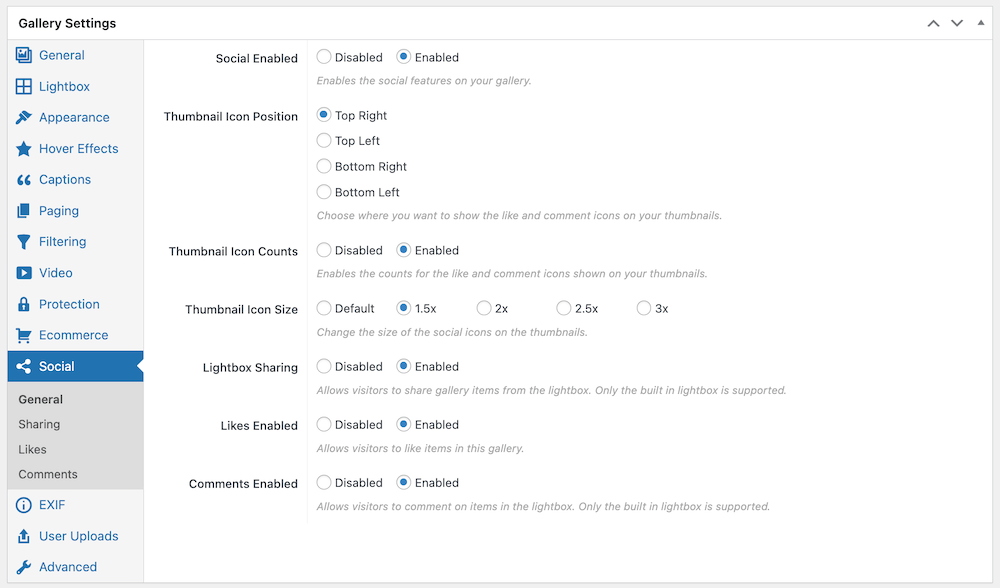
In the General Social settings, you can then enable Sharing, Likes and/or Comments, and choose the icon position. Once each is enabled, you can navigate to those specific tabs for further settings.


