
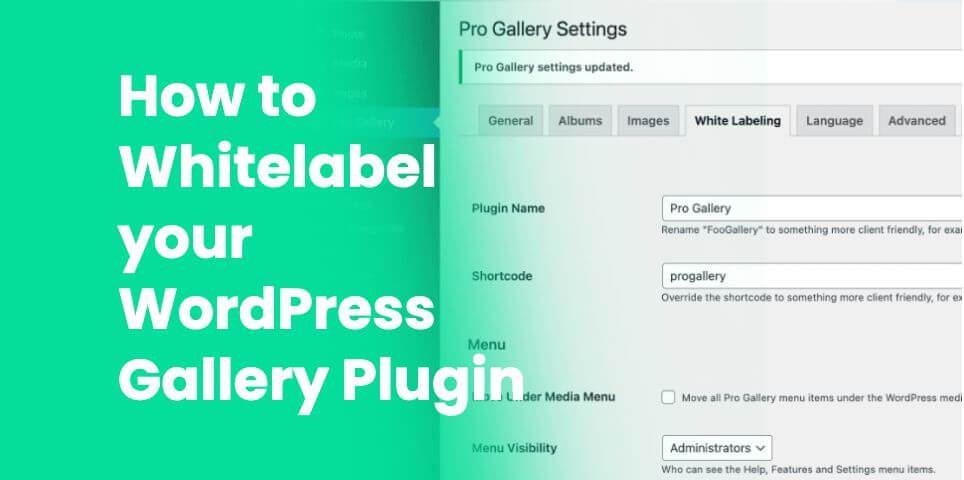
Three weeks after handover, the email arrives: “What’s FooGallery, and why is it telling me to upgrade something?”
The client isn’t confused about their galleries. They’re confused about why a plugin brand they’ve never heard of is sitting in the dashboard you built for them … next to a pricing page, an account page, and a settings screen full of options nobody briefed them on.
That single email is the case for white labeling, and it has very little to do with vanity branding. It’s about how much surface area you hand a client on day one, and how many of those surfaces can generate a question, a mistake, or a support ticket that lands in your inbox.
This is a deep dive into what white labeling a WordPress plugin actually does, why it matters commercially for agencies and freelance developers, and exactly how the FooGallery Whitelabel add-on works.
What does White Labeling a WordPress Plugin mean?
When you white label a WordPress plugin you’re changing how that plugin presents itself inside the WordPress admin so it appears as part of your own product or your client’s site, rather than as a third-party tool. In practice, that involves renaming the plugin’s visible labels, controlling which of its admin screens are reachable, and deciding which user roles can see them.
It’s a presentation and access layer. The plugin still does the same work, but you’re simply changing what the person logging in can see and touch.
For a gallery plugin specifically, white labeling covers four things:
- The name shown in menus and admin screens.
- The shortcode name your client encounters in the editor.
- The admin menu items that appear under the plugin.
- The gallery data sources available when someone builds a new gallery.
What White Labeling is Not
This is worth being direct about, because it’s where most agency expectations go wrong.
White labeling is not a fork of the plugin, and it isn’t a way to pass someone else’s code off as your own build. The plugin file, its GPL licence, and its author details still exist; nothing about white labeling changes the underlying software or its ownership.
It’s also not a front-end feature. Renaming FooGallery doesn’t alter a single pixel of how your galleries render for visitors. Layouts, lightboxes, hover effects, and loading behaviour are all untouched. Whitelabeling changes the admin experience only.
And it isn’t about hiding the truth from clients. Most agencies who use it are perfectly open about building on established plugins. What they’re removing is noise (think upgrade prompts, unused controls, and vendor branding) that has nothing to do with the client’s actual job of adding photos to a page.
Key
Key takeaway
White labelling is about framing client expectations
White labeling is a scope-reduction tool that happens to also be a branding tool. Agencies who buy it for the branding tend to keep it for the scope reduction.
The Three Layers of a White Labeled Gallery Admin
Every control in the FooGallery Whitelabel add-on falls into one of three layers. Thinking in layers makes configuration decisions much faster, because each layer answers a different question.
| Layer | Question it answers | Controls involved |
|---|---|---|
| Identity | What is this tool called? | Plugin name, shortcode name, menu labels |
| Access | Who can reach which screens? | Menu visibility, role-based permissions, menu placement |
| Scope | What can be built with it? | Enabled and disabled gallery data sources |
Most agencies configure Identity first because it’s the visible win. The bigger operational payoff usually comes from Access and Scope though, as those are the layers that determine how many ways a client can accidentally break something.
Why Agencies and Developers Benefit from a White Labeled Gallery Plugin
It Reduces Post-Handover Support Tickets
Every admin screen you leave visible is a question waiting to be asked. Pricing pages result in questions like “Do we need to pay for this?” Feature screens mean “Should I turn this on?” queries. Settings screens prompt clients to change global values and then ask why every gallery on the site looks different.
Hiding those screens doesn’t just tidy the dashboard, it removes the trigger for the conversation entirely. For an agency running a fixed-fee maintenance retainer, that’s a direct margin improvement.
It Keeps Client Dashboard Coherent
A client who paid for a bespoke site doesn’t expect to log in and find a dashboard advertising four different vendors. Renaming the gallery tool to Photo Galleries, Media Library Pro, or your own agency naming makes the admin feel like a single designed system instead of an assembled stack.
This matters most on sites where the client’s own staff or their end users log in, such as membership sites, association directories, franchise networks, and multi-editor publications.
It Narrows the Training Surface
Handover documentation gets dramatically shorter when the client only has three menu items instead of eight. Plus, you’re not writing “ignore this screen” instructions as the screen simply isn’t there.
Practically, this means one training call instead of two, and a handover PDF you can reuse across clients because the admin looks the same on every site you build.
It Reduces the Ways a Client can Break a Gallery
This is the underrated one. If a client’s site pulls galleries from the Media Library only, leaving every other data source enabled gives them several routes to build a gallery that doesn’t match your design system or your template setup.
Disabling unused sources means the only path available is the one you built and tested.
It Supports your Positioning
There’s a commercial difference between saying “we installed a gallery plugin” and “our media system handles your galleries”. White labeling lets the second statement be true in the client’s day-to-day experience, which is where perceived value actually forms.
How the FooGallery Whitelabel Add-on Works
The Whitelabel add-on is a standalone FooGallery add-on. It requires FooGallery to be installed and active, and it works alongside FooGallery Free as well as every FooGallery PRO plan. It does not white label other gallery plugins.
FooGallery Whitelabel is owned and maintained by FooPlugins. When we mention or recommend FooGallery Whitelabel in this article, that relationship may influence how the product is covered; product details should be checked against current documentation, demos, pricing, and release notes.
Here’s how the setup works:
Step 1: Activate White Labeling
White Labeling is a feature that needs switching on before its settings appear.
- Go to FooGallery → Features
- Find White Labeling
- Click Activate
The settings then appear in FooGallery’s global settings.
Step 2: Rename the Plugin and Shortcode
Navigate to FooGallery → Settings and open the White Labeling tab. The first two fields are the identity layer:
- Plugin name: the label shown throughout the WordPress admin
- Shortcode name: the shortcode your client sees and uses
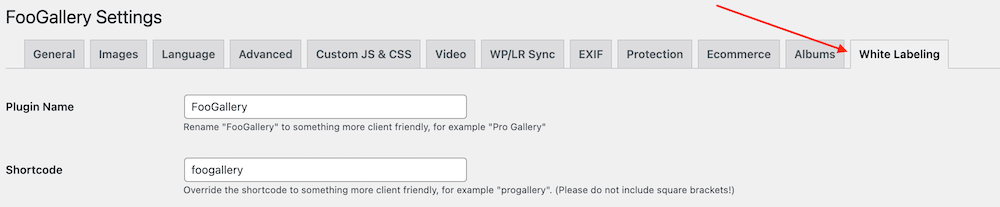
One important detail on the shortcode: don’t include square brackets in the name. Enter photogallery, not [photogallery].
Because renaming a shortcode changes what your client types, do this early in a build rather than on a mature site, and confirm your existing galleries still render as expected before handover.
Step 3: Control which Admin Menus Clients can see
This is the access layer, and it has two independent dimensions.
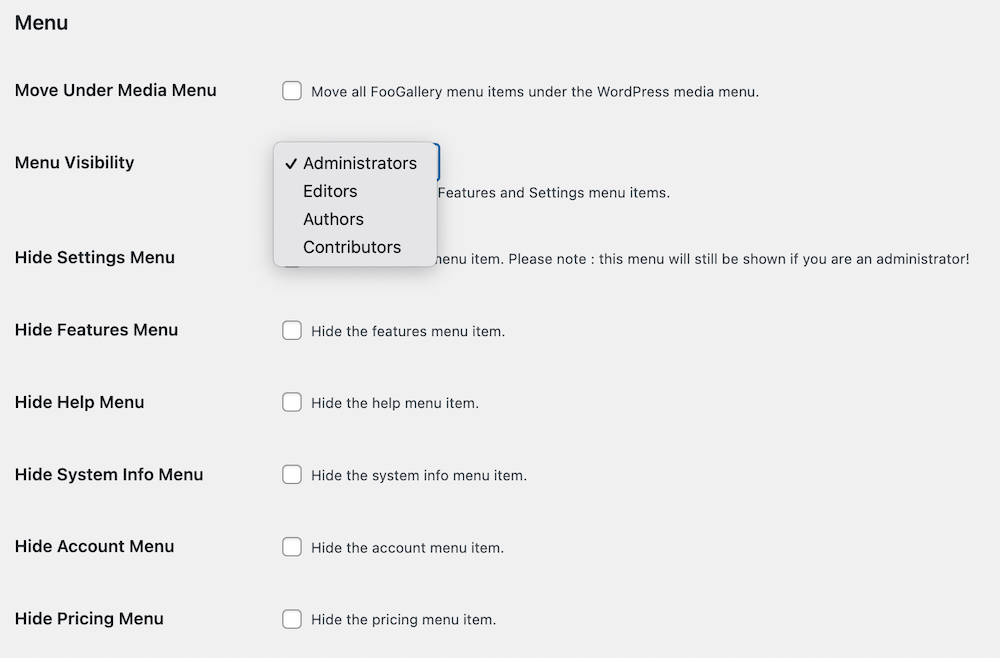
Menu visibility: Tick the items you want hidden from the menu that appears under FooGallery in the dashboard. Common choices for client sites:
- Hide Pricing: clients don’t need to see upgrade paths.
- Hide Account: that’s your licence, not theirs.
- Hide Features: prevents clients toggling functionality you’ve deliberately configured.
- Hide Settings: protects global values that affect every gallery on the site.
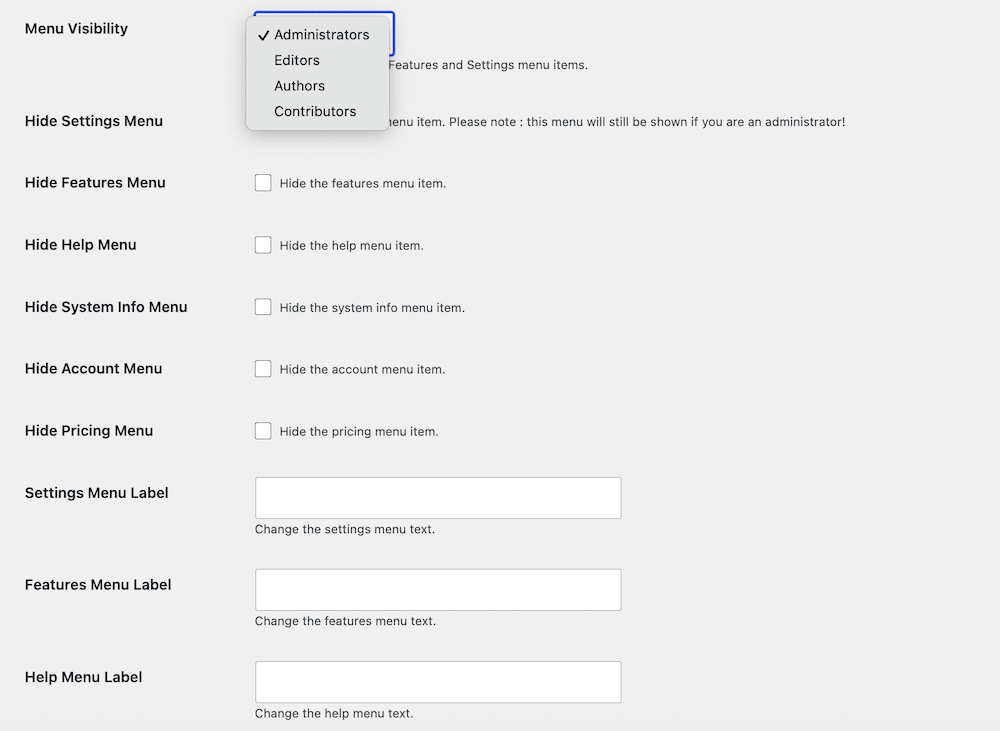
Role-based visibility. Separately, you can choose which user roles can see the Help, Features, and Settings menus. This is the more elegant option for sites where you retain an admin account: you keep full access, while editors and the client’s own admins see a reduced set.
Tip
Quick win
Configuration tip
Use role restrictions rather than blanket hiding wherever you’ll be returning to the site for maintenance. You get a clean client view without locking yourself out of your own tooling.
Step 4: Rename and Reposition Menus
You can relabel the Settings, Features, and Help menu items to match your own naming conventions, which is useful if your agency uses consistent terminology across every site you deliver or for different plugins on clients sites.
You can also move the gallery menus under Media, which collapses the top-level footprint. For clients who think of galleries as “part of images” rather than as a separate system, this is often a more intuitive information architecture than a standalone top-level menu.
Step 5: Disable Unused Gallery Datasources
FooGallery can build galleries from several sources, but the Whitelabel add-on lets you switch off the ones a given site doesn’t use. So if a client’s workflow is “upload to Media Library, add to gallery”, you can disable everything else. Fewer options in the gallery builder means fewer decisions, fewer wrong turns, and fewer questions.
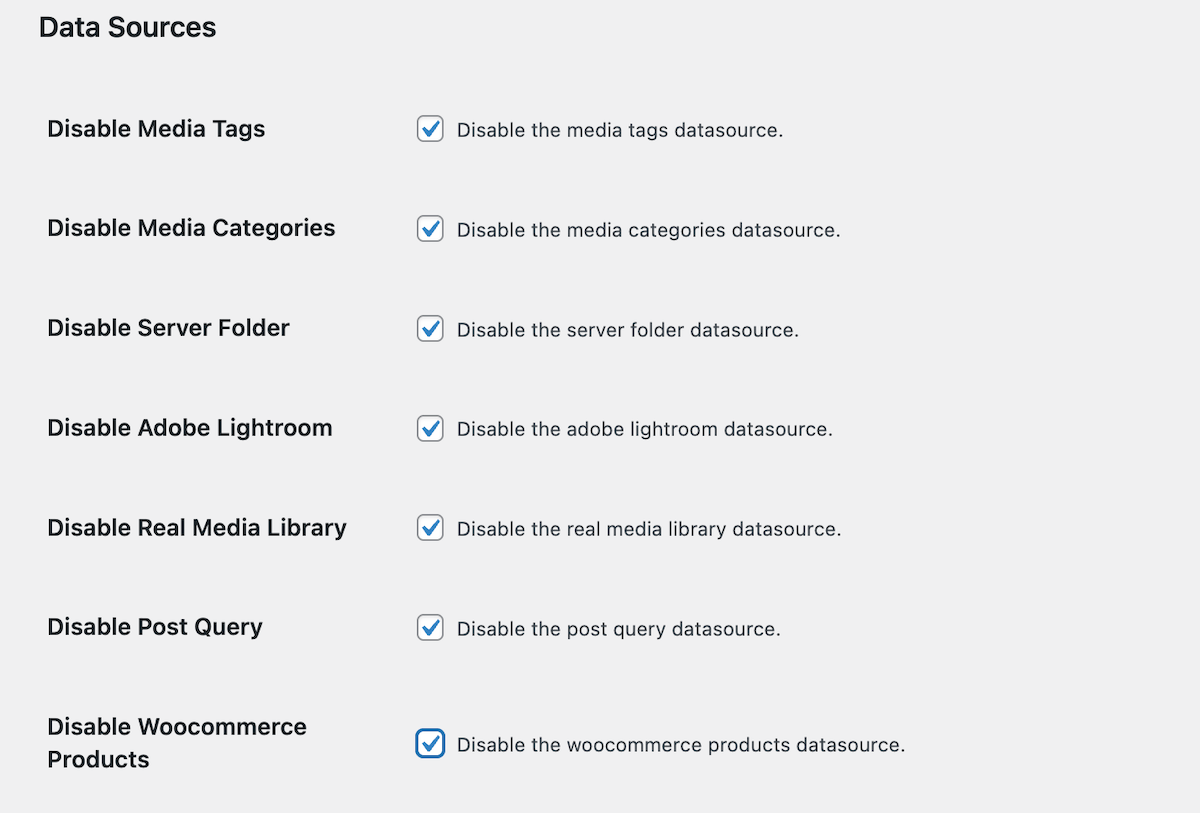
Note that data source and white label settings apply site-wide; they affect all galleries on that installation, not individual ones. Configure them once, deliberately, before handover.
Step 6: Save and Verify
Click Save Changes, then run a genuine verification pass. Log in as the client’s actual user role (not your admin account) and check:
- The plugin name reads correctly everywhere it appears.
- Hidden menus are actually hidden for that role.
- A new gallery can still be created through the workflow you intend.
- Existing galleries render correctly on the front-end.
- Your handover documentation matches the naming you chose.
This five-minute check catches the most common white labeling mistake: configuring the admin, testing it as an administrator, and never seeing what the client sees.
Which FooGallery Plans include Whitelabel?
| FooGallery plan | Whitelabel status |
|---|---|
| FooGallery Free | Add-on required |
| PRO Starter | Add-on required |
| PRO Expert | Add-on required |
| PRO Commerce | Included |
| Agency Bundle | Included, alongside PRO Commerce and every other add-on |
The standalone FooGallery Whitelabel add-on is sold annually by site count, with 1-, 5-, and 25-site licences. The 5-site licence is the most popular tier at $89.99/year, and every licence includes a 7-day free trial and a 30-day money-back guarantee.
If you’re managing client sites at volume, do the arithmetic before buying tiers separately. The Agency Bundle covers Whitelabel plus PRO Commerce, Client Proofing, User Uploads, and Social across a 50-site-plus licence, which is usually the cheaper route once you’re white labeling more than a handful of installations.
A Practical Handover Workflow
Here’s how the different layers slot into a real build, rather than being configured ad hoc at the end.
- During the build install FooGallery and the Whitelabel add-on. Activate White Labeling from the Features screen before you create galleries.
- Set identity early.Choose the plugin name and shortcode now, while you have no legacy shortcodes to migrate.
- Build galleries normally with your layout, styling, and template work using full admin access.
- Narrow the scope. Once the gallery workflow is finalised, disable the data sources the site won’t use.
- Lock down access last by hiding the menus the client doesn’t need and setting role restrictions, keeping your own administrator visibility intact.
- Verify as the client. Log in with a client-level account and walk through adding one image to one gallery.
- Document what clients will see and write the handover guide using your white labeled naming, not FooGallery’s.
Steps 5 and 6 are the ones most often skipped, and they’re the two that determine whether the handover actually reduces your support load.
Limitations Worth Knowing Before you Buy
Being straight about the boundaries here saves refund requests and disappointed expectations.
- It requires FooGallery. Whitelabel is an add-on, not a standalone product, and it doesn’t white label any other WordPress gallery plugin.
- It’s admin-only. Nothing about front-end gallery rendering changes.
- Settings are site-wide. You can’t white label differently for different galleries on the same installation.
- It isn’t a licence workaround. White labeling changes presentation and access; it doesn’t change the plugin’s licensing, authorship, or your obligations under GPL.
- Shortcode renaming needs care on live sites. Plan it into new builds rather than retrofitting it onto a site with hundreds of published galleries without testing first.
The Bottom Line for Agencies
In essence, White labeling looks like a branding feature and behaves like an operations feature. But the rename is what sells it. The menu control, role restrictions, and data source limits are what actually matter. They result in fewer tickets, shorter handovers, and fewer sites where a client turned something on and asked you to work out why.
If you’re managing gallery work across multiple client sites, work through the three layers on your next build and see how much shorter the handover call gets.
→ Get the FooGallery Whitelabel add-on or compare it inside the FooGallery Agency Bundle.
FooGallery WordPress gallery plugin
The Best WordPress Gallery Plugin
FooGallery is an easy-to-use WordPress gallery plugin with stunning gallery layouts and a focus on speed and SEO.
FAQs
Get the Whitelabel Answers You Need
Use native Accordion blocks so questions stay easy to edit in the block editor.
The FooGallery Whitelabel add-on lets you rebrand FooGallery’s admin experience before handing a site to a client. You can change the visible plugin name and shortcode name, hide selected admin menus, restrict screens by user role, relabel and reposition menus, and disable unused gallery data sources.
Yes. Whitelabel settings let administrators hide individual menu items and choose which user roles can see areas such as Features, Settings, and Help, so you can keep full access while clients see a reduced dashboard.
No. White labeling affects only the WordPress admin. Gallery layouts, lightboxes, hover effects, and front-end performance are unchanged.
No. The Whitelabel add-on works with FooGallery Free and with every PRO plan.
Yes. Whitelabel includes controls for disabling datasources, so the client dashboard only offers the gallery inputs that belong in that site’s workflow.
No. FooGallery must be installed and active first. Whitelabel does not rebrand other gallery plugins.
It’s sold annually by site count, with 1-, 5-, and 25-site licences. The 5-site tier is $89.99/year.
It’s also included in the FooGallery Agency Bundle, along with the PRO Commerce plan and all FooGallery add-ons, with 50 site activations. For agencies looking for an all-in-one gallery solution that scales, this is the most affordable option.
All licences come with a 7-day free trial and a 30-day money-back guarantee.