
Want to create a dynamic WordPress media gallery easily? FooGallery gives you the ideal solution by loading galleries from other datasources. The biggest benefit? You don’t have to maintain multiple galleries – simply update your datasource and your gallery will do the rest.
With FooGallery Pro Expert, you can load galleries from datasources like Media Tags or Categories, server folders, and post queries. You are also able to use 3rd party plugins like Infinite Uploads or WP/LR Sync to create galleries. Real Media Library is another source from which you can create a gallery. FooGallery PRO Commerce adds another useful source … WooCommerce; an ideal way to build product galleries for an online store.
Below we take a look at why dynamic galleries can be a useful addition to your WordPress site. Plus we give you a quick guide on how to load galleries from each of these other sources, as well as links for more detailed guidelines in the FooGallery Documentation.
Why Use a Dynamic Gallery in WordPress?
A standard WordPress gallery is static; you add images manually, and if you want to change what’s displayed, you go back in and update it by hand. That works fine for a small, fixed collection of images. But as soon as your content grows or changes regularly, manual galleries become a maintenance burden.
A dynamic gallery solves this by connecting your gallery directly to a source of content — your media library tags, a WooCommerce product catalog, a server folder, a video library — and keeping itself up to date automatically. Here’s why that matters in practice:
- It saves you time. When you add a new product to WooCommerce, tag a new photo in your media library, or upload a video to Infinite Uploads, it appears in your gallery without you touching the gallery settings at all. For busy photographers, ecommerce store owners, and content teams, this adds up to hours saved every month.
- Your gallery is always accurate. With a static gallery, it’s easy for your displayed content to fall out of sync, displaying old products or images that were meant to be replaced, or missing new content that simply never got added. A dynamic gallery reflects the current state of your content automatically.
- It scales with your content. Whether you have 10 products or 10,000, a dynamic gallery handles the growth for you. You don’t need to restructure or rebuild your gallery as your library expands.
- It reduces errors. Manually curating a gallery can lead to mistakes like duplicated images, forgotten items or broken links. Pulling directly from a datasource removes some of that risk.
- It supports better site architecture. Rather than storing duplicate copies of images in your gallery or media library, a dynamic gallery usually references content you’ve already organised elsewhere. Your WooCommerce catalog, video library or server folders become the single source of truth.
For anyone managing a site where content changes regularly, such as an ecommerce store, a photography portfolio, or a news or blog site, dynamic galleries are the practical choice over static ones.
FooGallery PRO Datasource Setup Guides
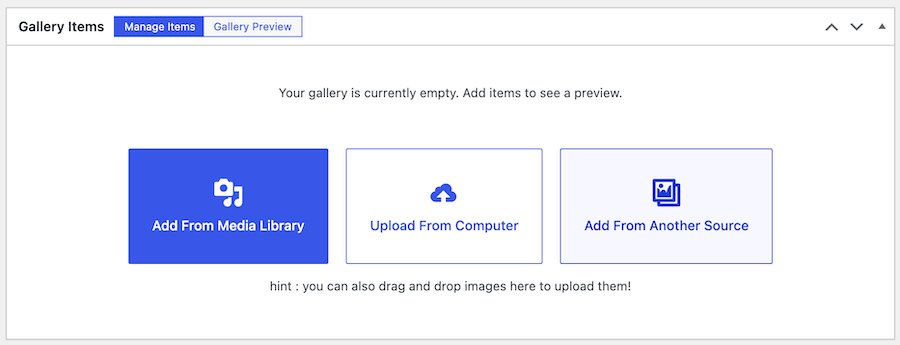
The first step is to add a gallery. Once you do, you’ll immediately see the option to Add from Media Library or Add from Another Source. You want to click on the second option.
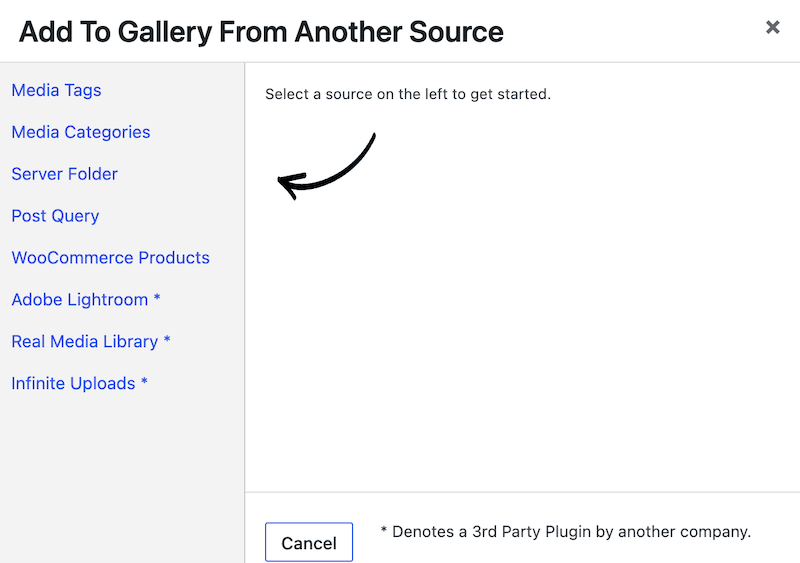
You’ll now be able to select the datasource from which you want your gallery to pull the images. There are several options from which to choose: Media Tags, Media Categories, Server Folder, or a Post Query.
Several of the options will show an asterisk next to them, indicating that these particular datasources require the use of a 3rd party plugin by another company. These include Adobe Lightroom (via WP/LR Sync), Infinite Uploads, and Real Media Library. As you can also see in the screenshot below, you can select WooCommerce Products as your datasource, but this option is only available for FooGallery PRO Commerce users.
Once you select a source, you will be given different options for choosing the images you wish to display in your gallery.
Media Tags and Categories
For both Media Tags and Media Categories, you’ll be shown a list of all available tags or categories attributed to images currently in your media library. From these you can select the ones you wish to display in your gallery. If you don’t have any, or you want to add to your existing selection, you can edit your images from within your library. You can also add or edit tags or categories by going to FooGallery > Media Tags / Categories.
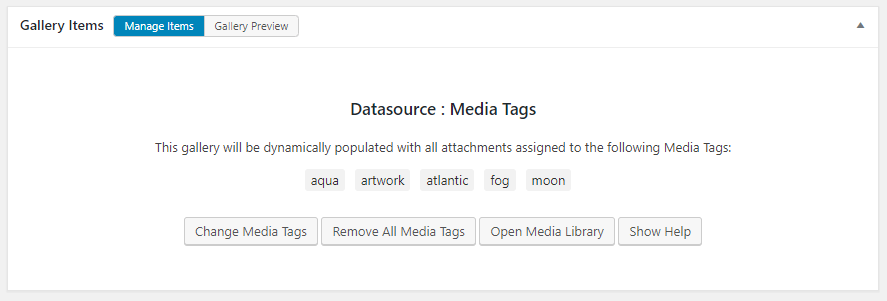
You are able to select multiple options. For example, if you’re a wedding photographer, you may have used tags like “Bride”, “Groom”, “Bridesmaids” and “Groomsmen” for your images. You can now use these tags to create a gallery with Bride and Groom images, or Bride and Bridesmaids. You can also have an album with just one tag, such as Groomsmen. The same will apply to Media Categories.
You can have a look at this article for more details on how to load galleries from Media Tags and Categories.
Server Folder
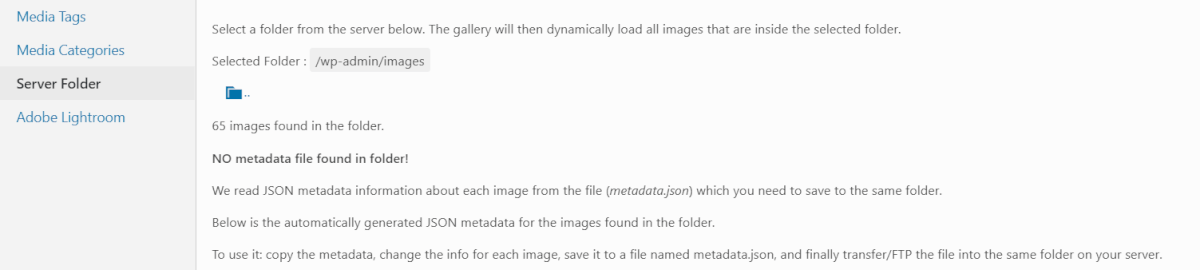
For the Server Folder option, you’ll be given a selection of folders available on your server. Select the folder from which you want the images to pull. You can navigate through your folders by clicking on the File icon to go up a level.
Once selected, you’ll be able to see how many images are in the folder. You can also see whether a Metadata file exists in the folder. As you’ll see in the image below, a JSON metadata file is required to provide metadata, such as captions, for each image.
If you don’t have this file, JSON metadata will be automatically generated for you. Copy and save this to a file named metadata.json and transfer this file to the same folder as your images. This will allow the gallery to use this file to provide the necessary information for your gallery images.
This article tells you more about using a Server Folder to create a dynamic gallery.
Post Queries
You can also pull a gallery from post types on your site. This includes items like your blog posts, pages or articles. In the below demo, we’ve set up a post query gallery for our blog posts:


![[Update] FooGallery PRO 3.3.3: Design Better Galleries for Mobile](https://fooplugins.com/wp-content/uploads/cache/2026/09/FooGallery-mobile-update/744438535.jpeg "[Update] FooGallery PRO 3.3.3: Design Better Galleries for Mobile")

![[Update] FooGallery 3.2.6: Automatic Watermarking, Autoplay Slideshows, and Smarter Image SEO](https://fooplugins.com/wp-content/uploads/cache/2026/08/Foogallery-update-better-workflow/2221476597.jpeg "[Update] FooGallery 3.2.6: Automatic Watermarking, Autoplay Slideshows, and Smarter Image SEO")

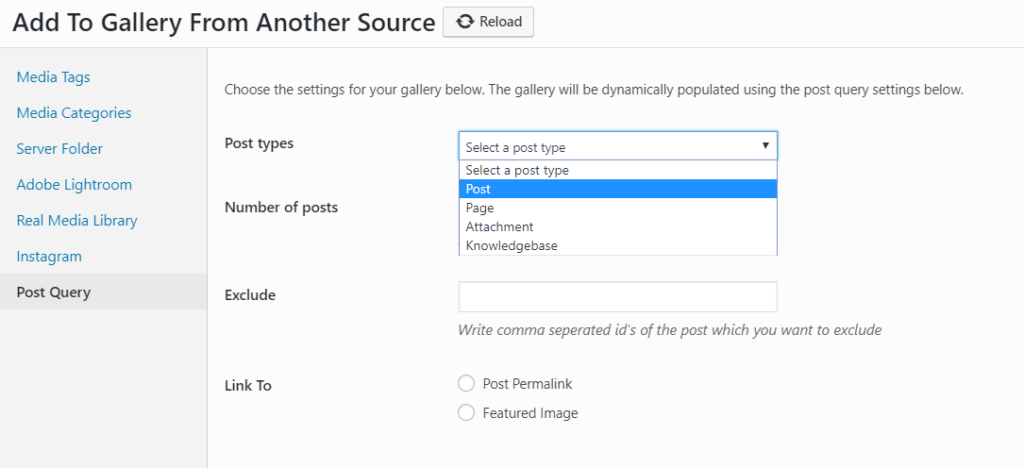
To create the type of dynamic gallery, select Post Query as your datasource when loading a gallery. Then choose the post type that you want to use for your gallery. You’ll also see a number of other settings you can use to refine your gallery. These include the number of items you want to show in your gallery, items that you want to exclude, and whether you want the gallery to link to the featured image or the post itself.
Here’s an article on building a dynamic gallery using a Post Query.
Datasources Using 3rd Party Plugins
As mentioned earlier, there are several options for building galleries using other plugins as your datasource. In each case, you would need the other plugin activated and set up on your WordPress site.
Infinite Uploads
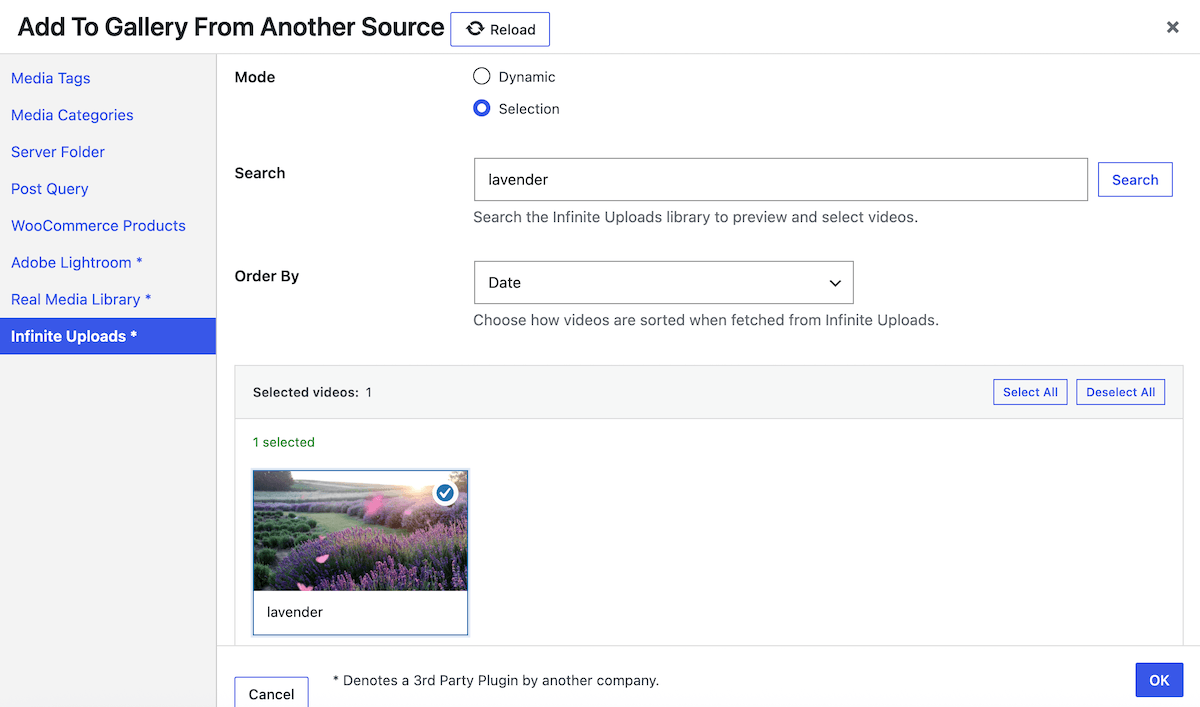
If you use Infinite Uploads to host and stream your video content, FooGallery PRO Expert can now use it as a direct video datasource to create a dynamic self-hosted video gallery. This means your gallery stays in sync with your Infinite Uploads video library and there’s no need to re-upload videos to your gallery or manually manage the gallery items.
To use this option, select Infinite Uploads as your datasource. You can then choose Dynamic Mode to display all videos, or Selection mode to search and select specific videos. You can set the order to be by date or title. Once your selection is complete, click on Ok to return to the gallery.
For more details, take a look at how to create a video gallery using Infinite Uploads.
Adobe Lightroom
We have integrated with WP/LR Sync to enable you to create galleries from Adobe Lightroom. This plugin exports photos from your folders and collections in Adobe Lightroom to WordPress. If you don’t yet have this plugin, you will see the below message when you select the Adobe Lightroom option. Click on the link to access WP/LR Sync. You’ll then need to set up WP/LR Sync – you can follow these instructions to do this.

If you already have this app, then you can get started exporting your lightroom images to your gallery. Begin by selecting Adobe Lightroom from the datasources. You will now see all of your lightroom folders and collections which have been synchronized with WordPress. Select the collection you want to appear in your gallery and hit Ok. For more details, read our article on using WP/LR Sync with Adobe Lightroom to create galleries.
Real Media Library
Real Media Library is a media library organization tool. It allows you to sort your library into folders and subfolders. You will need the plugin (available on Code Canyon) in order to create galleries from these folders in your media library.
Once you have installed the plugin, it’s easy to start organizing your library. Create a gallery by selecting Real Media Library as your gallery source. Once selected, you’ll be able to choose from the various folders available to you.
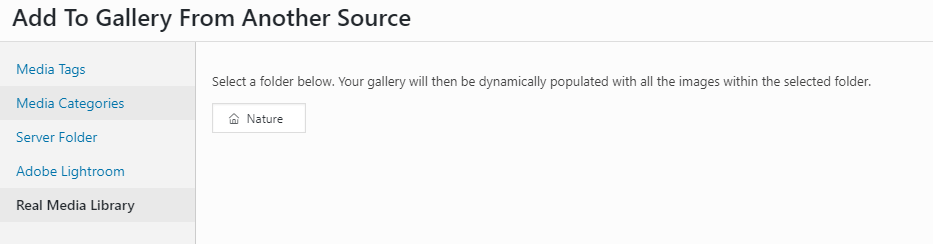
Your gallery will then show you the following message, confirming the folder/s currently being used for your gallery. From here you can change or remove the folders you have selected.
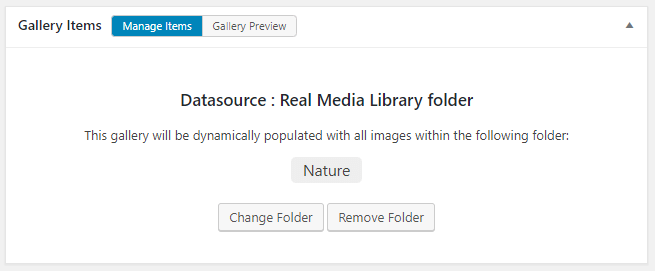
Your gallery will now automatically update with any images added to the selected folder in your media library.
WooCommerce Products
If you have WooCommerce installed and want to build a gallery directly from your product catalog, FooGallery PRO Commerce makes this easy. Rather than manually adding each product image, the WooCommerce datasource automatically pulls all product images from the categories you choose, including prices, descriptions, and promotions you’ve already set up in WooCommerce.
To set it up, create a new gallery and click Add Media from Another Source. Select WooCommerce Products from the source list and choose which product categories to include in the gallery. You can then tailor the selection by adjusting the price range, stock status, and product quantity. It is also possible to exclude product IDs.
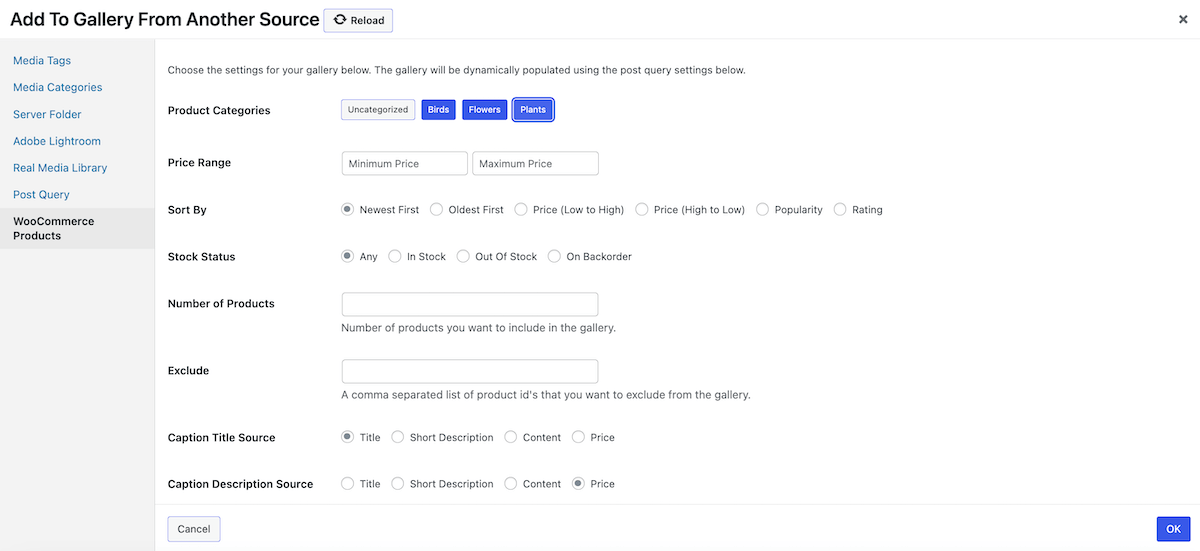
Next, configure your caption sources. For example, use “Title” as the caption title and “Price” as the caption description to display product pricing in the gallery. Click OK to populate the gallery.
The gallery will dynamically update whenever you add or change products in the selected WooCommerce categories; no manual gallery updates needed. In your gallery setup, you can also assign promotional or out-of-stock ribbons, sale prices and Add to Cart buttons to products.
This article goes into much more depth about loading images from WooCommerce.
Configuring Your Dynamic Gallery
Once you have selected the datasource you want to use, you can customize and set up your gallery as you normally would. You still get the gallery preview tab, which shows you how your gallery will appear. And you still have all of the other Pro Expert / Commerce features that you can implement as needed. When you’re ready, publish your gallery and add it to your page or post.
Once you add images to your datasource, they will automatically reflect in your gallery, making it a dynamic gallery. For example, if you add images to your library with the media tag you’ve selected for your gallery, they’ll appear in the gallery.
However, as the galleries are cached, this may not happen straight away, and could take up to 24 hours. Alternatively, you can update the gallery in your WP Admin, which will clear the cache, reflecting the changes you have made in your gallery.
Start Building Dynamic Galleries with FooGallery
Whether you’re a photographer keeping your portfolio in sync with your media library, an ecommerce store showcasing WooCommerce products, or a content team pulling from server folders and video libraries, FooGallery PRO gives you a dynamic gallery datasource to match.
Every datasource covered in this guide connects to a gallery that updates itself automatically. Add a new product, tag a photo, upload a video. Your gallery reflects it without any manual work on your part.
FooGallery PRO Expert covers the full range of media-based sources: media tags, categories, server folders, post queries, Adobe Lightroom, Real Media Library, and Infinite Uploads video. FooGallery PRO Commerce adds WooCommerce Products (the fastest way to turn your product catalog into a shoppable, auto-updating gallery).
Get Started with FooGallery PRO.
Not sure which plan is right for you? Compare FooGallery plans to find the best for for your needs.
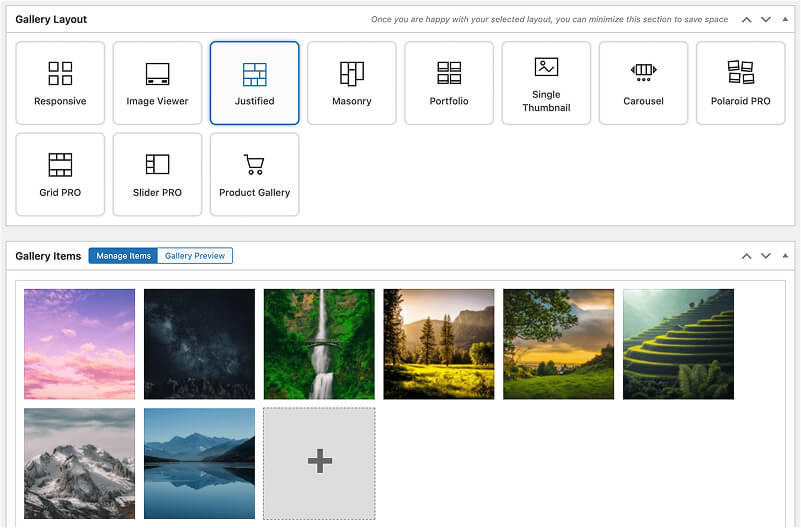
FooGallery WordPress gallery plugin
The Best WordPress Gallery Plugin
FooGallery is an easy-to-use WordPress gallery plugin with stunning gallery layouts and a focus on speed and SEO.