
Every image you upload to WordPress comes with four metadata fields: title, alt text, caption, and description. Most people fill in none of them, or maybe just the title. That’s a missed opportunity!
These fields do real work for your SEO and your site’s accessibility and shouldn’t be ignored. This post explains what each field does, how to write them well, and why it matters more than ever in 2026.
What is Image Metadata?
Metadata is information about your content. For images, it describes what the image contains. This is particularly important for search engines and screen readers, as they can’t look at a photo the way a sighted person can. They rely entirely on the text you provide to understand the image.
Getting this right benefits you in three ways:
- SEO: Google uses image metadata to determine what an image shows and how it relates to the surrounding page content. Good metadata can earn you traffic from Google Image Search and strengthen your page’s overall topical relevance.
- Accessibility: Screen readers (used by people with visual impairments) read alt text aloud to describe images. Without it, those users hit a wall of silence, which could mean that you lose potential traffic.
- Organisation: Descriptive titles make your WordPress Media Library searchable and easier to manage as it grows.
The Four Fields
Any image added to your media library has four fields that you can populate with relevant details.
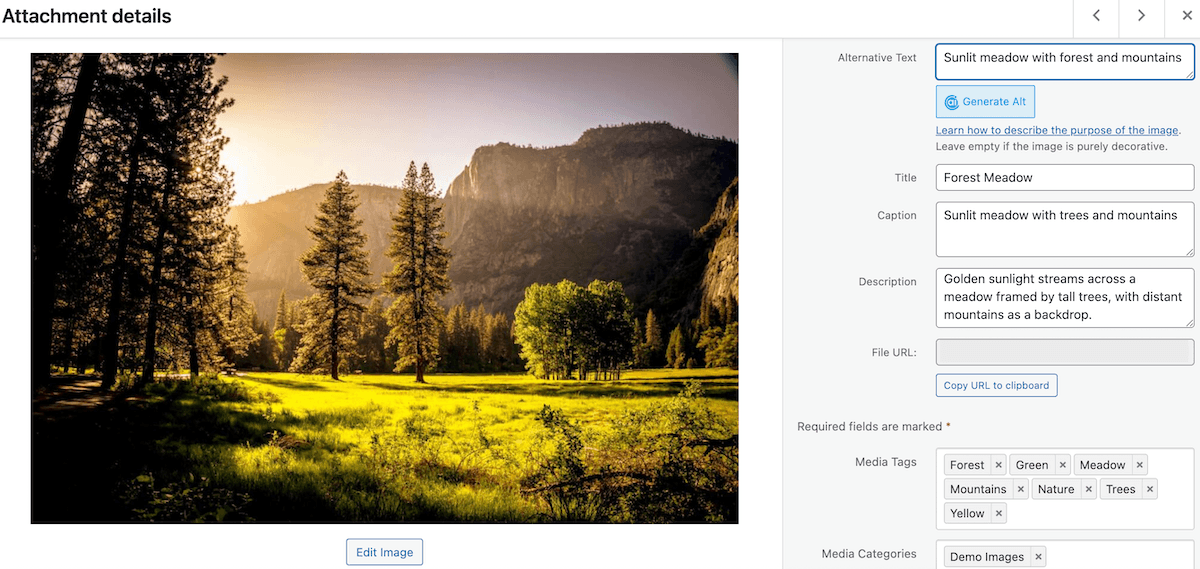
Title
The image title is used primarily for organising your media library. It doesn’t display on the front end of your site by default (though some themes and plugins may use it for tooltips). Think of it as a label for your own reference.
WordPress often auto-populates the title from your filename when you upload, which is a good reason to name your files properly before uploading (more on that below).
Alt Text
Alt text is the most important of the four fields. It serves two purposes:
- It’s read aloud by screen readers for users with visual impairments.
- It’s used by search engines to understand what an image depicts.
This makes it essential that you write good alt text:
- Describe the image specifically and concisely (aim for under 125 characters, as some screen readers cut off longer text).
- Don’t start with “Image of…” or “Photo of…”; screen readers already announce that it’s an image, so you’d be doubling up.
- Include a relevant keyword if it fits naturally, but don’t force it. Writing alt text purely for SEO at the expense of an accurate description hurts both accessibility and rankings.
- Avoid keyword stuffing. If you have multiple images on a page, only one or two should include your target keyword. The rest should be purely descriptive.
Examples:
| ❌ Poor | ✅ Better |
|---|---|
image1.jpg | golden retriever puppy playing in autumn leaves |
Image of our product | FooGallery Pro plugin settings panel in WordPress dashboard |
photo photo photo keyword keyword | hands typing on a laptop keyboard |
Here are a few more tips for optimizing your image alt text:
Decorative images should use empty alt text. If an image is purely decorative — such as a background texture, a divider graphic, or a decorative icon — set alt="". This tells screen readers to skip the image entirely, which is the correct behaviour. Leaving the field blank in WordPress may not have the same effect depending on your theme, so it’s worth being deliberate.
Linked images are a special case. If an image is wrapped in a link, its alt text functions as the anchor text for that link. In that case, describe the destination of the link rather than just the image itself, for example alt="View our FooGallery pricing plans".
Complex images (charts, infographics, diagrams) can’t be summarised in 125 characters. For these, use the alt text for a high-level summary (e.g. "Bar chart showing FooPlugins revenue growth 2020–2025") and provide a full explanation in the body text below the image.
Caption
The image caption usually displays visibly on the page, directly below the image (depending on your theme). It’s the only image metadata field that’s directly readable by all visitors.
Use captions to add context that isn’t obvious from the image alone. This could include a brief explanation, a credit, or a relevant detail. Keep them concise. In gallery plugins like FooGallery, captions often appear as overlays when a visitor interacts with an image, so they’re particularly visible and worth writing well.
Captions can also carry SEO weight since they’re visible body text on the page. Writing a natural sentence that includes a relevant keyword is fine, but the primary goal should be to add value for the reader.
Description
The description field is a longer-form text area that’s not displayed on the front end by default. It’s useful for:
- Internal documentation (e.g. photography details, licensing info, usage notes)
- Product images where you want to store additional specifications
- Stock images where you need to record the source or credit
Most sites won’t need to fill this in for every image, so use it only where it genuinely adds value.
For image galleries, descriptions can add more context and depth,, providing your audience with a deeper understanding of your visual content. With FooGallery, you have full control over how captions and descriptions are displayed, ensuring an improved user experience without compromising on design.
Tam Vincent, Content Manager at FooPlugins
WordPress makes it easy to add your titles, alt text and descriptions. It provides you with the capability to add this metadata as you load images. You can also access images through your media library or gallery, if you want to add or update this data.
File Naming: Do It Before You Upload
Image metadata starts before you even open the WordPress uploader. The filename of your image is used by Google as a signal about the image’s content and WordPress often uses it to auto-populate the image title.
A few practical rules:
- Use descriptive names:
golden-retriever-puppy-autumn.jpgis far more useful thanIMG_4832.jpgorscreenshot-2025-03-01.png. - Use hyphens to separate words, not underscores or spaces. Google treats hyphens as word separators.
- Keep it short but specific. 2 to 4 words is usually enough.
- Match it to the page context. A filename that reflects the topic of the page it lives on gives Google a consistent signal.
Renaming images after upload is awkward and it can break existing URLs, so developing a habit of naming files properly beforehand is worth the small upfront effort. (In fact, you can do it at the same time that you optimize your image, which should also happen before uploading.)
Accessibility and Legal Compliance
Accessibility is no longer optional. The Web Content Accessibility Guidelines (WCAG) — the global standard for accessible web content — require meaningful alt text for all non-decorative images. This is a Level A requirement under WCAG 2.2, meaning it’s the minimum baseline.
Moreover, if you run a business website serving customers in the EU, the European Accessibility Act applies from June 2025. US websites serving state and local government contexts are subject to ADA Title II deadlines in 2026 and 2027. Even for private businesses, WCAG compliance is increasingly cited in accessibility lawsuits.
Practically speaking: if you have a product site, an ecommerce store, or any site serving the public, making sure your images have proper alt text is both the right thing to do and an increasingly legal requirement.
Quick Reference: Where to Fill These In
In WordPress, you can add or edit image metadata in several places:
- During upload — When you add an image to a post or page, the right-hand panel shows fields for alt text, title, caption, and description.
- In the Media Library — Go to Media → Library, click any image, and you’ll find all four fields in the attachment details panel. This is the best place to go back and update existing images.
- In FooGallery — using the Advanced Attachment Modal you can add or edit any image metadata, tags, and more.
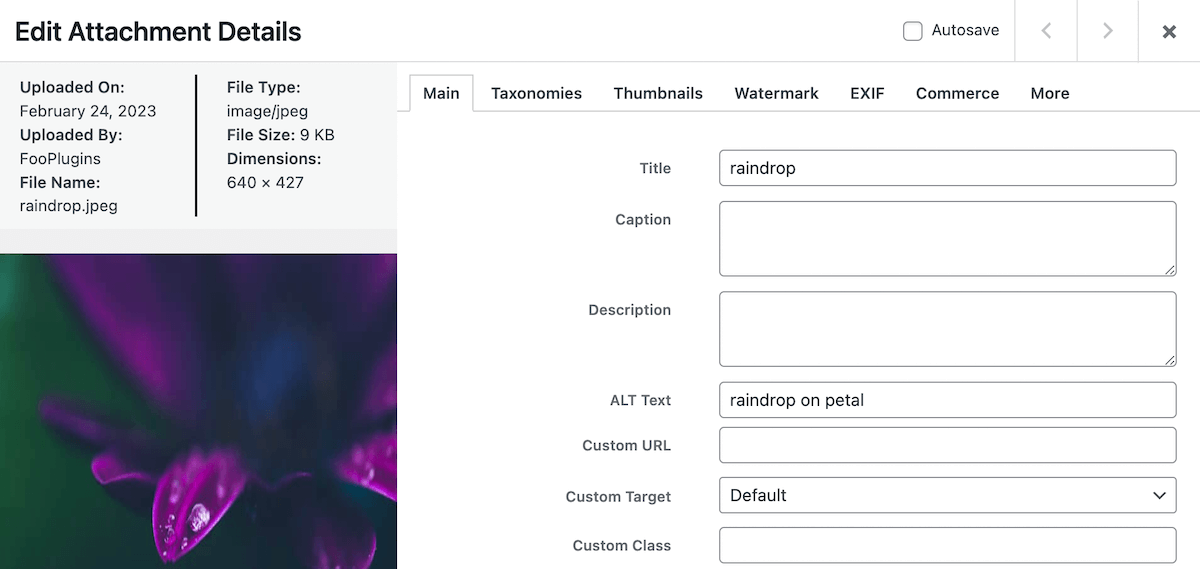
Image Metadata: What Actually Matters
While all four fields of image metadata serve a purpose, they’re not all essential. If you’re going to focus on one thing, it should be alt text — it does the most work for both accessibility and SEO. Captions and descriptions are useful for improved experience and added context, but they’re secondary. Titles are mostly for your own organisation; again, helpful but not obligatory.
But one simple habit can make a big difference: every time you upload an image, rename the file descriptively before uploading, then write a clear, specific alt text. That alone will put you ahead of most WordPress sites, while saving you time and hassle at a later stage.
Staying on top of your WordPress image metadata may feel like a waste of time, but it is an essential step in your media management and accessibility efforts. This can be made even easier with media-centric plugins like FooGallery.
FooGallery WordPress gallery plugin
The Best WordPress Gallery Plugin
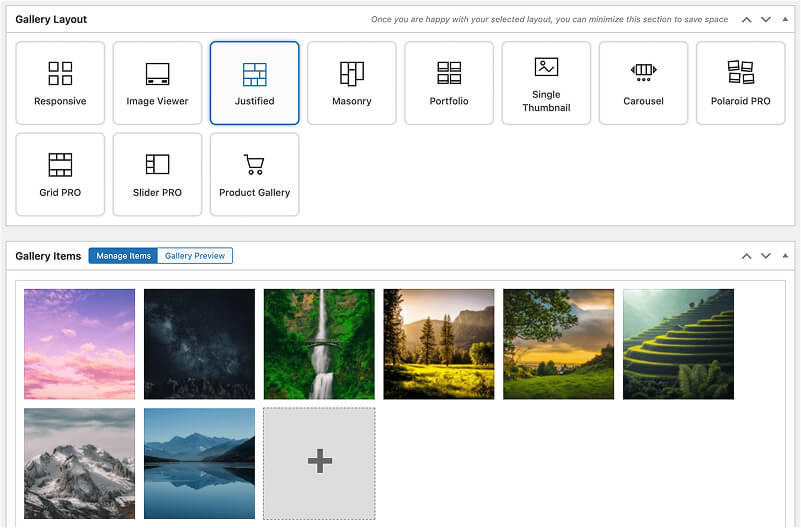
FooGallery is an easy-to-use WordPress gallery plugin with stunning gallery layouts and a focus on speed and SEO.