
The private proofing page lets a client review the gallery without signing in to WordPress. Changes are autosaved until the client submits the final proof.
Open the private proof
The client opens the tokenized URL from the invitation. Client Proofing validates the link, stores the token in a private browser cookie, and removes it from the visible address bar.
The page displays the gallery title, expiry date when configured, selected-image count, save status, and Submit Proof button.
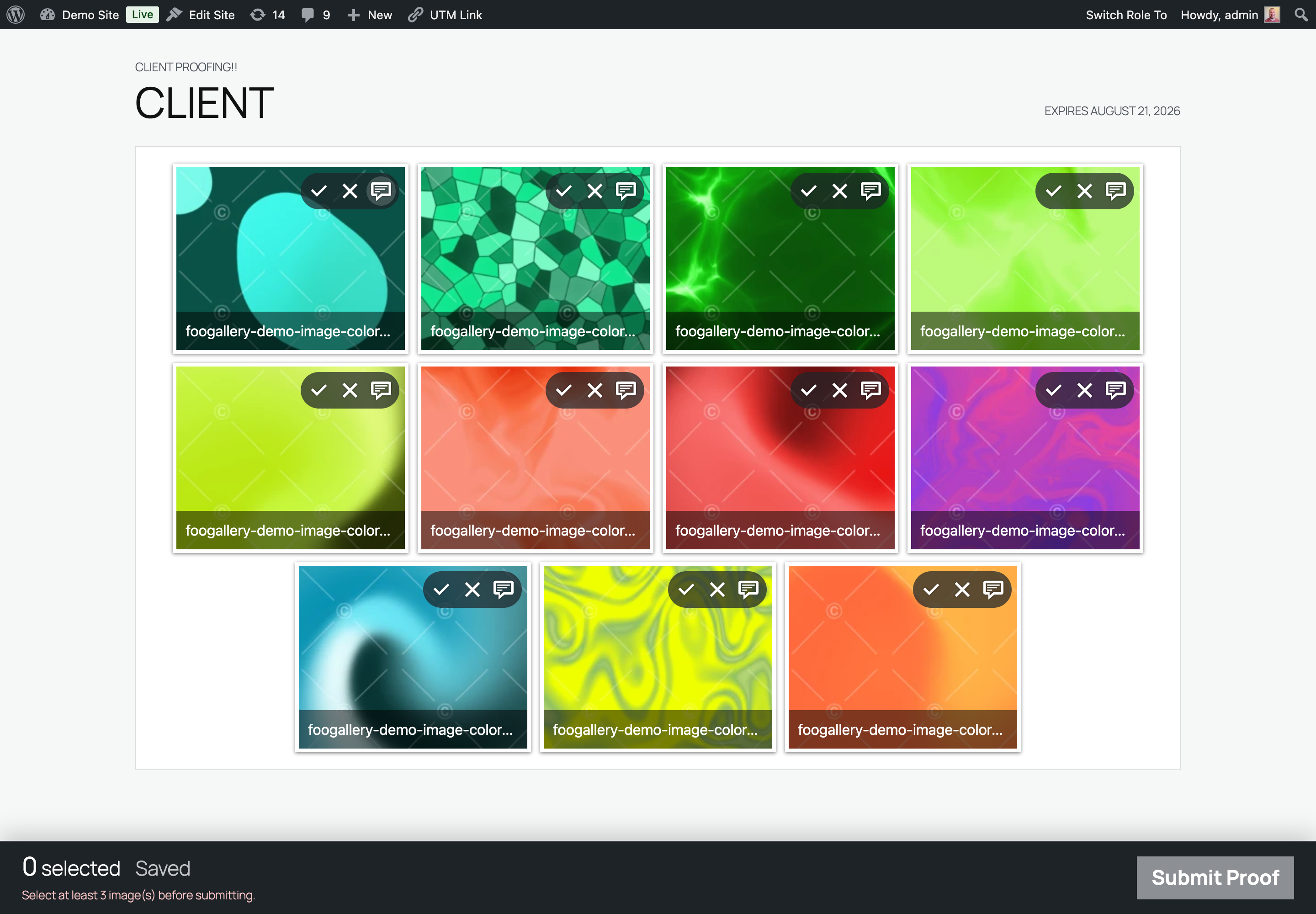
Select or reject thumbnails
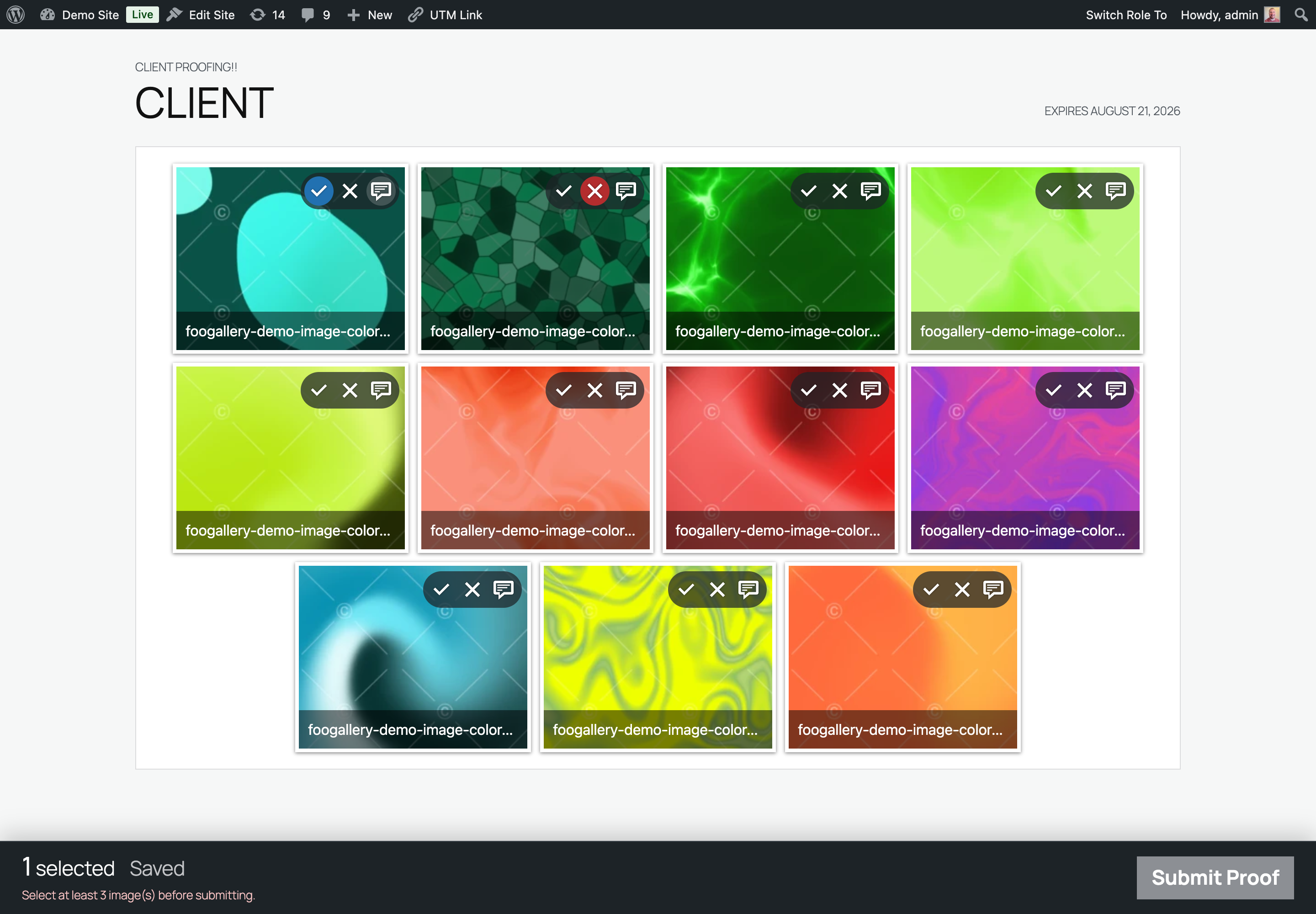
Each gallery thumbnail has proofing controls:
- Select marks an image as part of the final selection. Select it again to remove the mark.
- Reject marks an image as unwanted. Reject it again to restore the image to an unmarked state.
- Selecting a rejected image clears the rejection; rejecting a selected image clears the selection.
The current state is shown visually on both the thumbnail and its controls. The rejected control is absent when Allow rejects was disabled for the session.
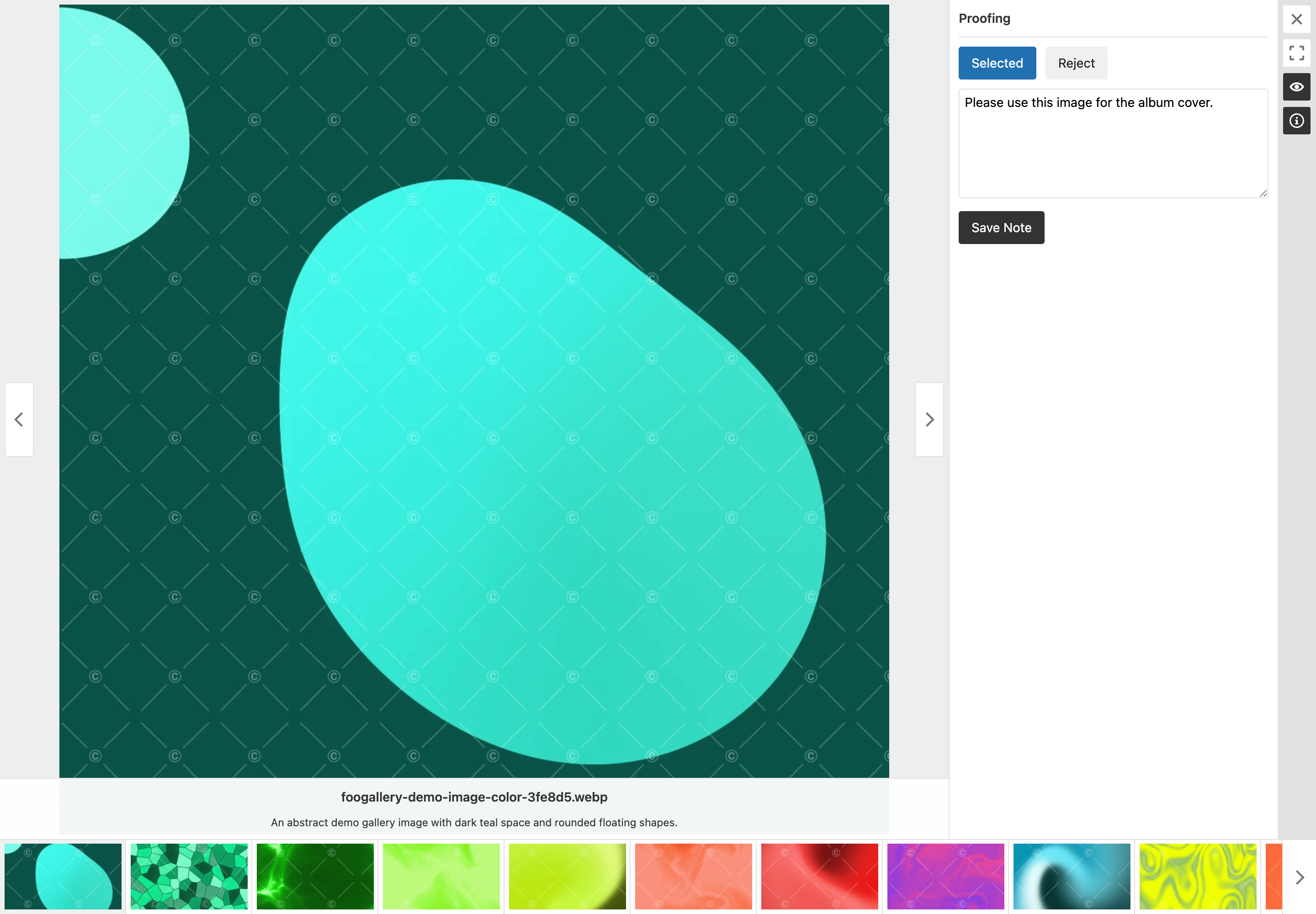
Review an image and add a note
Open a gallery image in the lightbox and select the Proofing control. The Proofing panel contains the same Select and Reject actions plus an Add a note field.
Enter a note and select Save Note. Notes can be added to selected, rejected, or otherwise unmarked images. The note field and button are absent when Allow comments was disabled.
Understand autosaving
Client Proofing saves selections and rejections shortly after each change. Notes are saved when the client selects Save Note. The tray reports:
- Saving… while a request is in progress.
- Saved after the server confirms the latest changes.
- Changes pending while a note is waiting to be saved.
- Offline changes saved locally when the browser cannot reach the server.
When a save fails, pending work is retained in that browser's local storage. Reloading the same proof in the same browser restores those local changes so the client can try again.
If another tab or device saves a newer revision, the page asks the client to refresh rather than overwriting that work.
Meet selection limits
The selected-image counter updates immediately. When the session has a minimum or maximum, the tray displays a validation message and disables submission until the count is valid.

Rejected and comment-only images do not count as selected images.
Submit the proof
- Confirm the selected count is valid.
- Select Submit Proof.
- Confirm the browser prompt.
Client Proofing saves the final state, changes the session to Submitted, records the submission time, and sends the photographer notification when Email on submit is enabled.
The submitted page remains visible but becomes read-only. Selection, rejection, note, and submission controls can no longer modify the proof.
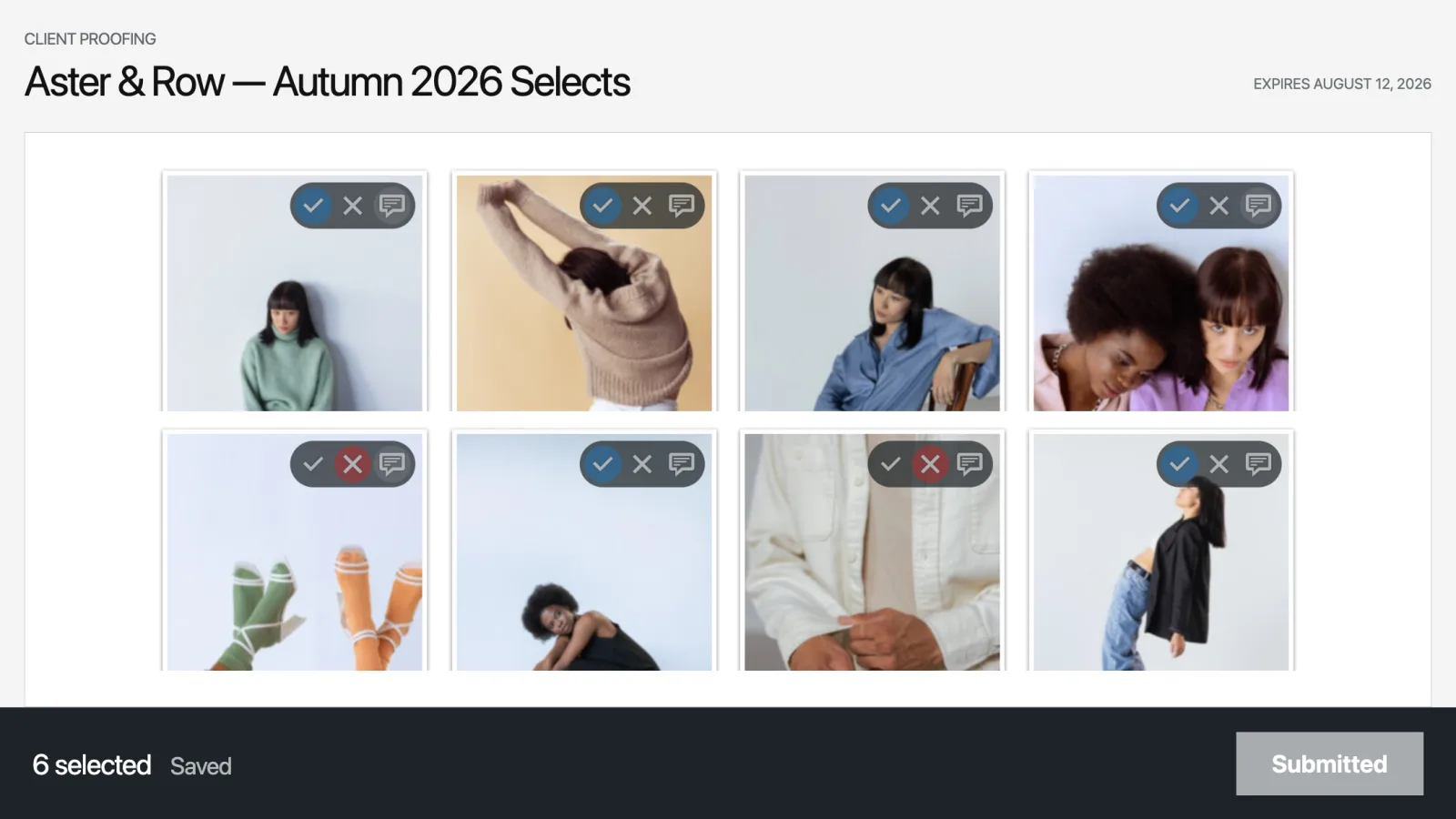
The photographer can make the session writable again by completing it and then selecting Reopen, or by reopening a completed session directly from its detail screen. Reopening changes the status to Draft; the existing link remains valid unless it has expired or its token was rotated.


