
FooGallery Migrate has been updated to version 1.5, which brings a number of new and improved features. With this plugin, you can migrate galleries to FooGallery from several other popular gallery builders. But this latest update offers improved performance, allowing you to migrate more (and larger) galleries. It also includes a few new features, top of which is the gallery block and shortcode migration.
Below, we take a quick look at how FooGallery Migrate works and what you can expect from the latest update.
FooGallery Migrate: How It Works
FooGallery Migrate is a separate plugin to FooGallery, but allows you to migrate galleries created with other plugins to FooGallery. You can download it from WordPress for free, and use it with and of the FooGallery plans including FooGallery Free.
Alternatively, you can download and install FooGallery. Then navigate to Features in the menu and download FooGallery Migrate from the list of extra features provided.
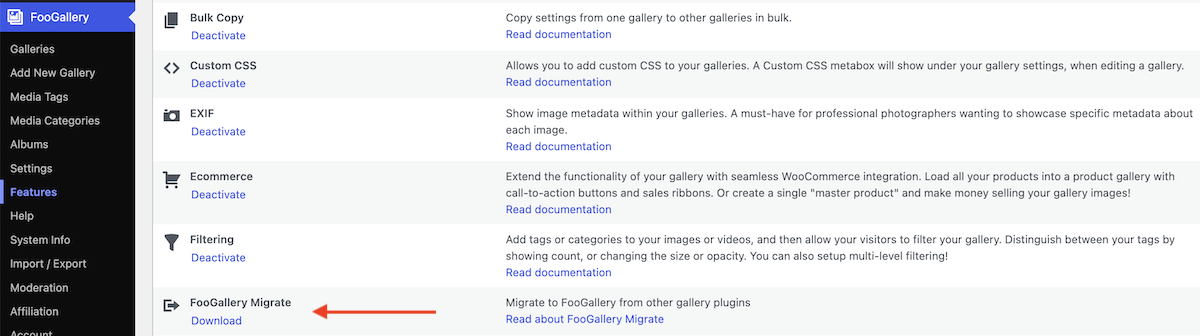
Once you have both FooGallery and FooGallery Migrate installed and activated, it’s really easy to move your galleries over to FooGallery. This works for all galleries built using the below plugins:
- Envira
- NextGen (or Imagely)
- Modula
- Robo Gallery
- 10Web
The process is simple. Ask FooGallery Migrate to detect which plugins are currently on your site, and for which you have galleries.
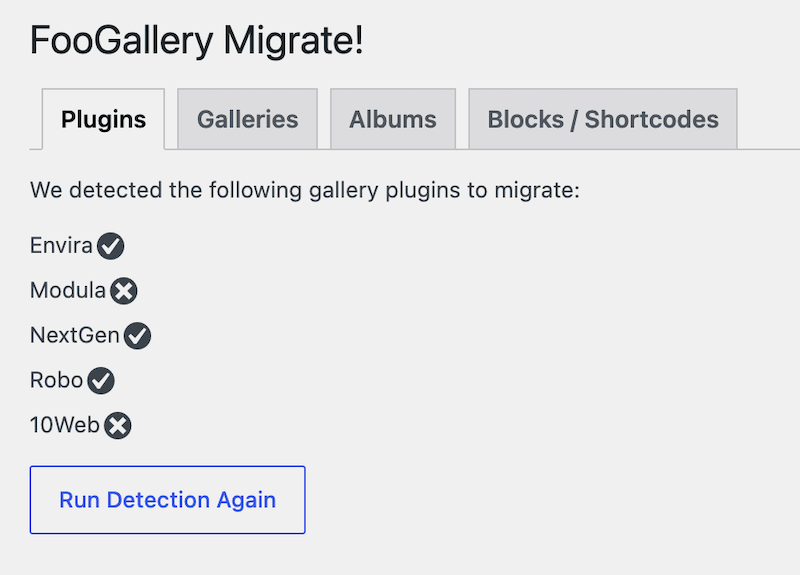
Once this has been established, you will be able to see which galleries, albums and blocks or shortcodes are using these plugins. You’ll then be able to select which of these you want to migrate.
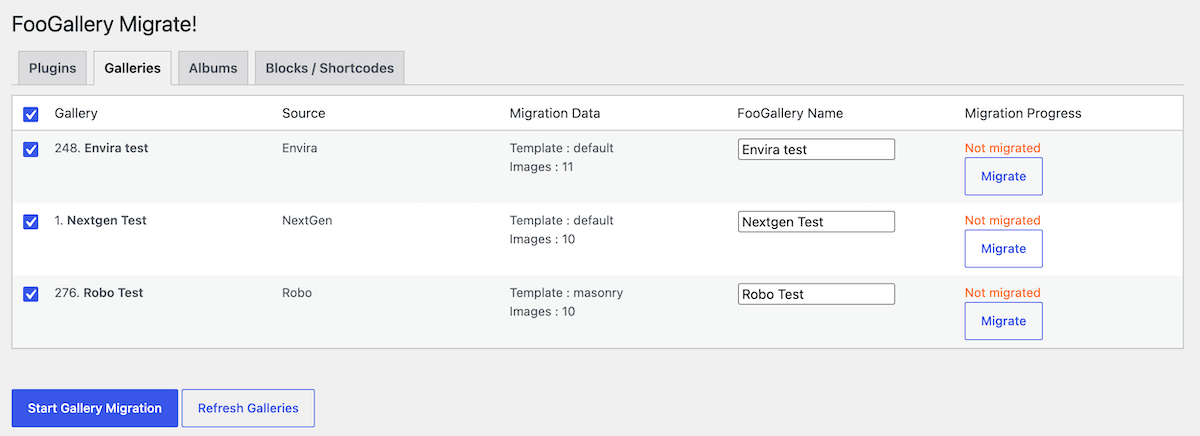
Once you start the process, the plugin migrates everything selected to FooGallery. It takes note of the layouts and settings used, and tries to keep the new FooGallery settings as similar to these as possible. To ensure gallery uniformity, however, FooGallery includes some handy features like the Default Gallery setting and the Gallery Blueprint feature (available in FooGallery PRO Commerce).
Tried a range of gallery plugins and found them mostly pretty restrictive. Even the more expensive ones didn’t seem to offer a highly configurable experience and were pretty expensive, offering only a subscription model. Foo is proving very flexible and the one time purchase option is excellent value
David Cliff
Replace Gallery Shortcodes and Blocks
FooGallery Migrate now includes a setting that allows you to migrate not only your galleries but also all gallery shortcodes and blocks. This makes it much easier to move your galleries from your existing plugin over to FooGallery without the hassle of replacing galleries manually.
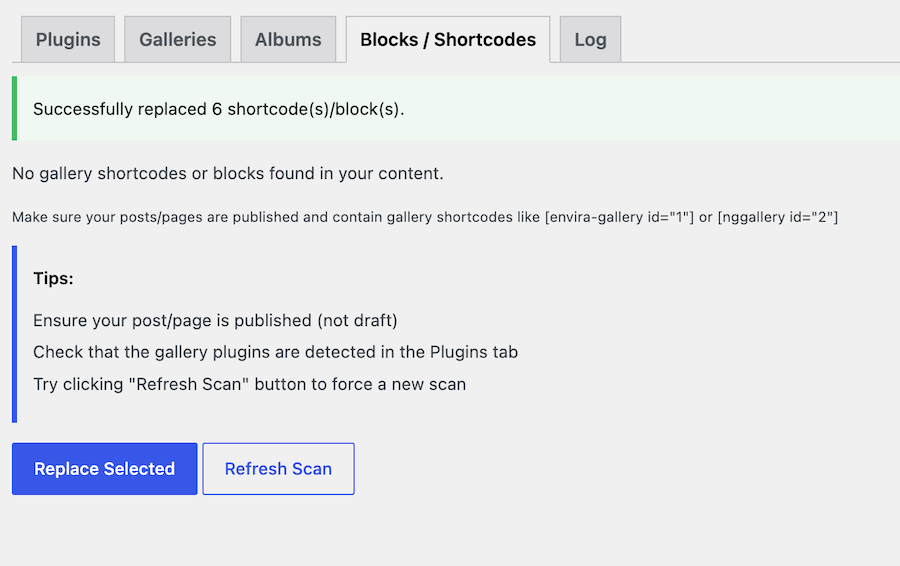
For the Blocks and Shortcodes migration, FooGallery will detect the pages / posts on which these are used. You’ll see that it says Migrated next to each of the galleries, indicating that the gallery has been moved across to FooGallery. You’ll now need to select the items for which you want to replace the blocks / shortcodes and then click Replace Selected.
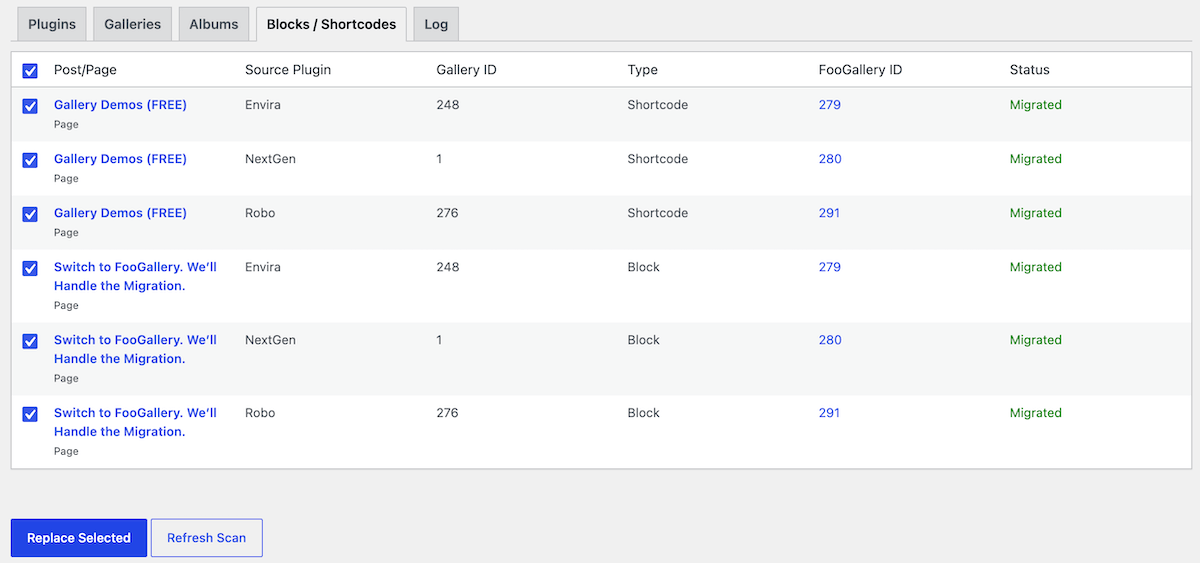
FooGallery Migrate will now replace all of the selected items with their equivalent FooGallery shortcode or block. Once this is done, you’ll see a Success message similar to the below.
Migration Checks and Notices
To improve the way in which FooGallery Migrate works, and to make it a smoother process for you, we’ve included a number of checks. You can use these to ensure that everything has moved across as expected and nothing has been overlooked.
These include the following:
- A new Log tab where you can see all the information about the migrated galleries.
- A new debug tab to see the migrated info (this is only shown when FooGallery Debug mode is on).
- A “Migrate” button for each gallery so you can migrate one gallery at a time.
- A “Check for migration errors” button which checks all attachments after a migration.
- A “Check” button for each migrated gallery to check for errors.
- And finally, additional error info for attachments on the gallery tab under the migration progress.
This update also included an upgrade to the attachment import, making it more resilient to large files, and allowing users to import these without issues.
Find out more in this article about how FooGallery Migrate works.
After testing several photo galleries I find FooGallery works best, and by far the progamme with the most features.
Rekers
In addition, it is very easy to set up, and there are many options to customize it to your liking.
Migrate to FooGallery Now
FooGallery is know for its robust feature set and layout options, even in the free version. It offers a range of customizations, advanced features (especially in the Pro Plans), and solid performance. As one of the most popular gallery plugins available, it’s no surprise that a lot of users have asked for an easy way to move to FooGallery.
While FooGallery Migrate has been available for some time, this latest update makes it even easier to move across to FooGallery. Not only does the plugin replace your galleries, but now it also replaces your shortcodes and blocks. On top of that, you get a number of checks and failsafes, to ensure everything has moved across smoothly.
Migrate to FooGallery now for a better gallery experience!
