

Images can be powerful, but on their own, they don’t always tell the full story. Whether you’re showcasing a portfolio, sharing photography with a community, or collaborating with clients, images often need context, feedback, and discussion to be truly useful. That’s where image comments come in.
Adding media to your posts or pages has become integral to web design, capturing audience interest and providing a visual element of storytelling. But as websites become more interactive, there’s a growing demand for images that do more than sit on a page.
Designers want feedback on specific details, photographers want meaningful engagement, and teams want faster, clearer collaboration. Image comments allow users to leave feedback, provide context, and have discussions directly on images, making visual content far more interactive and useful.
In this guide, we’ll explore what image comments are, why they matter, and how to add them to your WordPress site using FooGallery and the FooGallery Social add-on. With these tools, you get a simple and effective solution designed specifically for building interactive WordPress image galleries.
What Are Image Comments?
Image comments are user-generated discussions attached directly to individual images, rather than to an entire post or page. Instead of leaving a general comment below a gallery or at the end of an article, users can comment on the exact image they’re responding to, keeping feedback focused and relevant.
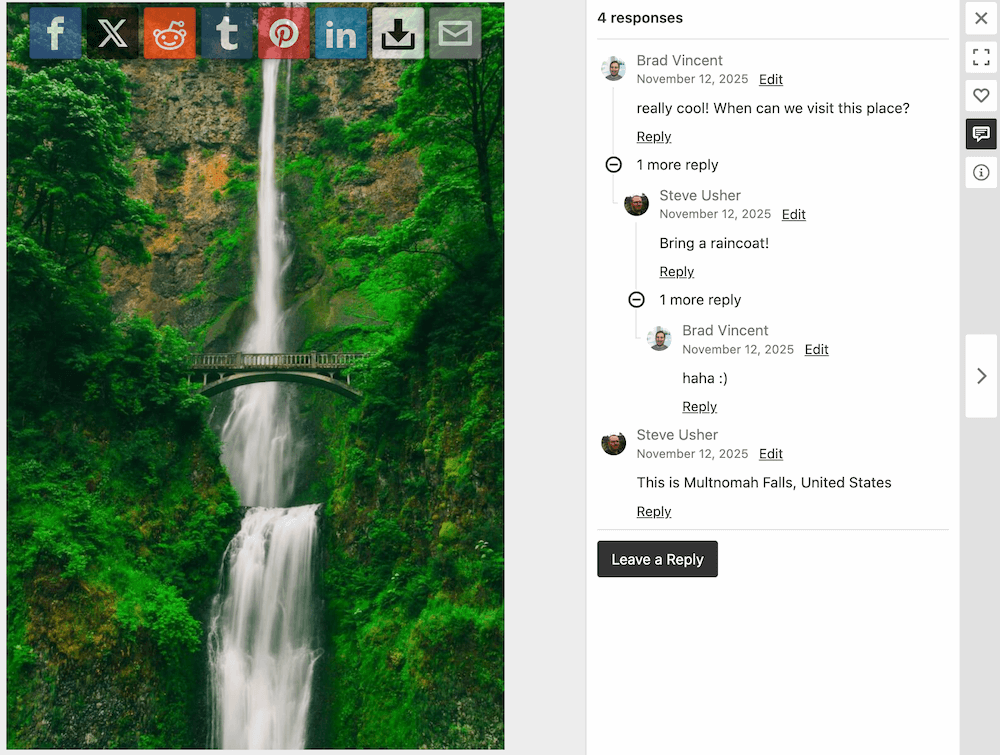
In practice, image comments often work as visual annotations or notes. They allow your audience, or relevant users, to comment on specific visuals, details, or ideas within an image, making conversations clearer and more meaningful. This is especially useful when feedback needs to be precise, such as pointing out design changes, highlighting areas of interest, or explaining elements or concepts about the visual.
Common use cases for image comments include:
- Client feedback on design drafts, mockups, or photographic proofs, where comments are tied to specific images. Think of a photographer who needs clients to select the images they want to keep or give feedback about elements such as color, resolution, and so on.
- Community engagement on photo galleries, encouraging discussion and interaction around individual images. (This can be useful when running photo contests, for example.)
- Educational use, where teachers or students explain parts of an image or discuss visual examples – especially for online courses.
- Team collaboration and review workflows, helping teams centralize visual feedback in one place.
Compared to traditional page-level comments, image comments provide more context and clarity. This is because feedback is attached to the image itself, rather than buried in a general comment thread.
To implement this kind of visual feedback effectively in WordPress, however, you’ll need the right tools. An easy solution is to use a gallery plugin such as FooGallery and the FooGallery Social add-on.
Getting Started with Image Comments Using FooGallery Social
Image comments aren’t built into WordPress core, which means you’ll need a plugin-based solution to add this functionality to your site. FooGallery Social fills this gap by extending image galleries with interactive features (including image comments).
FooGallery is a WordPress gallery plugin that integrates seamlessly with WordPress media uploads, allowing you to use your existing images to create media galleries. Using a plugin to create your galleries means that they remain fast, responsive, and are fully compatible with modern browsers and devices. Plus, you get the benefit of additional features like lazy loading and pre-styled gallery layouts.
This plugin is designed to be theme-agnostic, meaning it works well with most WordPress themes without requiring custom styling. It also supports common image formats used in WordPress galleries, including JPEG, PNG, GIF, and WebP, ensuring broad compatibility.
Love how I can change the look and save galleries for my photography website, perfect plugin for my needs
Paul Screen
FooGallery Social is a FooGallery add-on that elevates your existing FooGalleries by allowing for likes, shares, and comments on images within your galleries. It works with any of the FooGallery plans, including the free version.

To get started with interactive galleries, you’ll need:
- A supported WordPress version (5.3 or higher, at the time of publishing)
- The core FooGallery plugin
- The FooGallery Social add-on, to enable comments and other social features
Setting up FooGallery for Image Comments
Getting set up for image comments with FooGallery is straightforward and doesn’t require custom code.
- Start by installing FooGallery from the WordPress plugin repository and activating it. Alternatively, depending on the features you’re looking for in your gallery plugin, you can buy a FooGallery PRO plan. Once the core plugin is active, you can purchase, install, and activate the FooGallery Social add-on.
- You can now create your image gallery by clicking on ‘Add Gallery’ and either uploading your images or selecting ones from your media library. FooGallery PRO Expert users can also add videos to their gallery.
- Choose your gallery layout and customize as needed.
- From your FooGallery settings, you can enable social features such as comments and likes, giving you control over which interactions appear in your galleries. One key advantage is that these features are handled on a gallery level, rather than applied sitewide. This allows you to incorporate image comments only where they make sense.
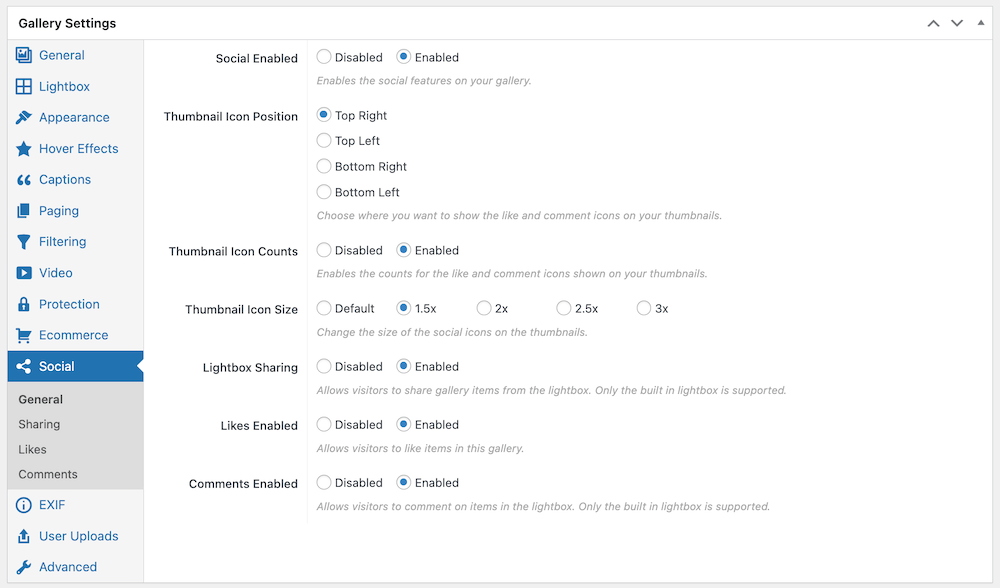
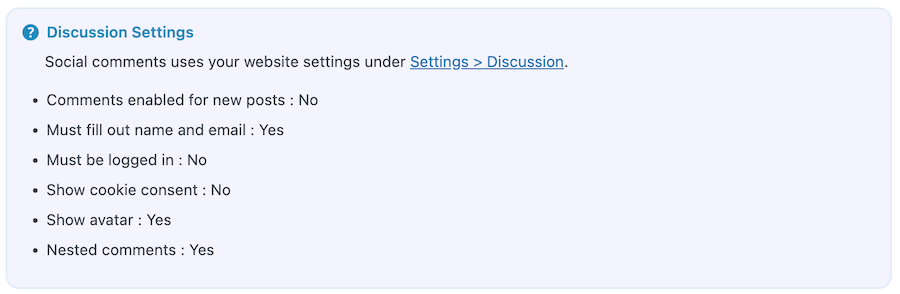
- You can also configure user roles and permissions for Likes and Comments, deciding who can comment and whether guest comments are allowed. It’s important to ensure that comments are enabled at the WordPress level as well, since FooGallery uses WordPress’s native commenting system. The settings you use for your comments will therefore be applied to image comments as well.
Once you have set up your gallery, you can publish and display it on your site. Users can now like, share, and comment on images within the gallery.
Here’s a look at how the FooGallery Social add-on works in a gallery:








Creating and Managing Image Comments
Accessing and Using the Comment Toolbar
Once image comments are enabled, users can add comments directly beneath or alongside individual images within a gallery. As the comment interface uses native WordPress comments, it’s both intuitive and familiar, making it easy for visitors to participate.
It’s advisable to use threaded replies to allow users to build discussions around a single image in the gallery and to keep conversations organized. Visual indicators – such as comment icons or like counts, as in the screenshot below – help you quickly see which images are generating engagement, and boost engagement.

Site owners also have access to moderation controls and can manage both logged-in user comments and guest comments (if enabled). The built-in admin and moderator tools make it easy to review, approve, or remove image comments as needed.
Moderating Image Comments Effectively
Effective moderation helps website owners maintain a professional and welcoming environment. FooGallery works alongside WordPress’s built-in comment moderation tools, making it easier to manage image comments at scale. Typically, comment authors can edit their own comments, while admins have full control to edit or delete any comment.
Over time, some comments may become outdated or resolved. We recommend cleaning these up to help keep feedback relevant and galleries easy to navigate. Moderation tools can also be used to prevent spam, manage inappropriate content, and ensure discussions stay constructive and on point.
Advanced Features and Tips
Monitoring Comments
You can identify high-engagement images by tracking comment activity and prioritizing moderation where it’s most needed. For sites with a lot of visual feedback, it’s helpful to establish workflows for reviewing, responding to, and resolving image comments efficiently.
Using Image Comments with Mobile Devices
FooGallery galleries are fully responsive, ensuring image comments work smoothly on mobile devices. Touch-friendly interfaces make it easy for users to comment, reply, and read discussions on smaller screens. Here’s an example of how this would look.
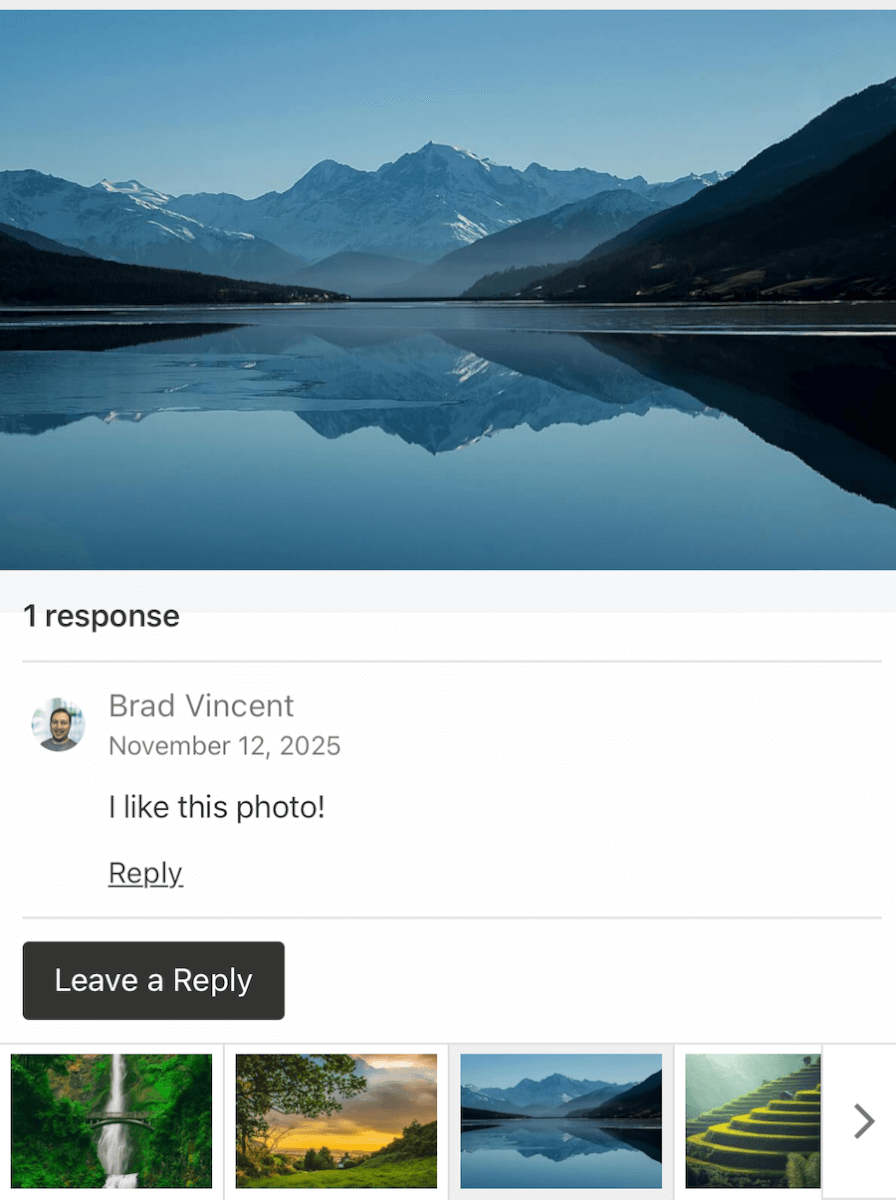
Optimizing image sizes and comment layouts helps maintain readability and usability, even on mobile. This is especially important for community-driven galleries where many users interact on phones or tablets.
Sharing and Collaborating with Others
Image comments are particularly useful for client approvals and review cycles, where feedback needs to be clear and centralized. They also encourage interaction in public galleries, such as photo contests or community showcases. Image comments transform static galleries into collaborative, social experiences – turning images into conversation starters rather than passive content.
You can maximize this engagement by combining comments with the other FooGallery Social features: Likes and Sharing. Or combine these with the FooGallery User Uploads add-on, which allows for frontend gallery uploads, to create a true UGC experience.
Add Image Comments with FooGallery Social
Image comments add a deeper layer of context and interaction to visual content. By allowing feedback, discussion, and collaboration to happen directly on images, galleries become more engaging, while providing an easier, more effective way to work with clients, build a community, or share visual ideas.
While WordPress doesn’t include image comments by default, tools like FooGallery and the FooGallery Social add-on make it easy to bridge that gap. With seamless WordPress integration, flexible gallery-level controls, and built-in moderation features, FooGallery gives you everything you need to add image comments without complicating your workflow or relying on custom development.
If you’re looking to turn static galleries into interactive experiences, FooGallery Social offers a practical, WordPress-native solution. Help your images spark conversations, collect meaningful feedback, and bring your visual content to life. Start using FooGallery Social today.
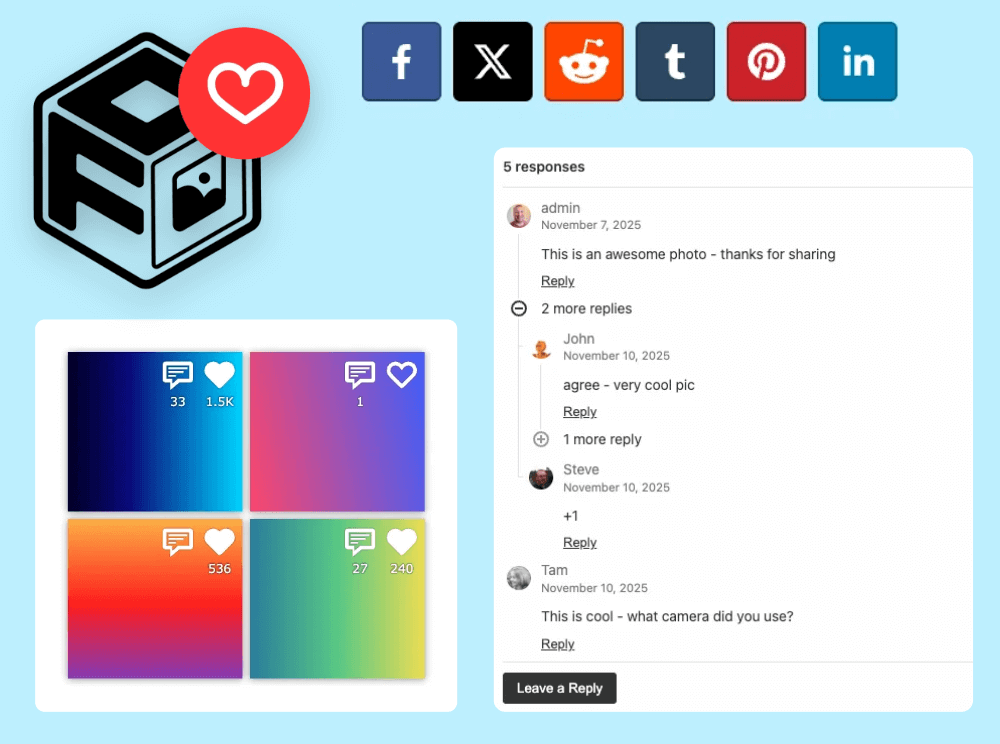
FooGallery Social FooGallery social add-on
Turn Galleries Into Social Experiences
Add likes, comments, and easy sharing to FooGallery images and galleries.